Video Instruction No.1: How to Submit Meter Readings via the Main Page of Kyivvodokanal Website
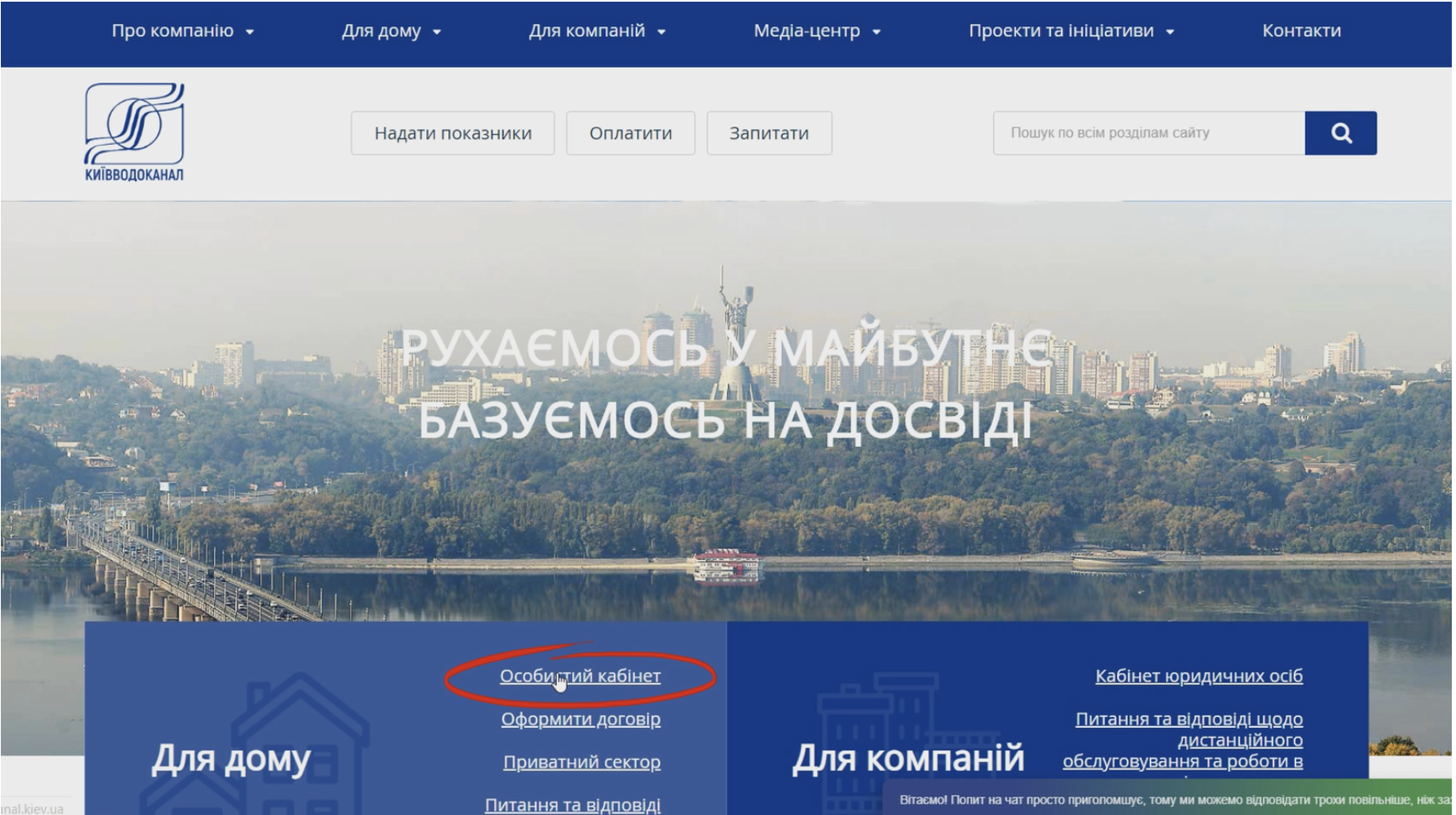
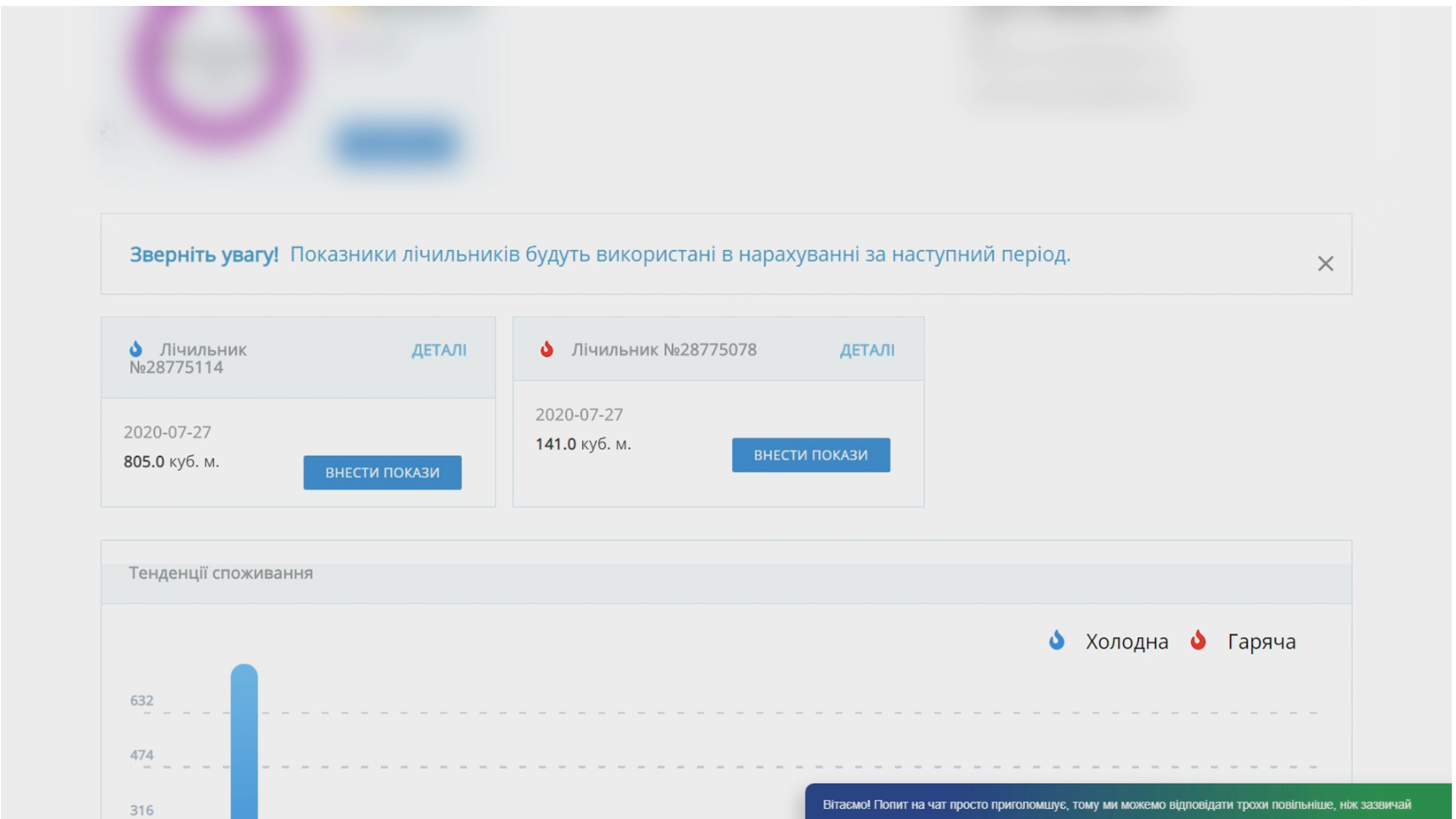
On the main page of the Kyivvodokanal website, there is a service called "SUBMIT METER READINGS" through which you can submit the readings of your apartment's cold and hot water meters for further calculations and printing of receipts.
For your convenience, we have created a video instruction that explains how to do this step by step.
Video Tutorial #1: How to submit meter readings through the main page of the Kyivvodokanal website
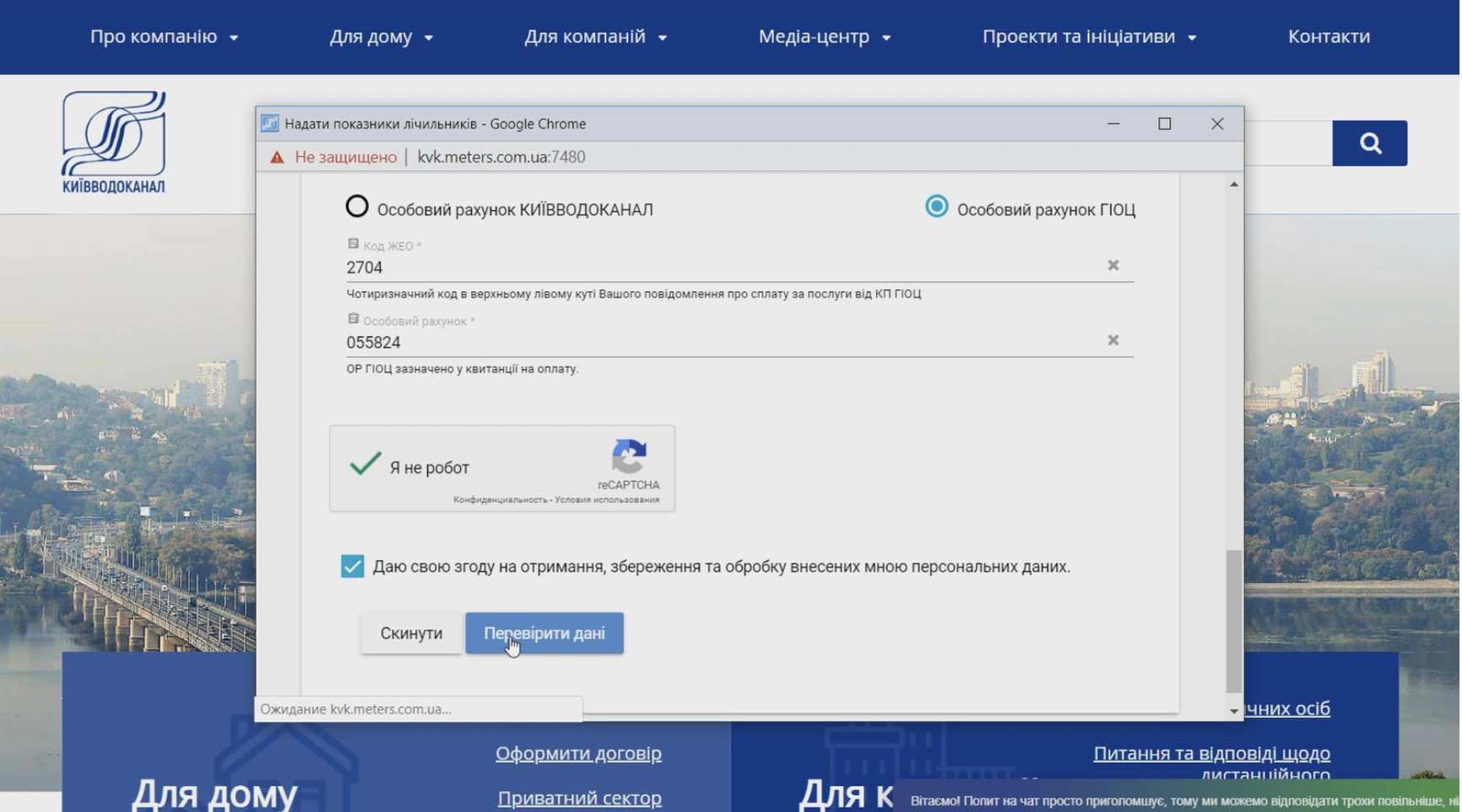
To start using the service, you need to determine the type of your receipt and find your personal account number on it:
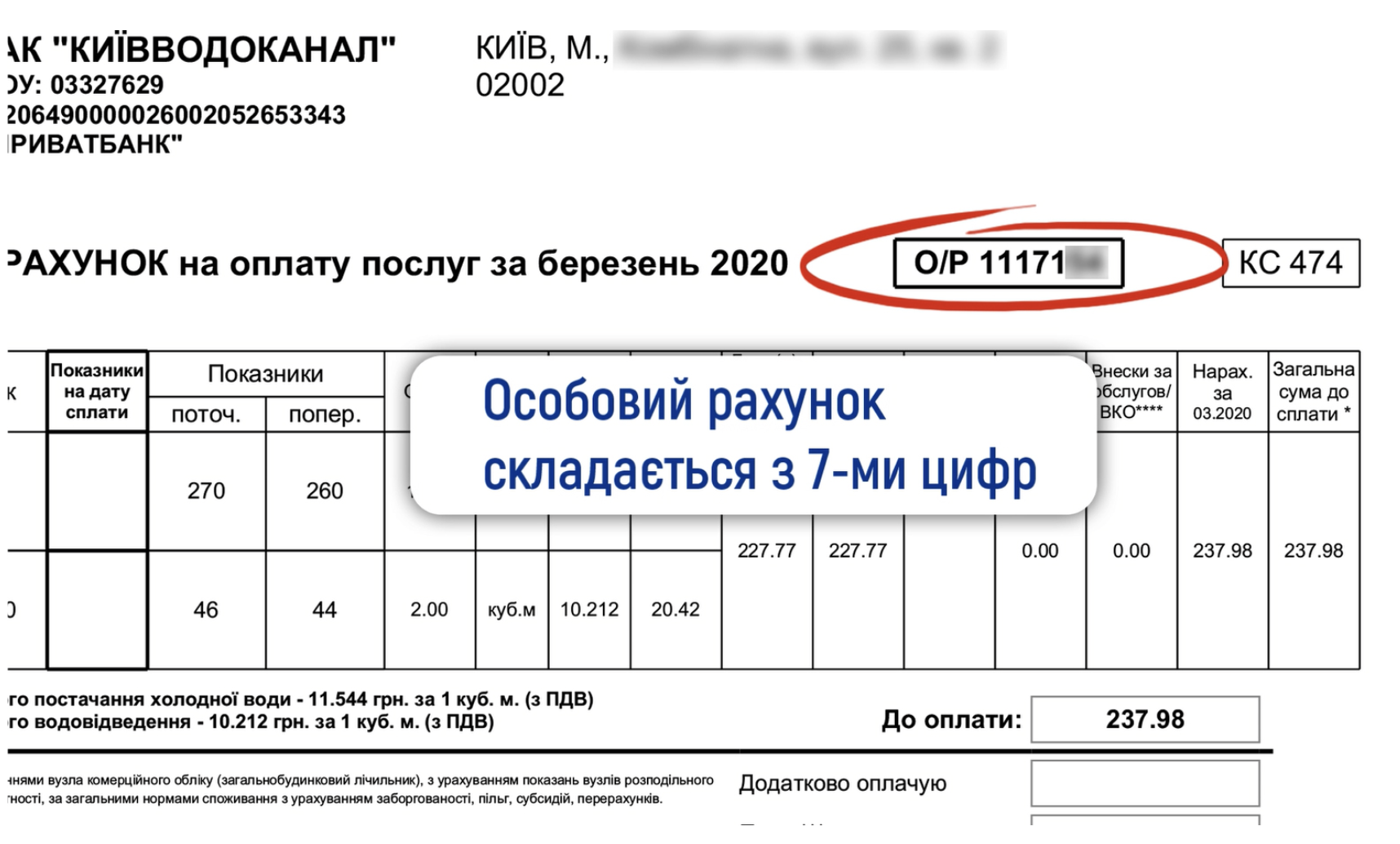
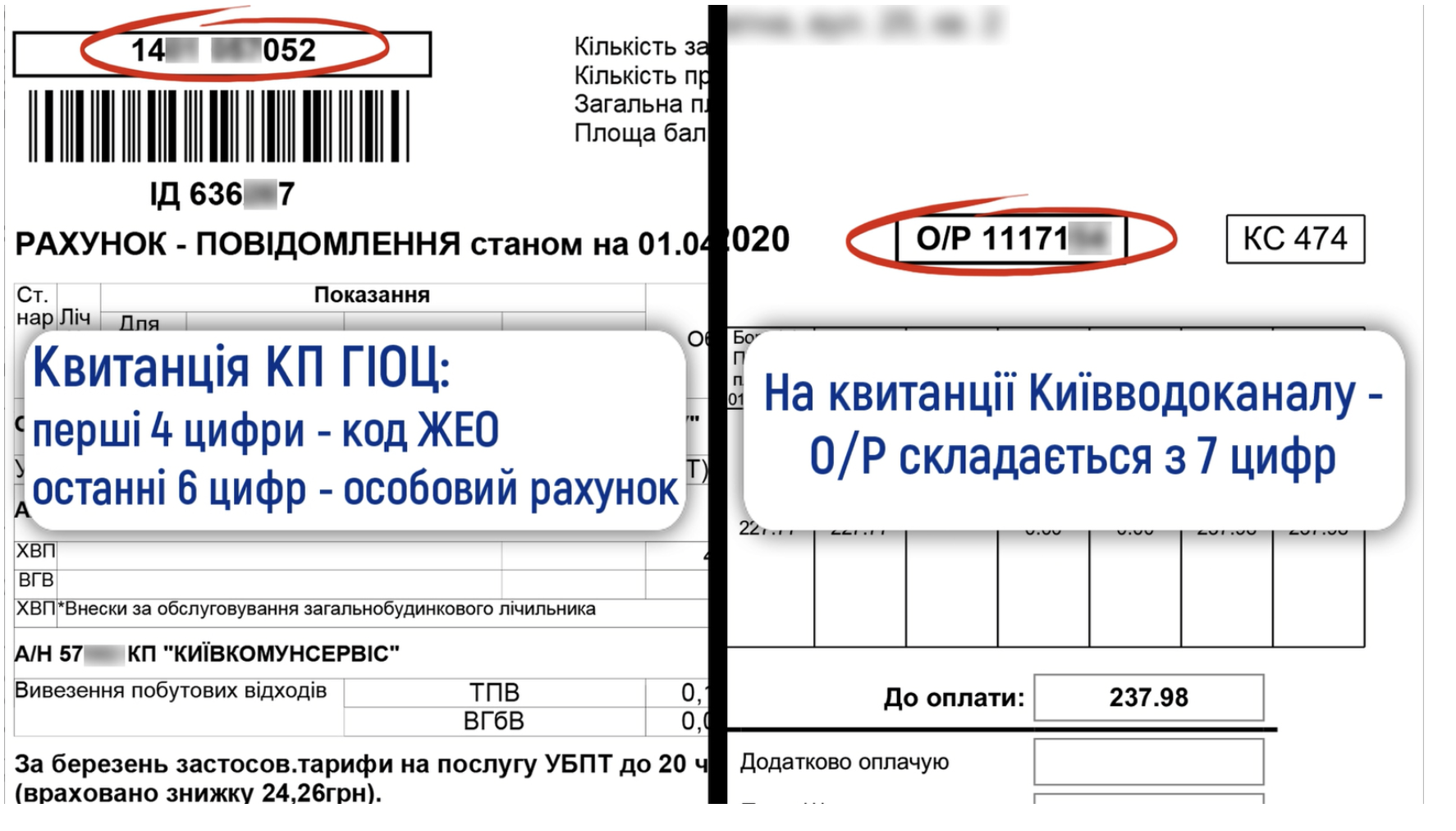
- On the Kyivvodokanal receipt, it consists of 7 digits and is indicated in the "Personal Account" field in the top right corner.
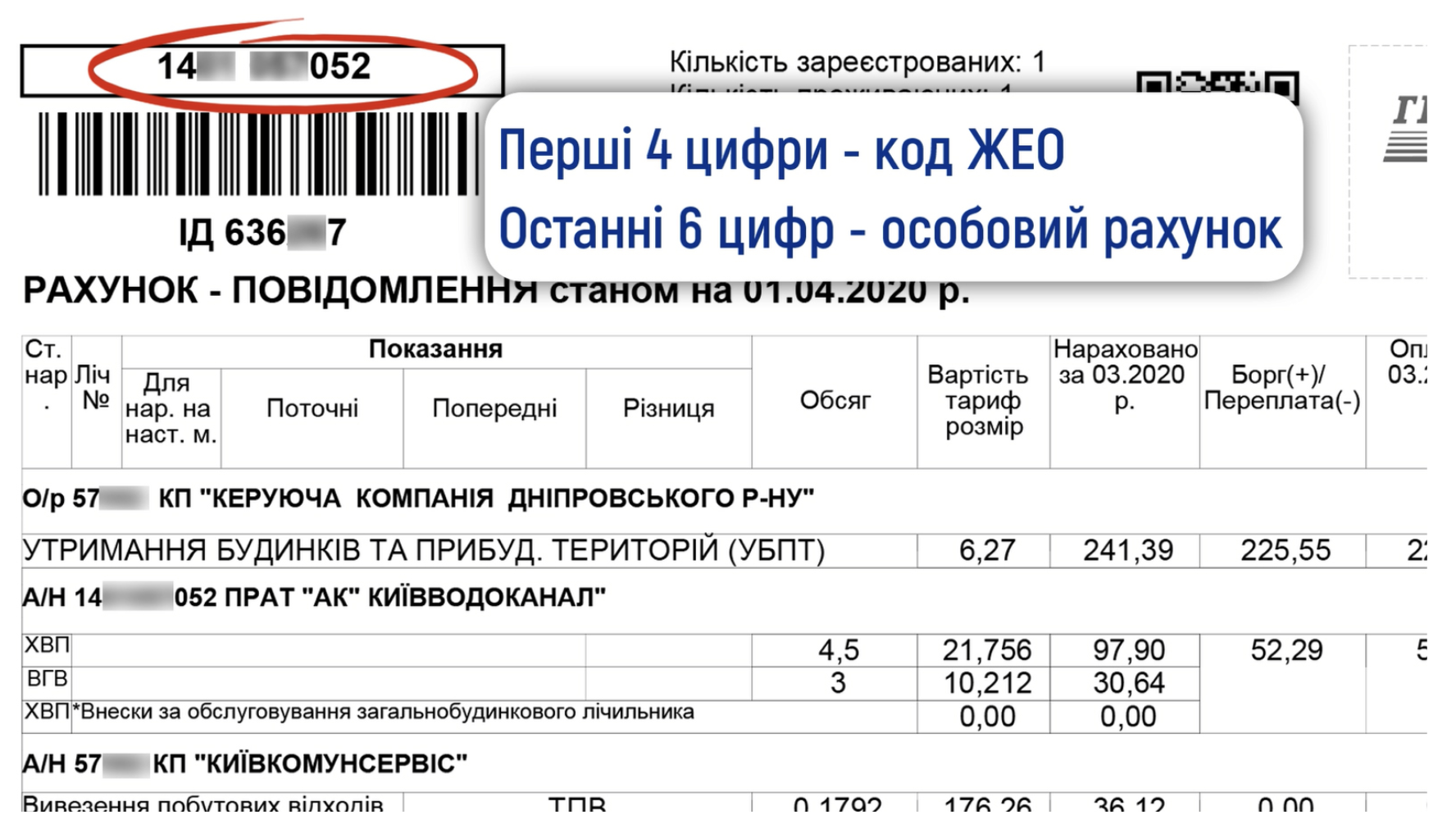
- In the payment notice for services from KCCS, a four-digit JEO code is initially indicated in the top left corner, followed by a six-digit personal account of KCCS. Both codes need to be entered on the website in the designated fields.
Personal account of the Central City Clinical Hospital (CCCH) consists of 10 digits. If you cannot access your personal cabinet because you have only 9 digits, you need to add "0" at the beginning of the personal account number.
To submit readings, you need to perform the following actions:
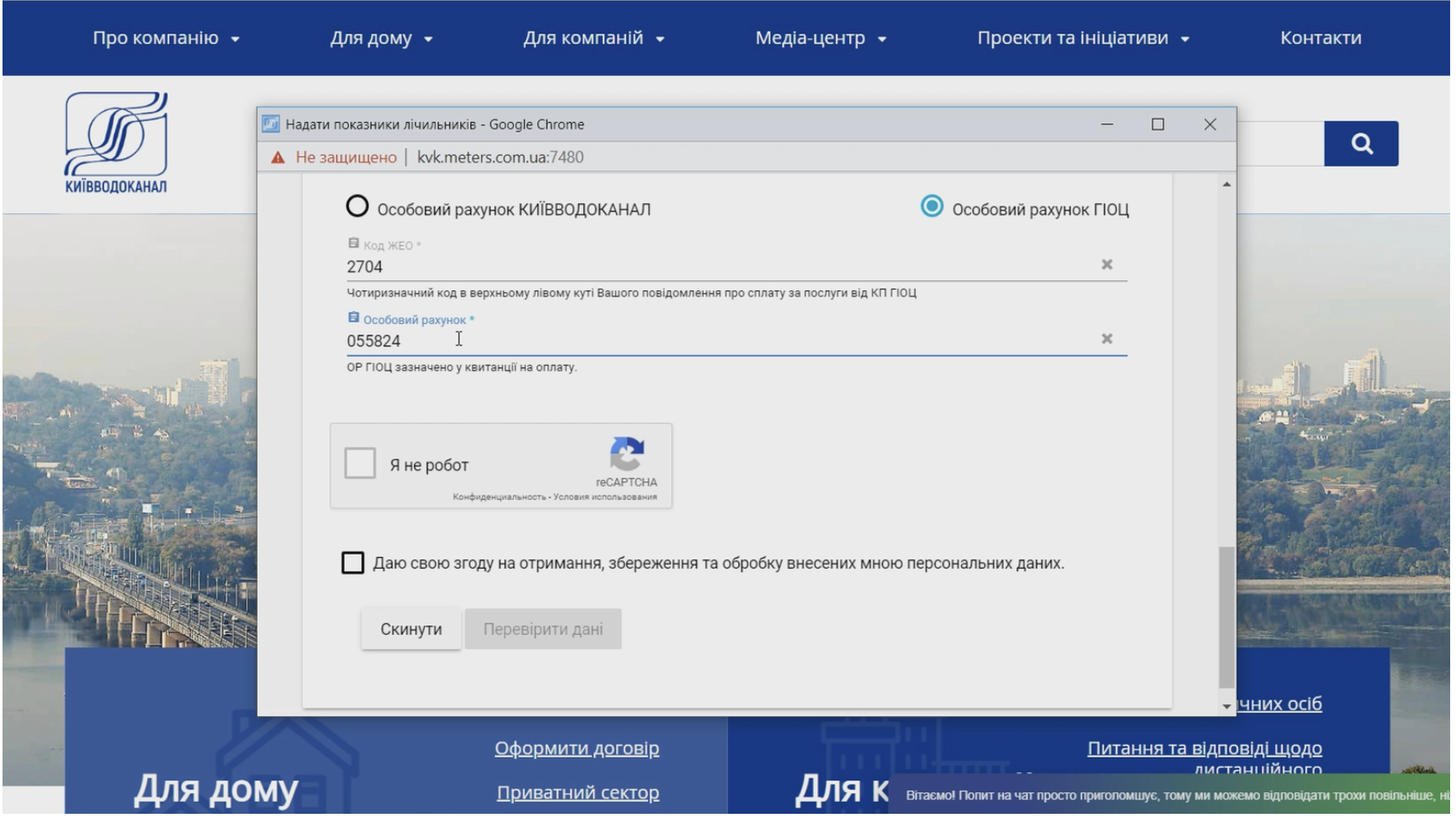
1) First, enter your personal account number for identification in our system;
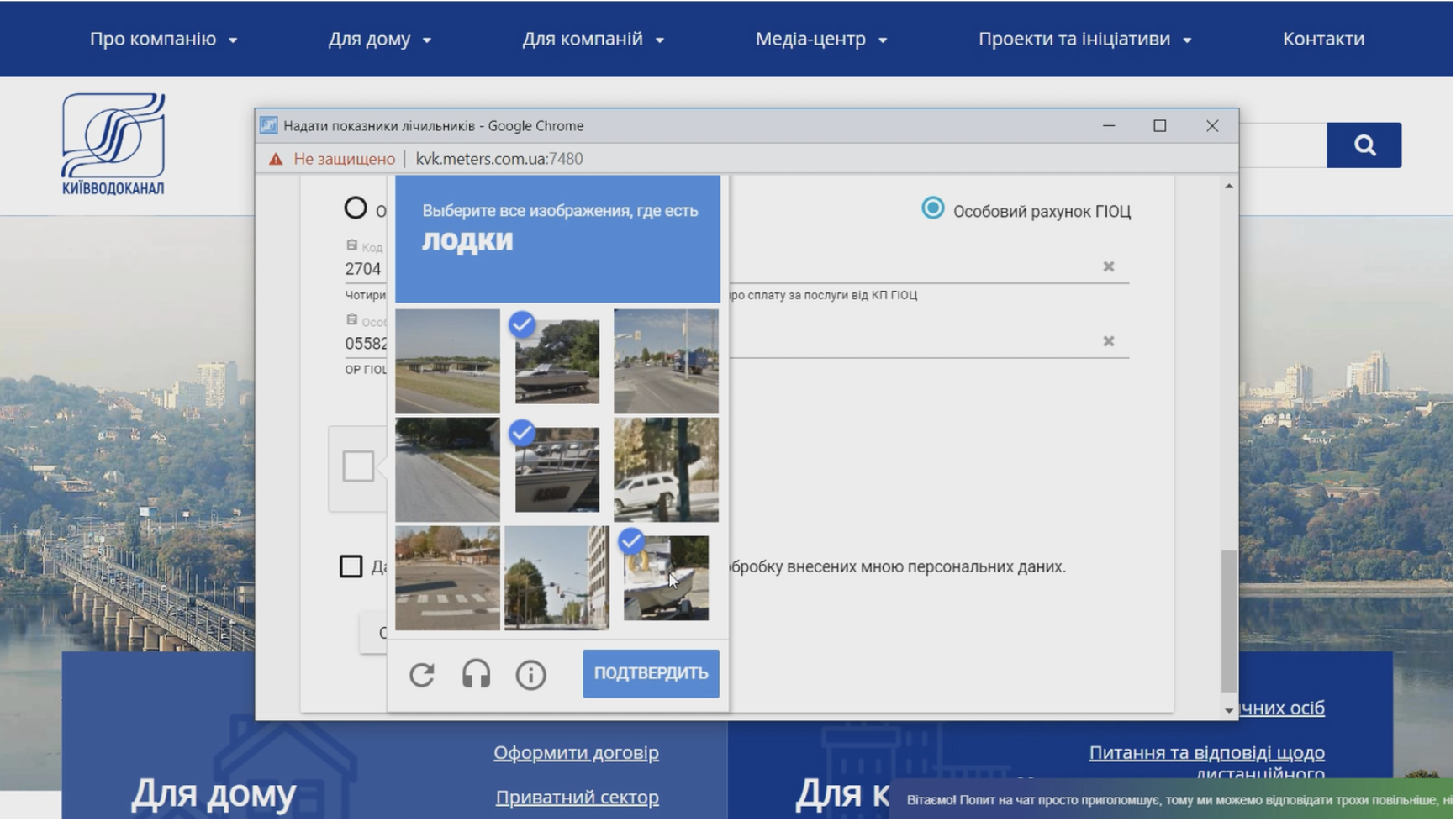
2) Check the box for "I'm not a robot" and pass the necessary test if required;
3) Please indicate your consent to receive, store, and process the personal data you have provided.
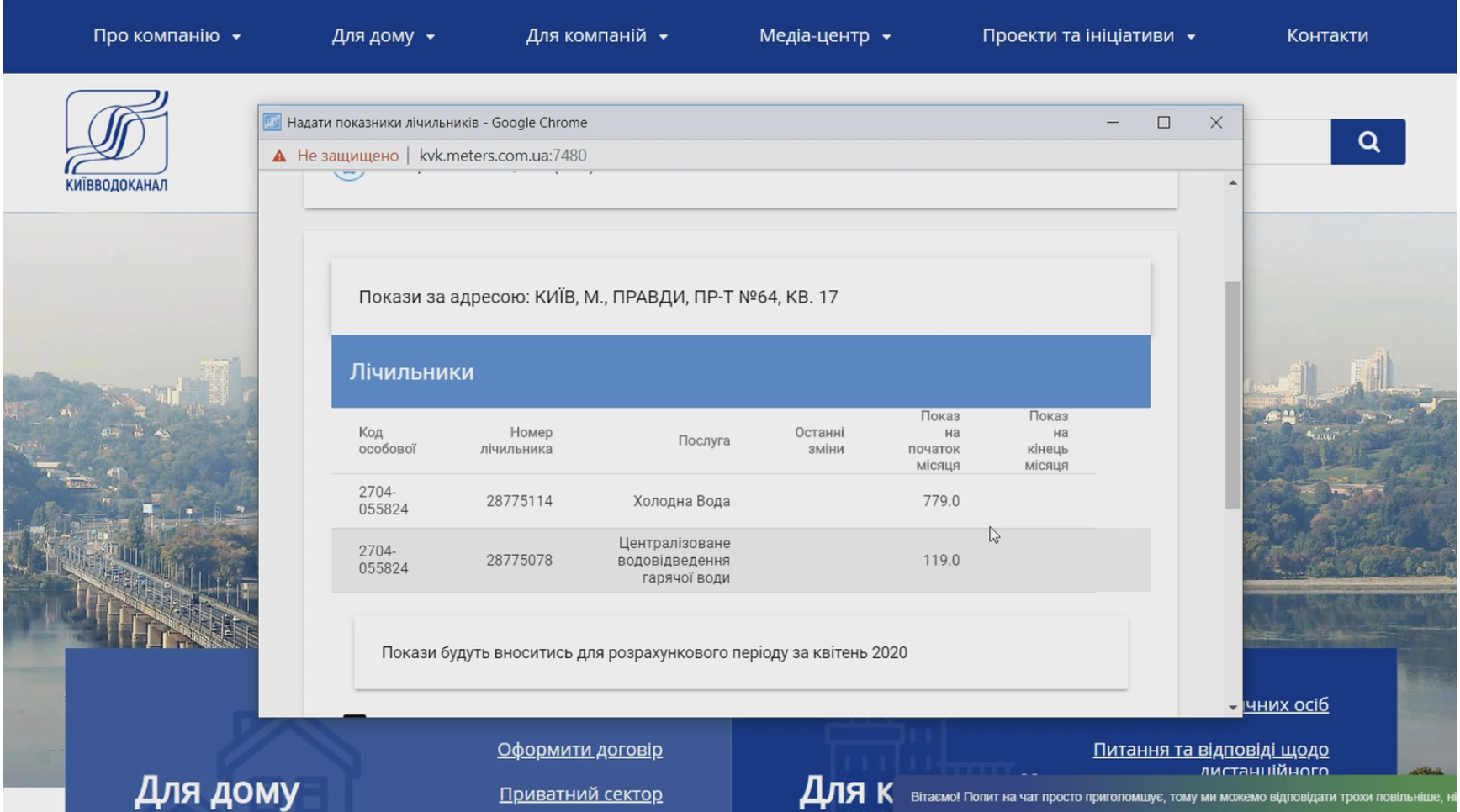
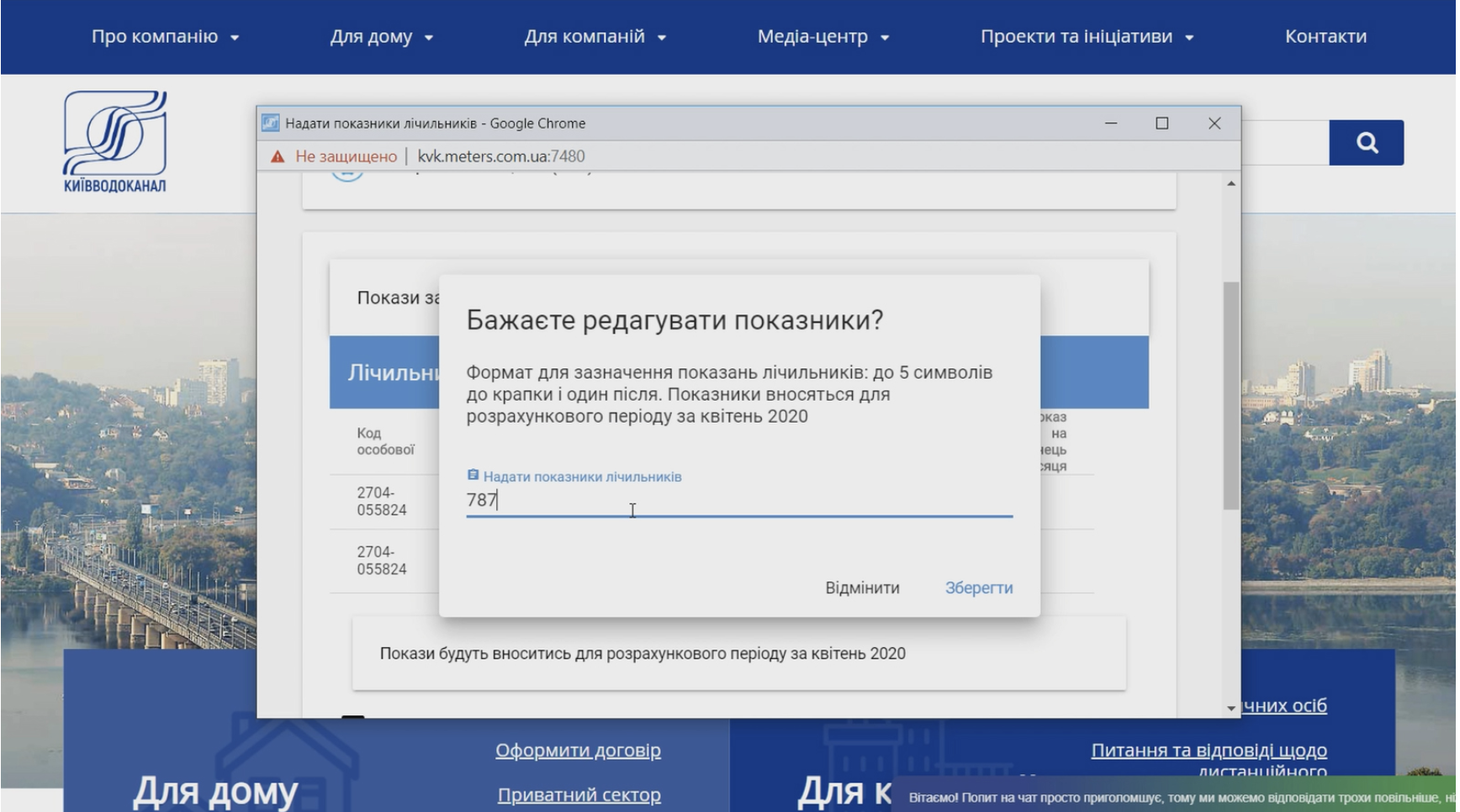
4) After checking the data and passing identification, you will be able to enter the actual readings of your meters. To do this, click on the empty field in the "End of Month Readings" column.
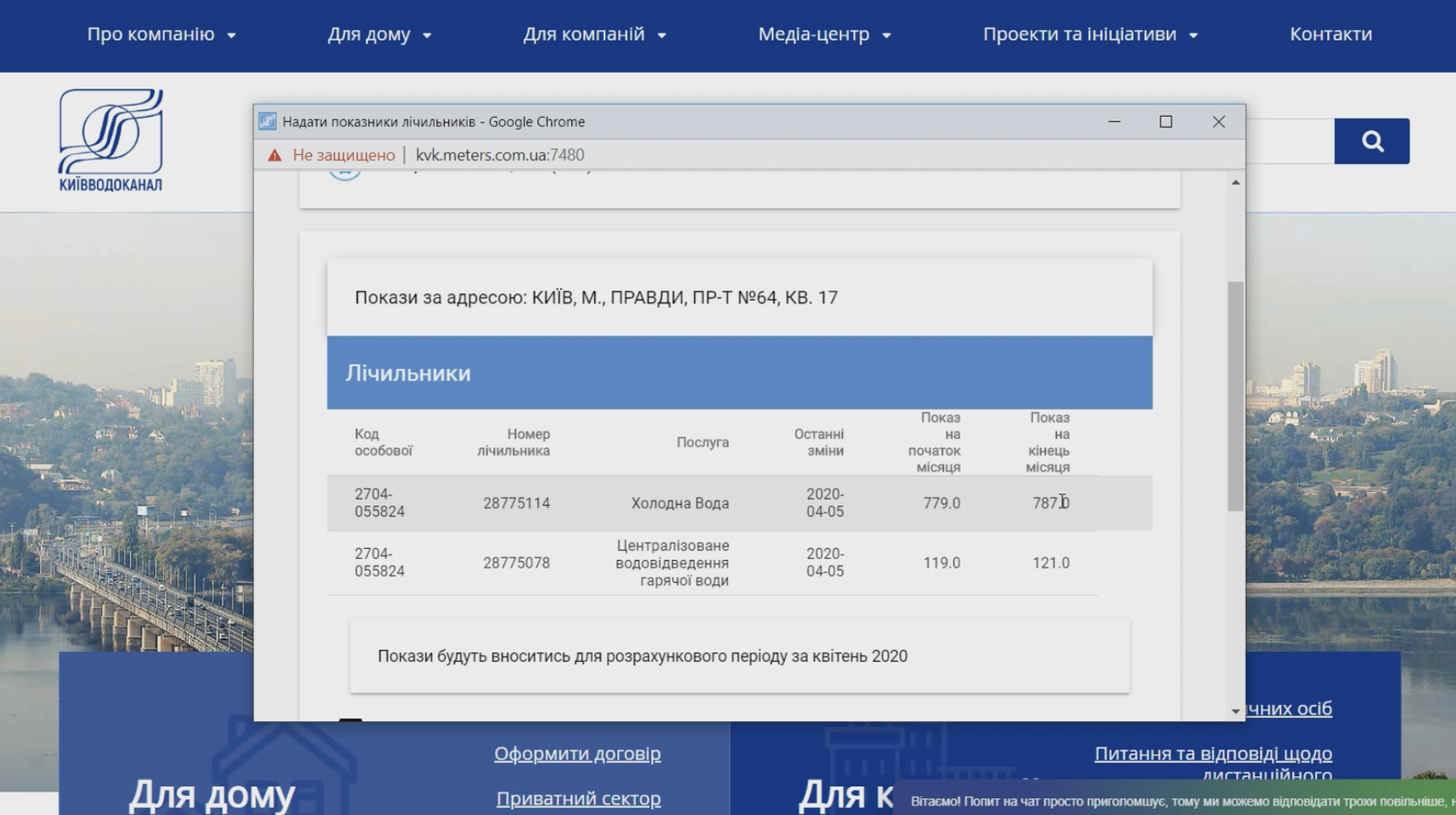
When a window for data entry appears, specify the actual readings opposite the corresponding water meter, repeating these actions for each of your meters.
Upon completion, click the "Submit Data" button to send the entered readings to our system.
**Translation:**
The amount to be paid will be indicated on the receipt based on the data you provide. Please note that cold water meter readings are required for calculating payments for centralized cold water supply and wastewater, while hot water meter readings are for calculating payments for hot water drainage.
We remind you that meter readings should be submitted regularly from the 10th to the end of the calendar month.
Thank you for submitting your readings online!
Video Tutorial #2: How to Submit Meter Readings Through Your Personal Cabinet on the Kyivvodokanal Website
In your personal cabinet on our website, you can conveniently and quickly submit your meter readings. To help you understand how to do this, please watch our video tutorial:
To submit your meter readings via the personal cabinet on the Kyivvodokanal website, follow these steps:
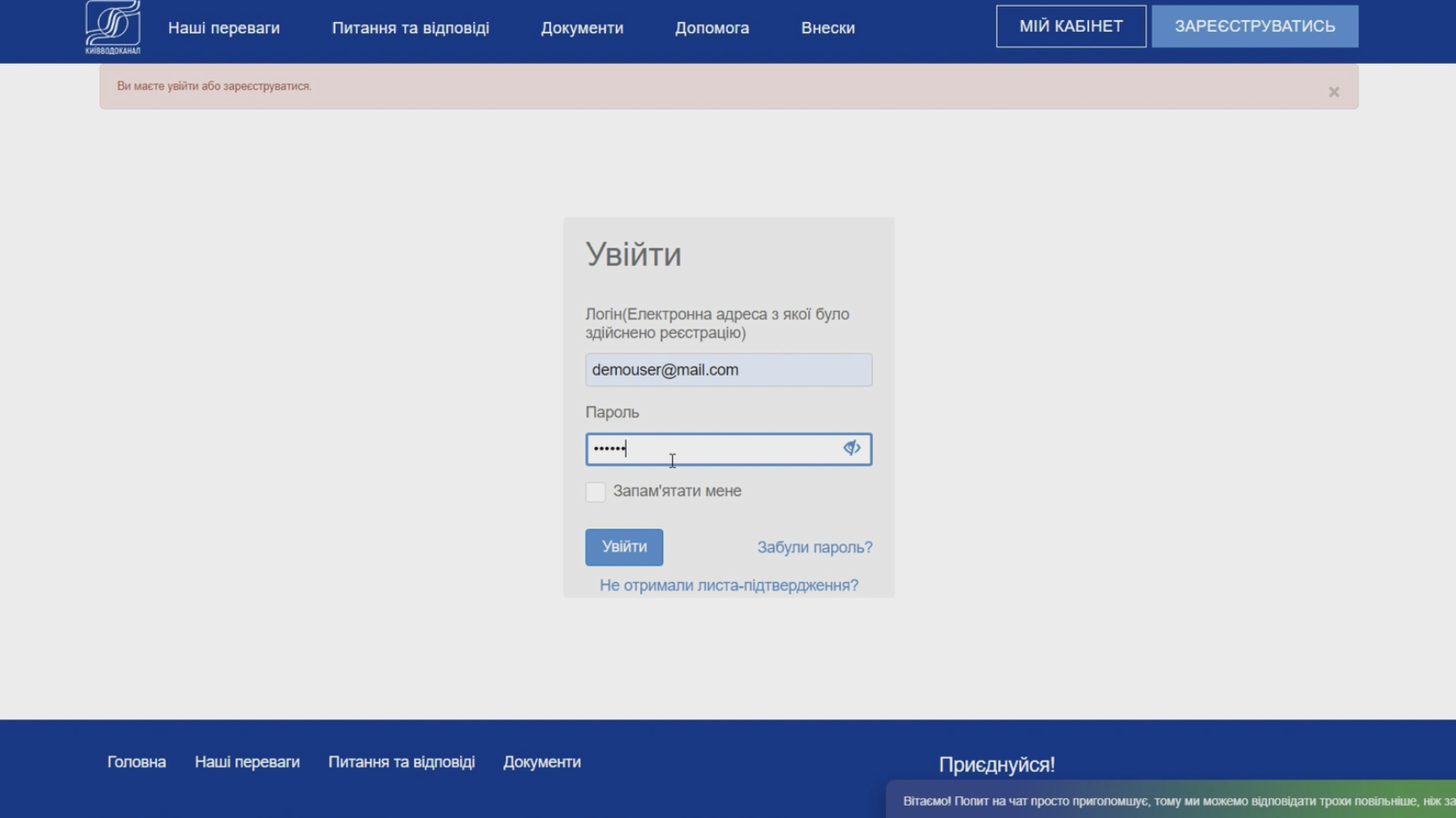
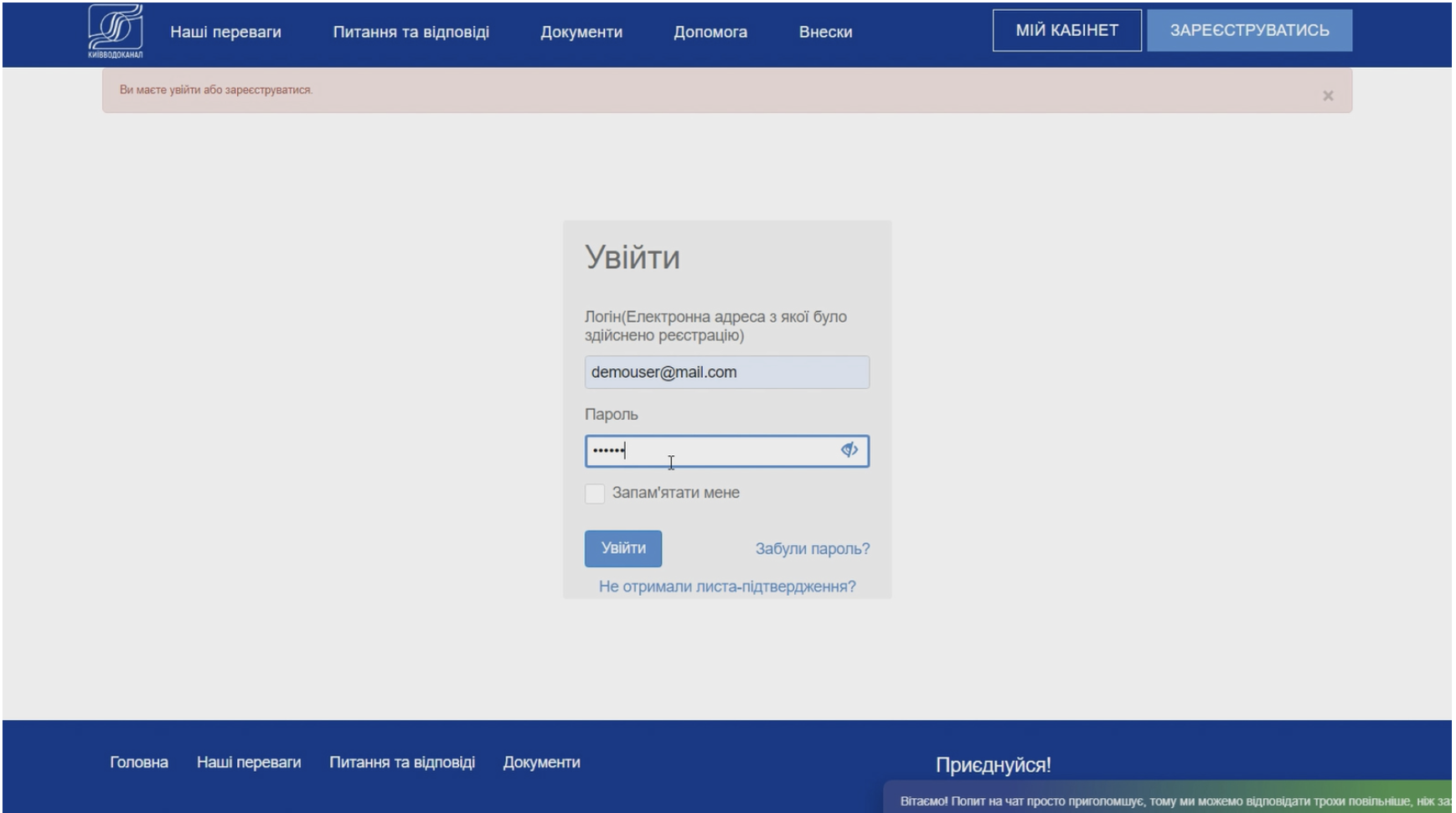
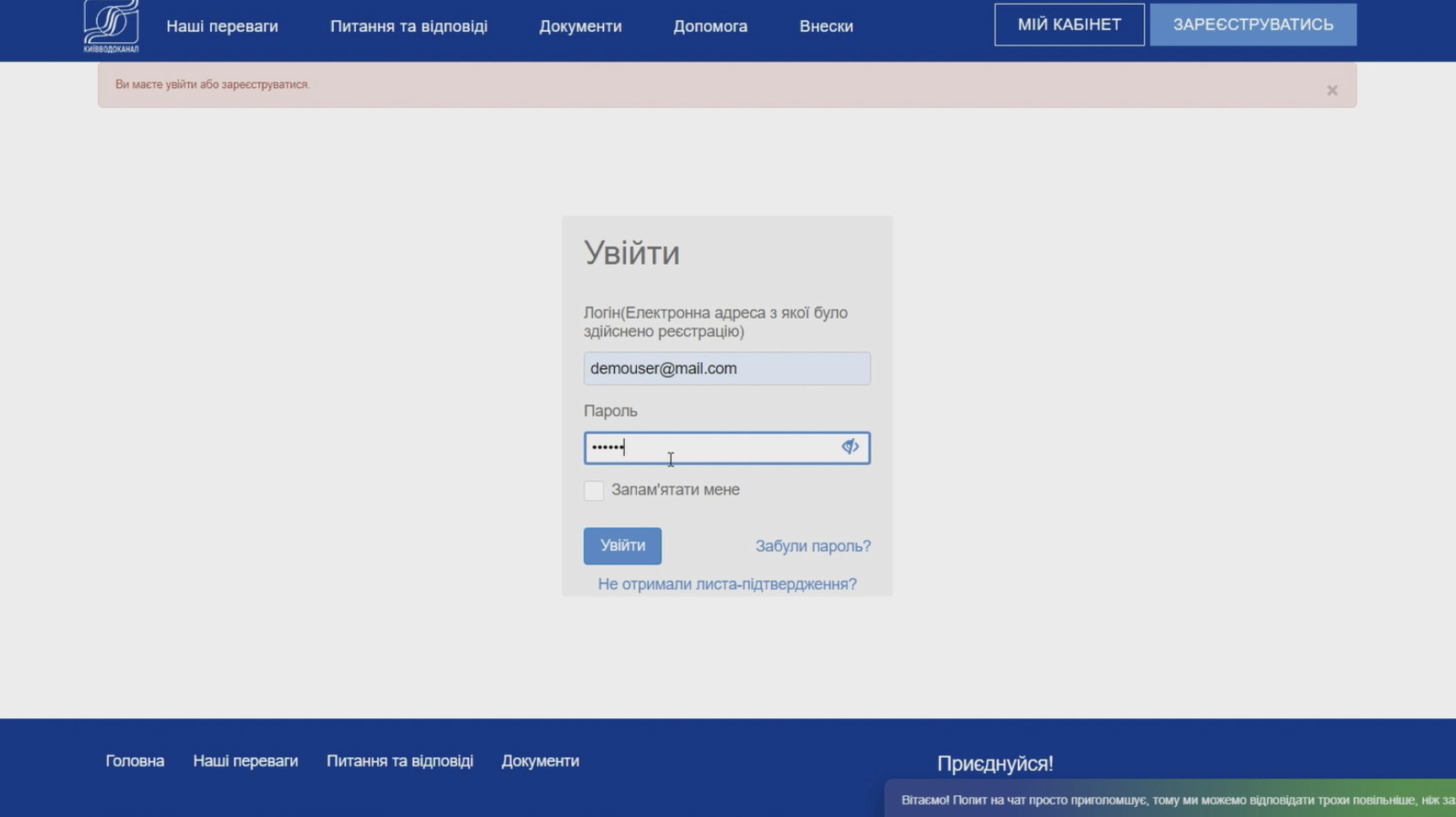
1. Log in to your personal cabinet on the Kyivvodokanal website.
2. Navigate to the "My consumption" section.
3. Select the meter you want to submit readings for.
4. Enter your current meter reading in the appropriate field.
5. Click the "Submit" button to send your meter reading to Kyivvodokanal.
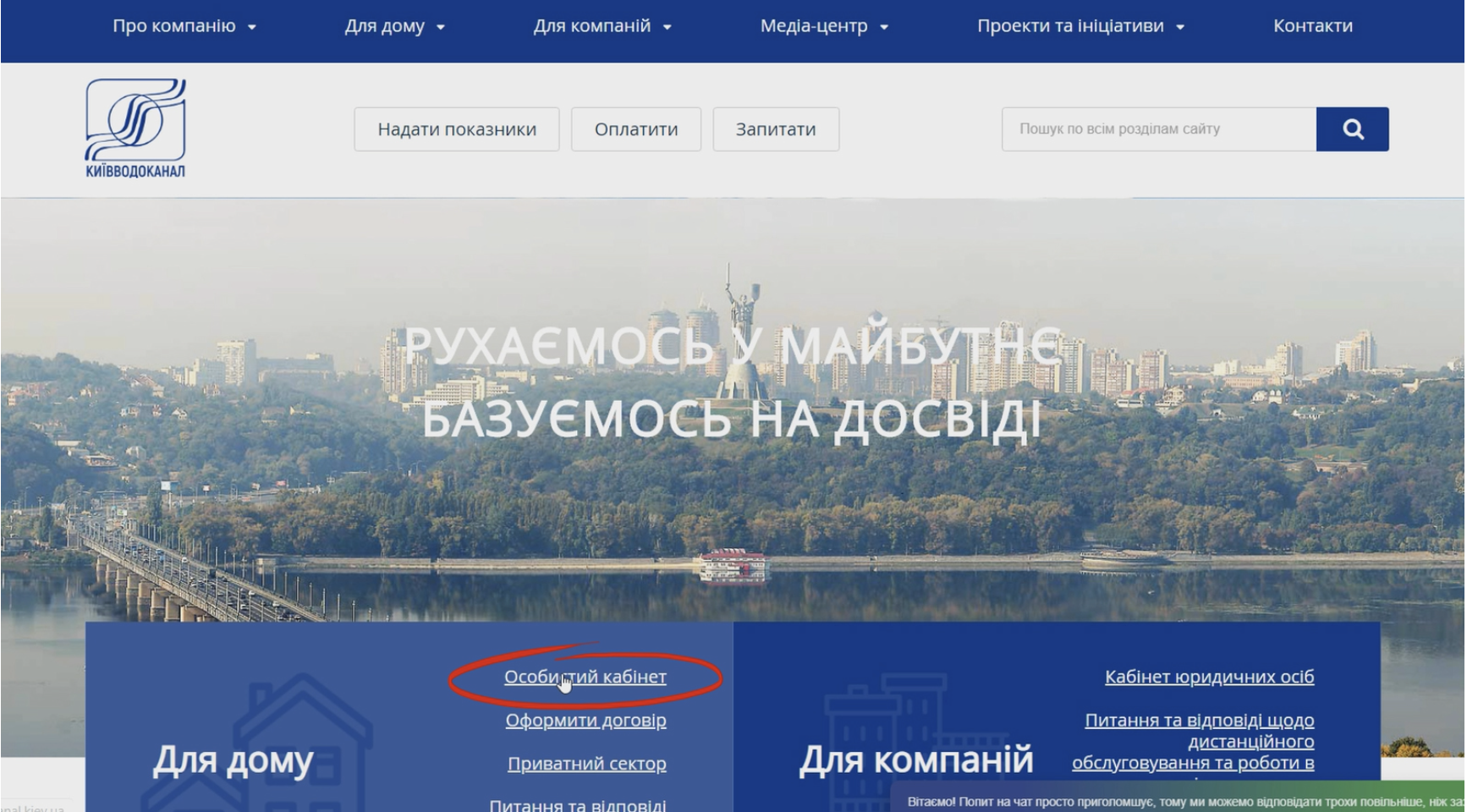
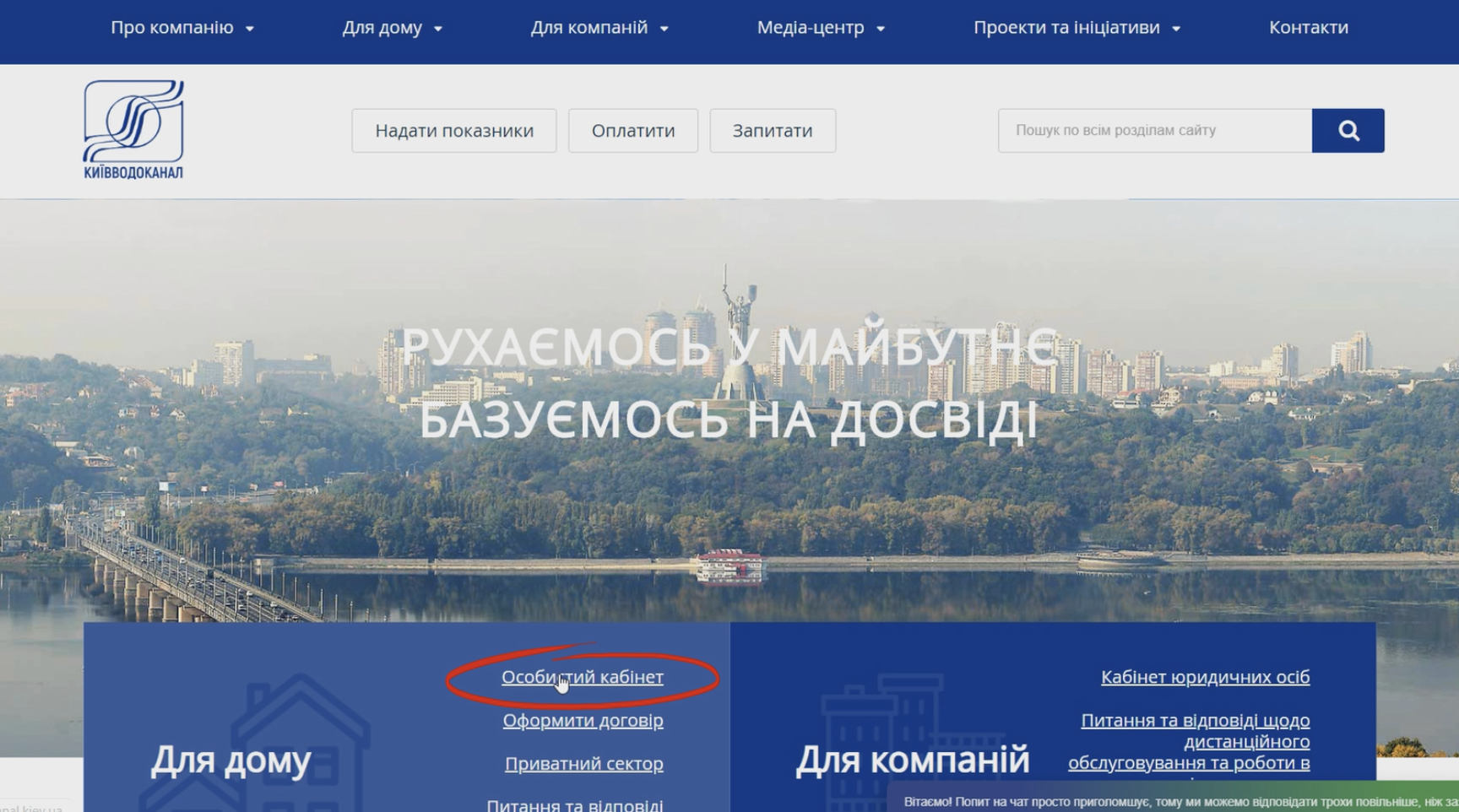
To submit your meter readings through Kyivvodokanals's personal cabinet, you need to select "Personal Cabinet" from the "For Home" section on the main page of the website.
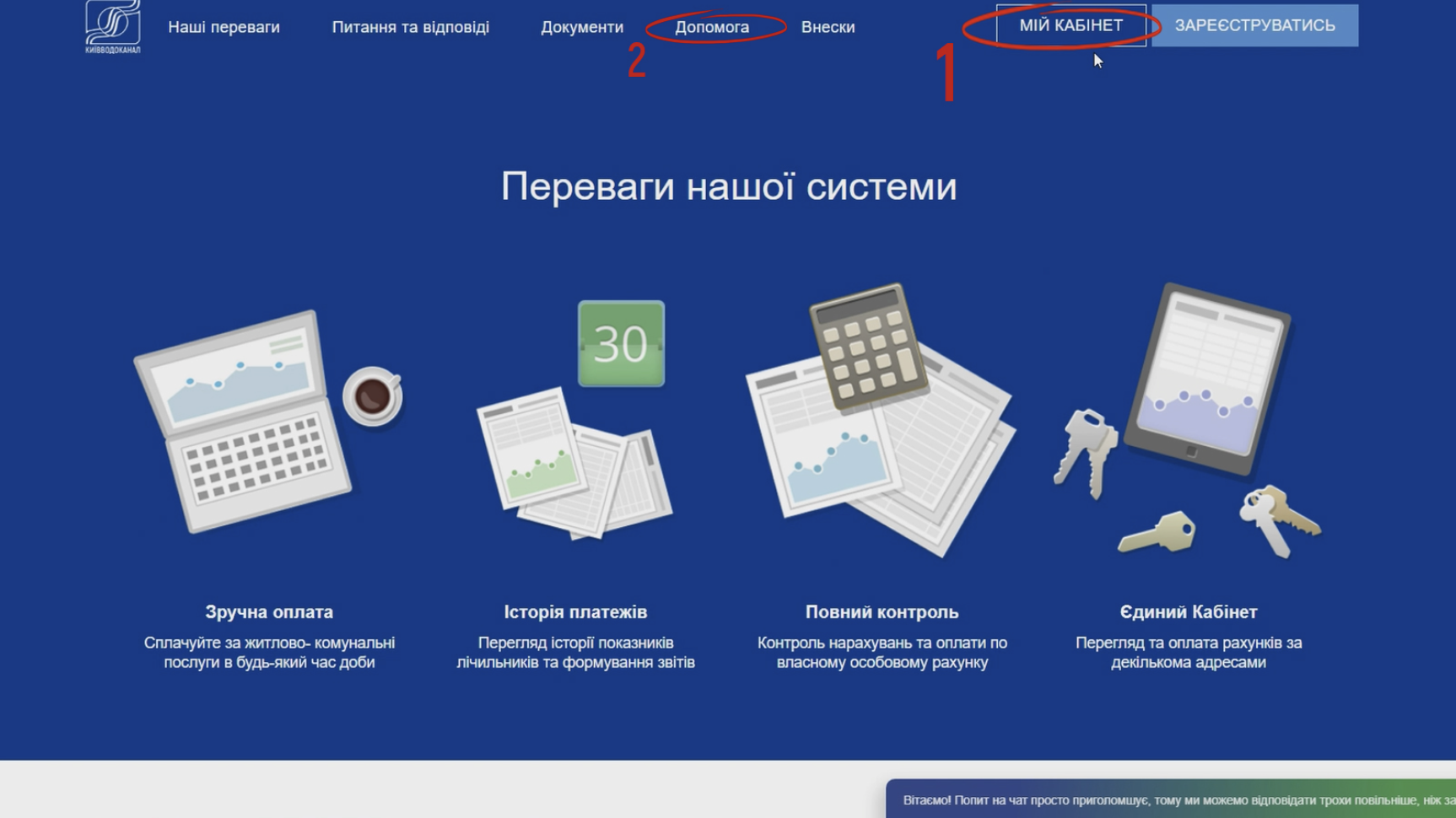
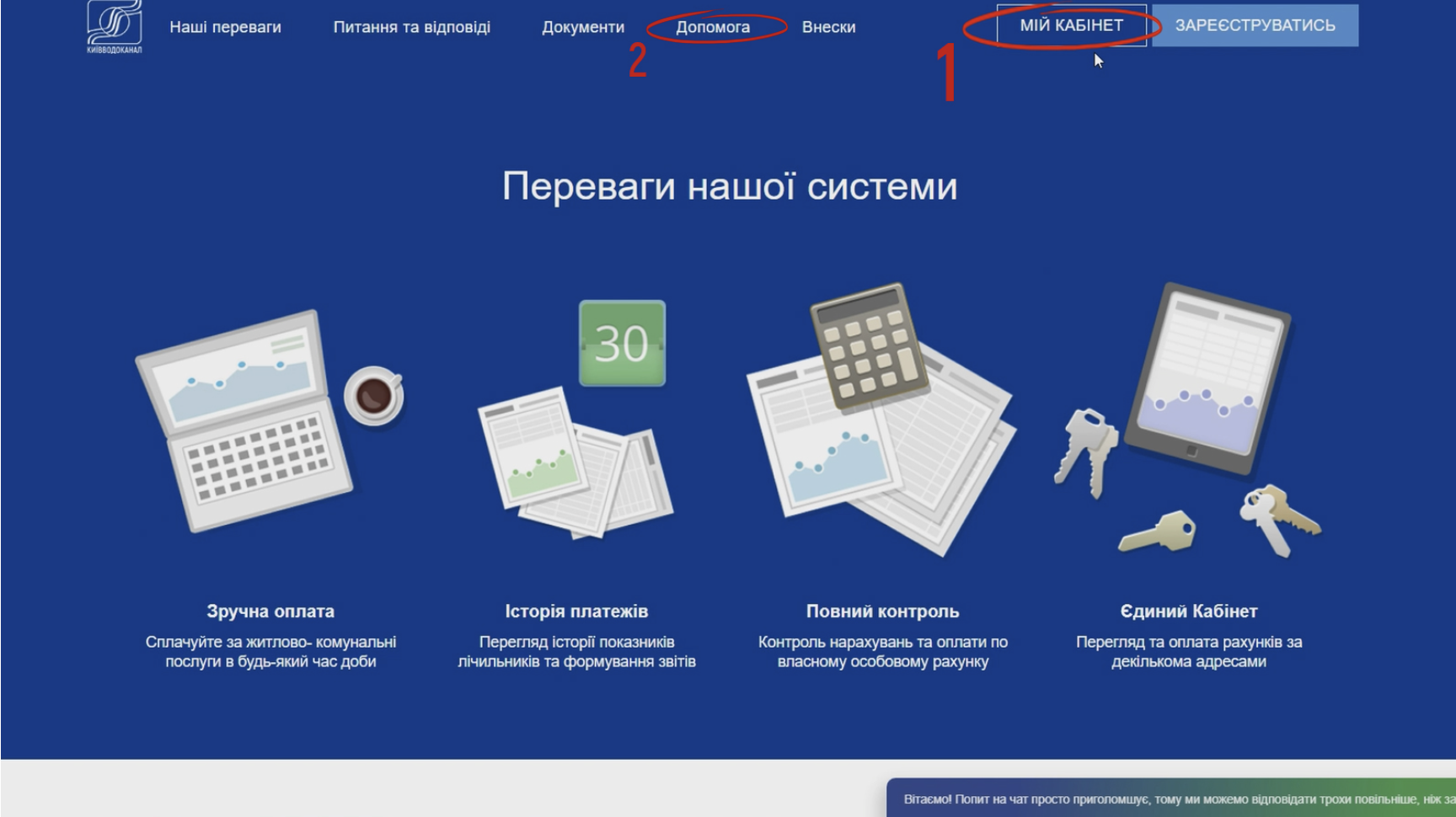
Then click on the "MY CABINET" button or "REGISTER" if you haven't registered before (under number 1 in the picture).
If you have trouble registering, use the step-by-step video instructions in your personal cabinet, and you can also find solutions by clicking the "HELP" button, which is located next to the "MY CABINET" button (under number 2 in the picture).
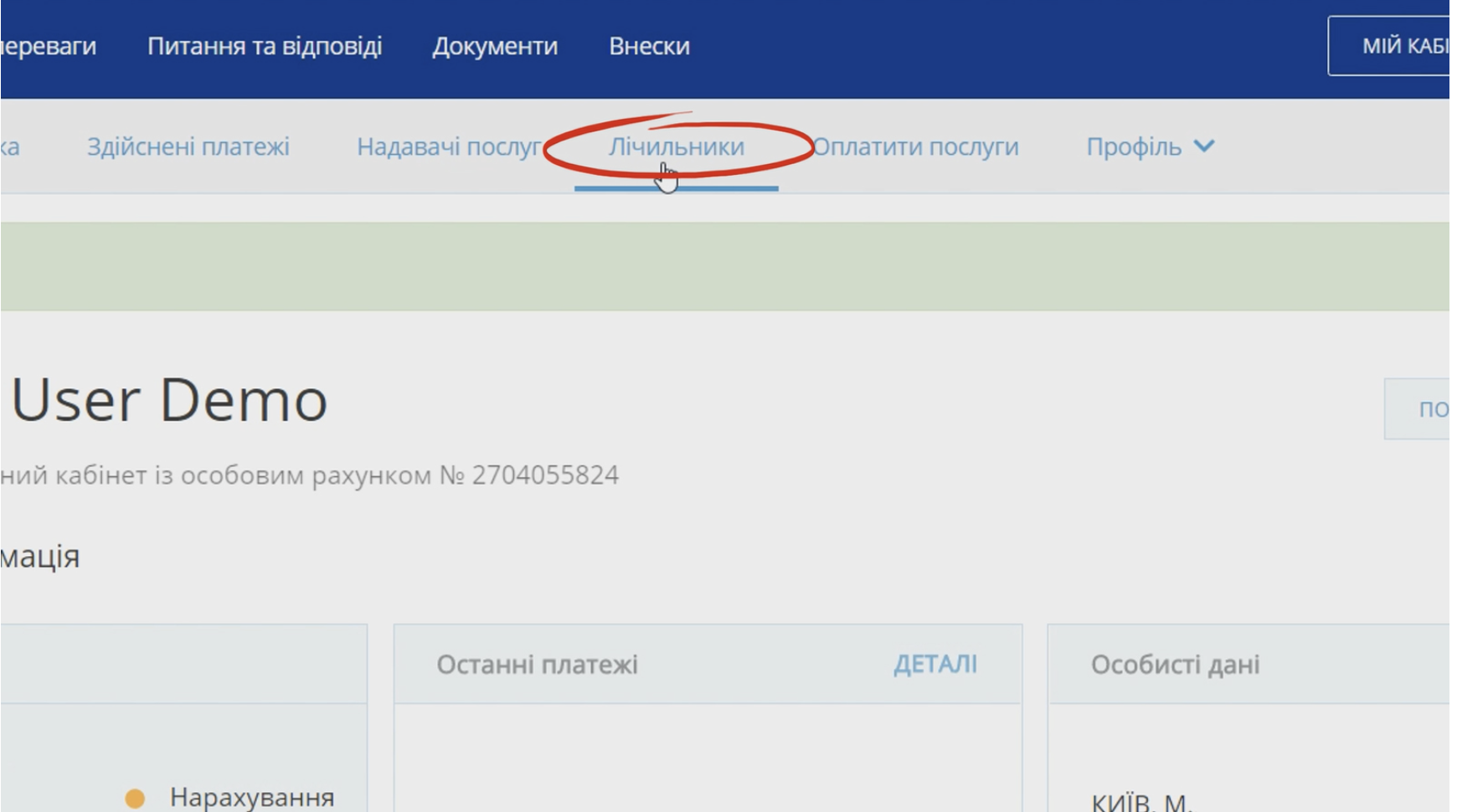
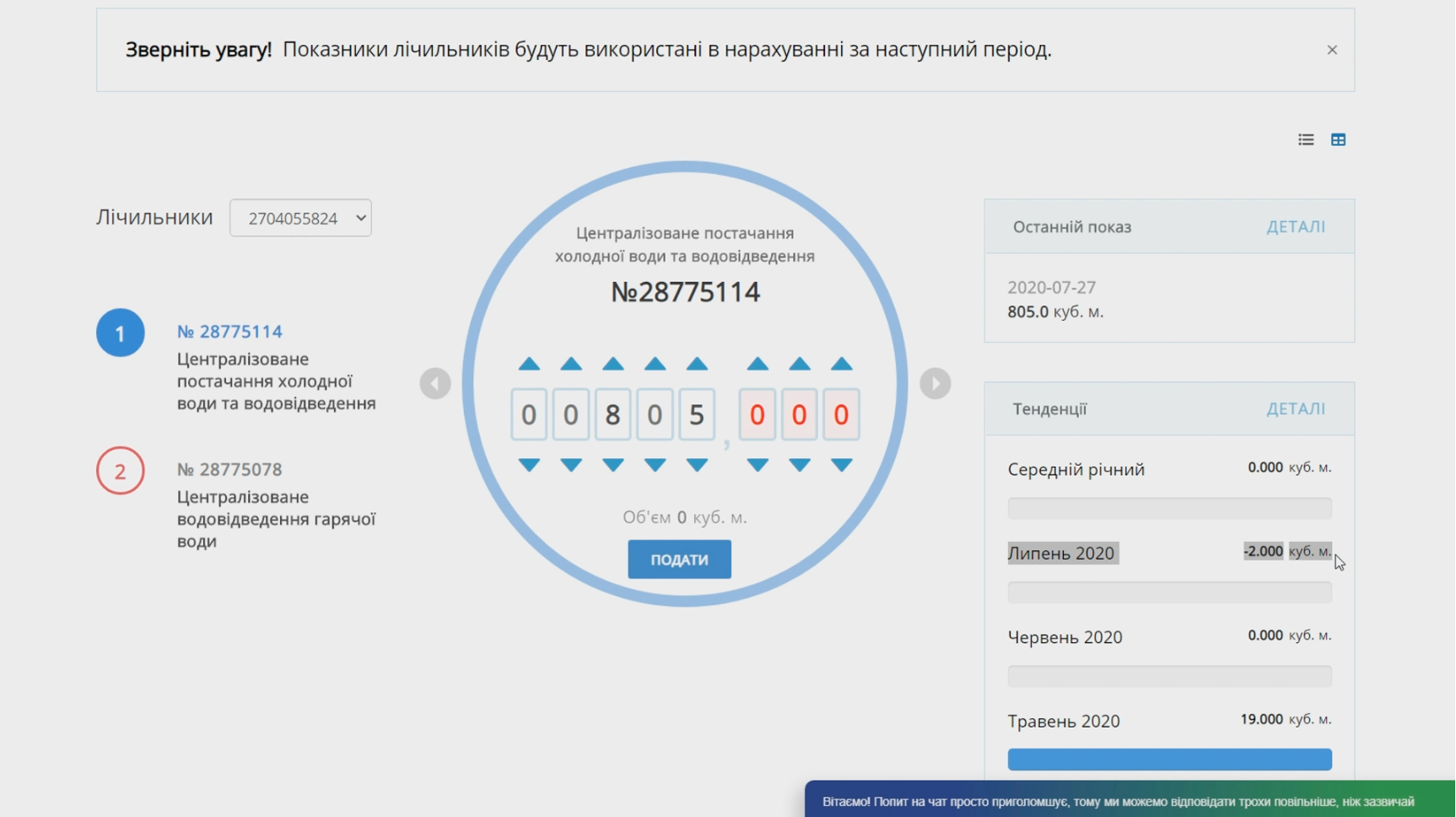
After logging into your personal cabinet, you need to select the "Meters" option in the top row and perform the following actions:
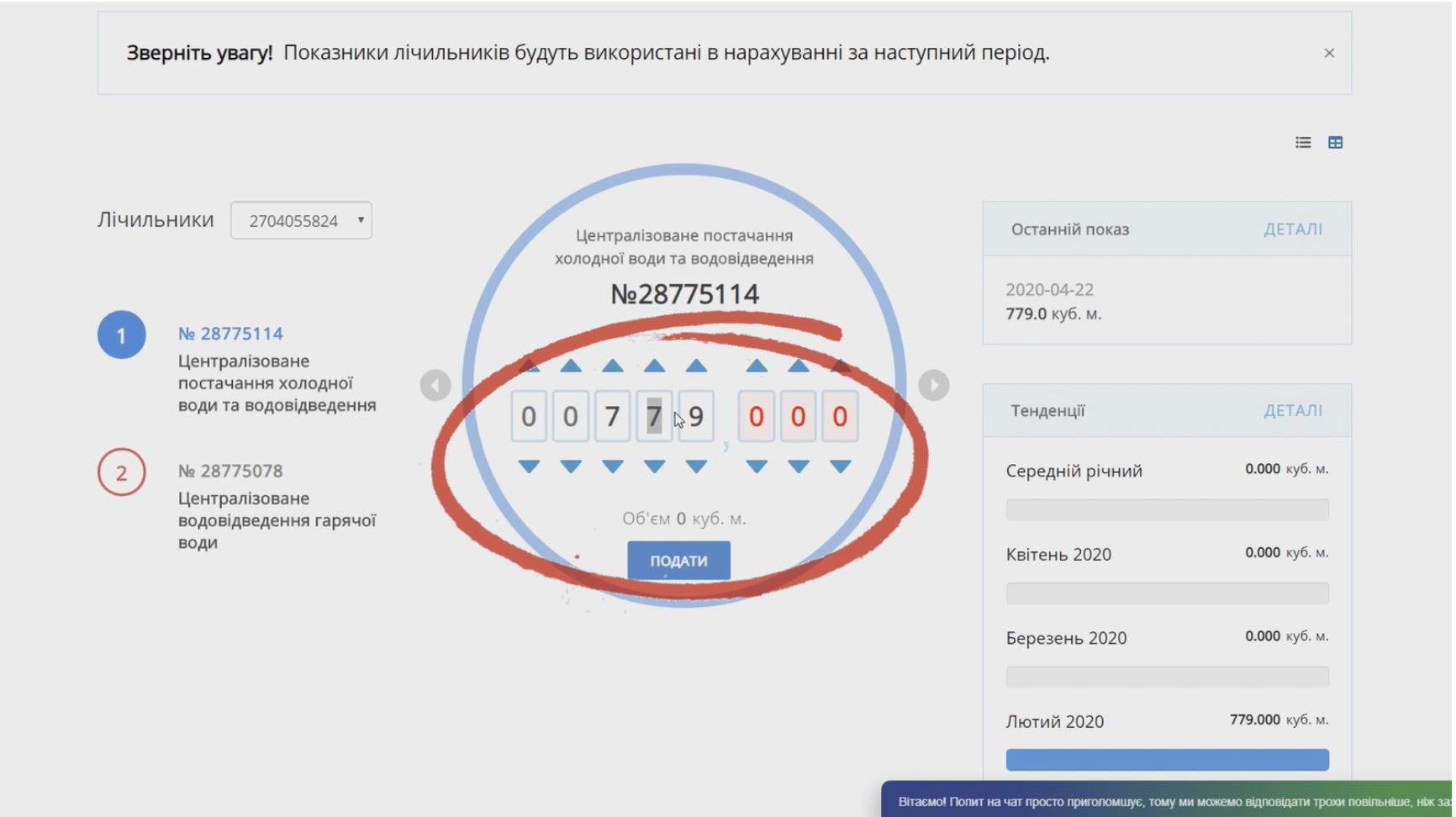
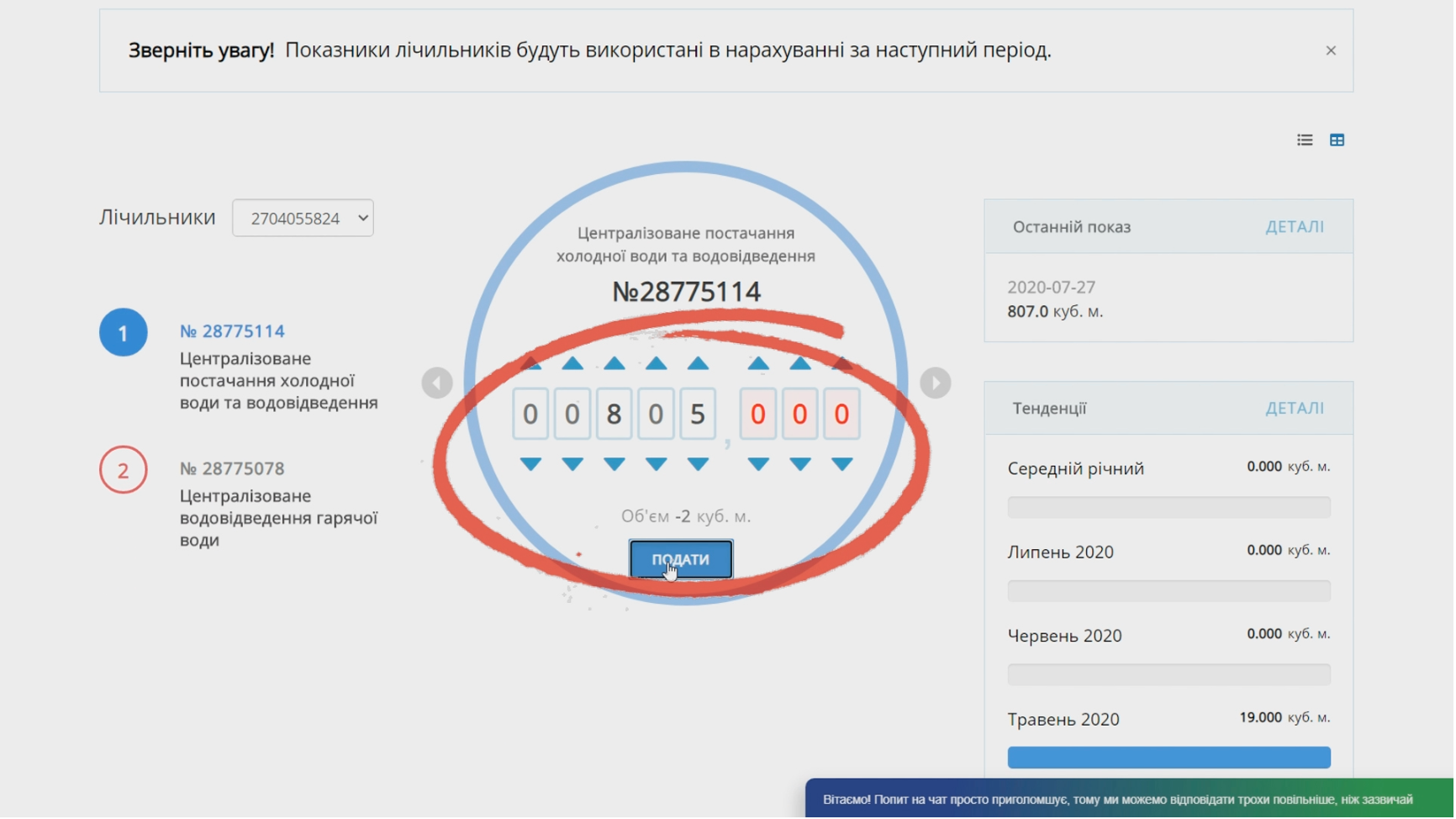
1. Choose the appropriate service meter, after which a circle with the meter readings that were transmitted in the previous billing month will appear;
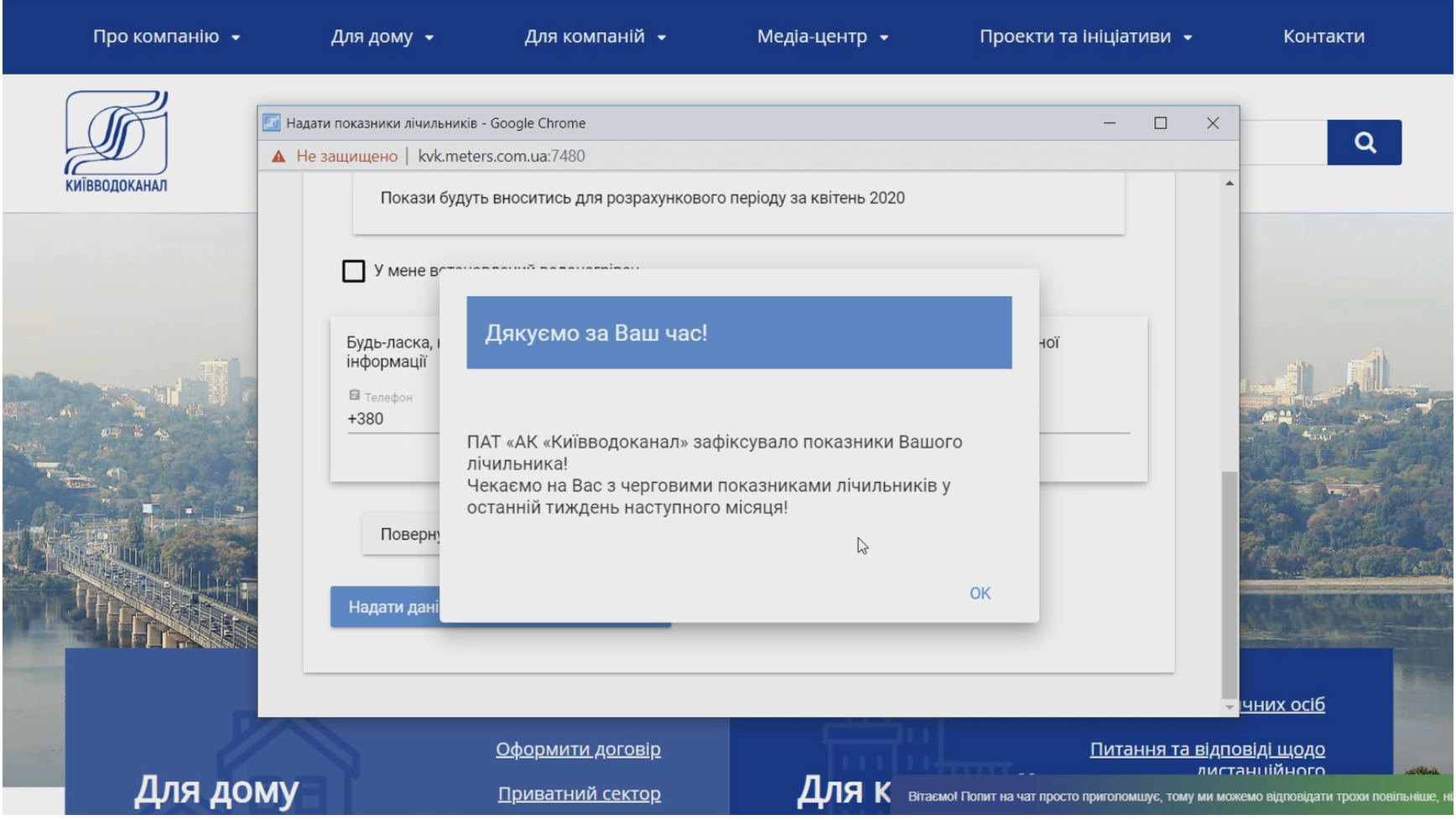
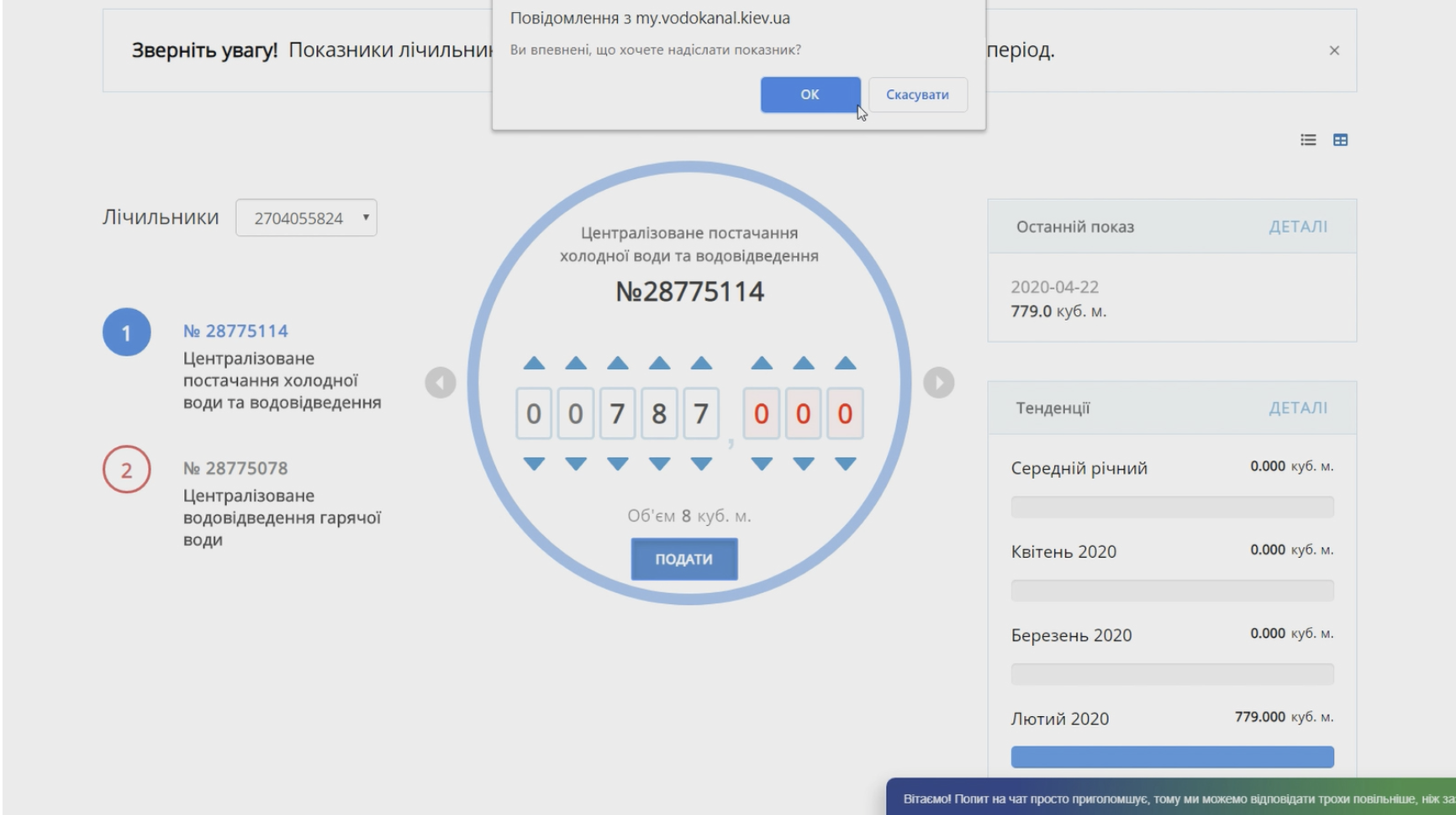
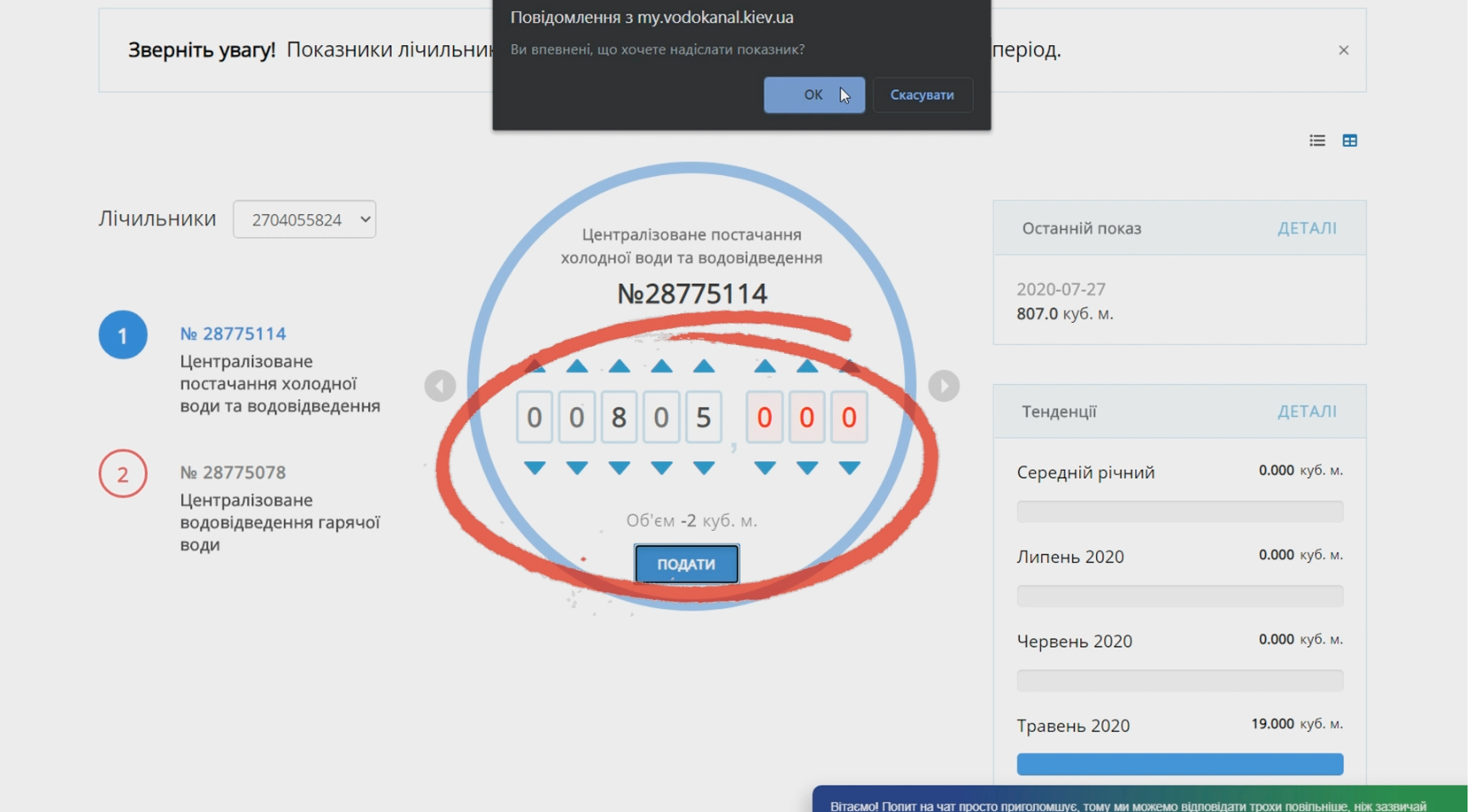
2. Change the displayed meter readings to the actual readings and click the "SUBMIT" button afterwards. Click "Okay" in the confirmation window that appears on the screen.
Repeat these actions for each of your meters. Note that the entered readings will be used in the calculation for the next period.
If your meter readings have not changed or you need to submit meter readings with a difference of '0', leave the displayed readings on the dial unchanged and press the 'SUBMIT' button. Then, press 'Okay' in the window that appears on the screen.
Thank you for submitting your meter readings online!
Video Tutorial #3: How to submit meter readings via WhatsApp and Telegram?
Quickly submit your meter readings and save time using WhatsApp and Telegram apps. To help you understand how to use these apps, we recommend watching our video tutorial:
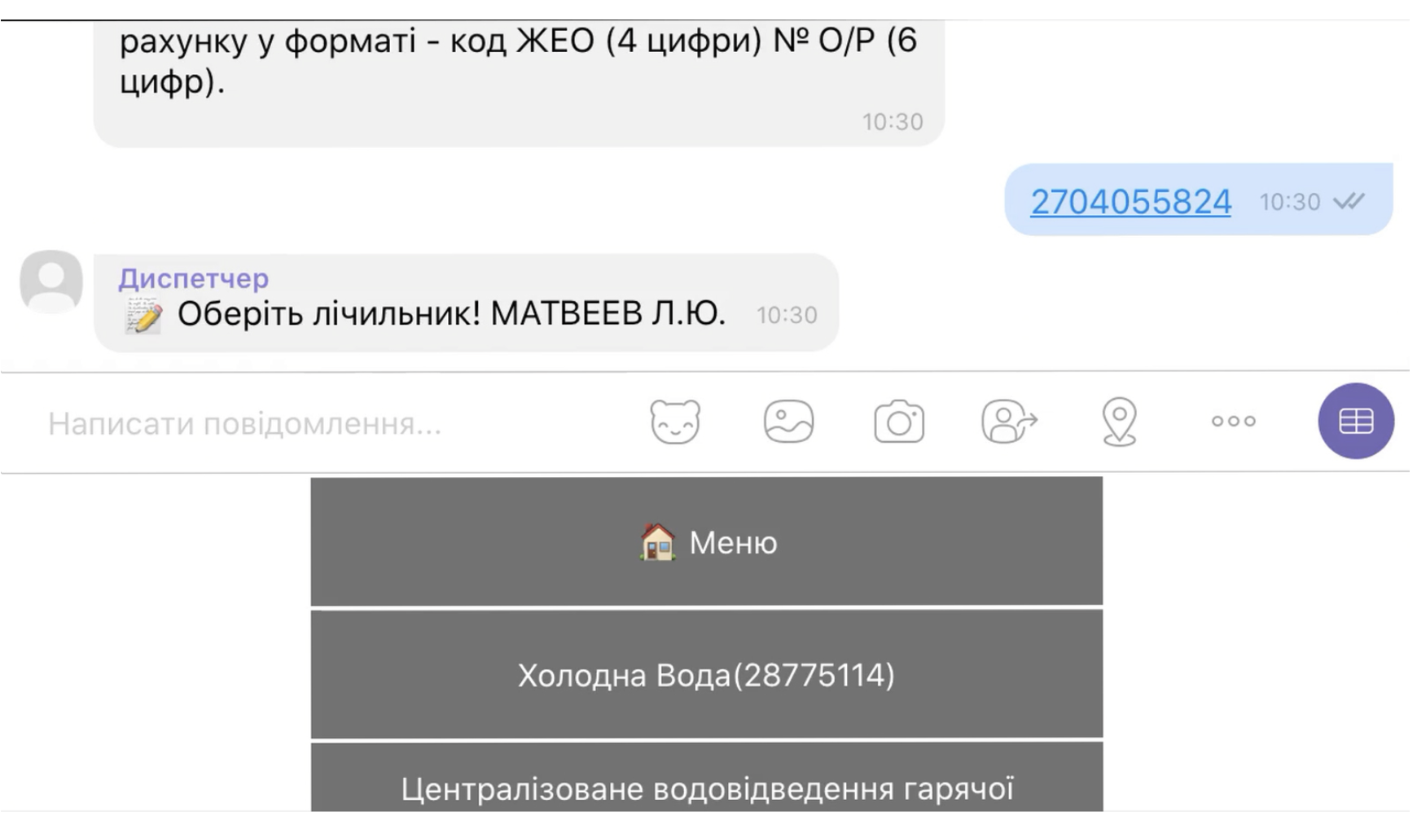
How to transmit meter readings via WhatsApp and Telegram?
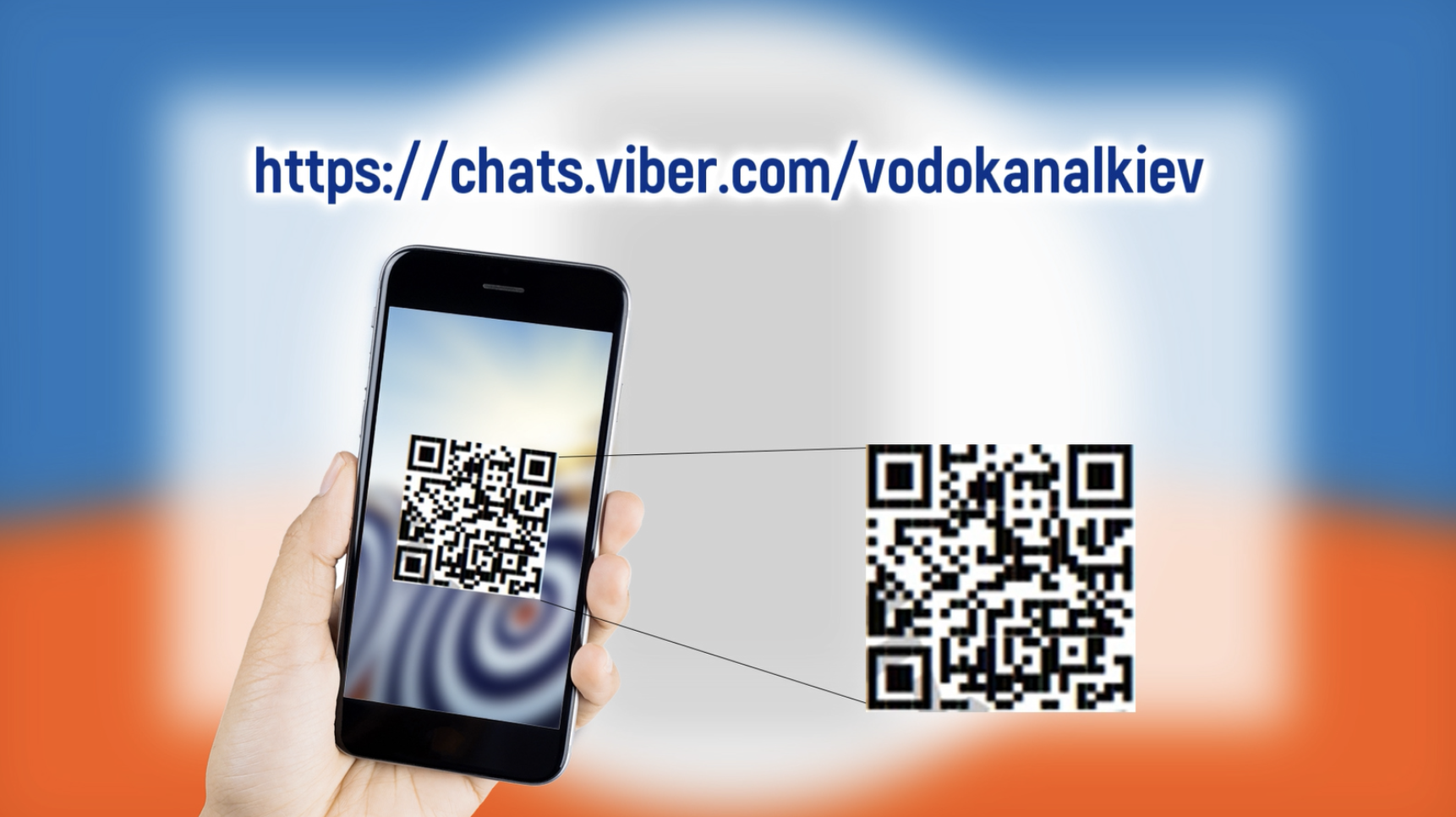
To use the public account in WhatsApp, simply click on the link you see on the screen now, or scan the QR code using your smartphone, and you will be automatically redirected to a chat to submit your indicators.
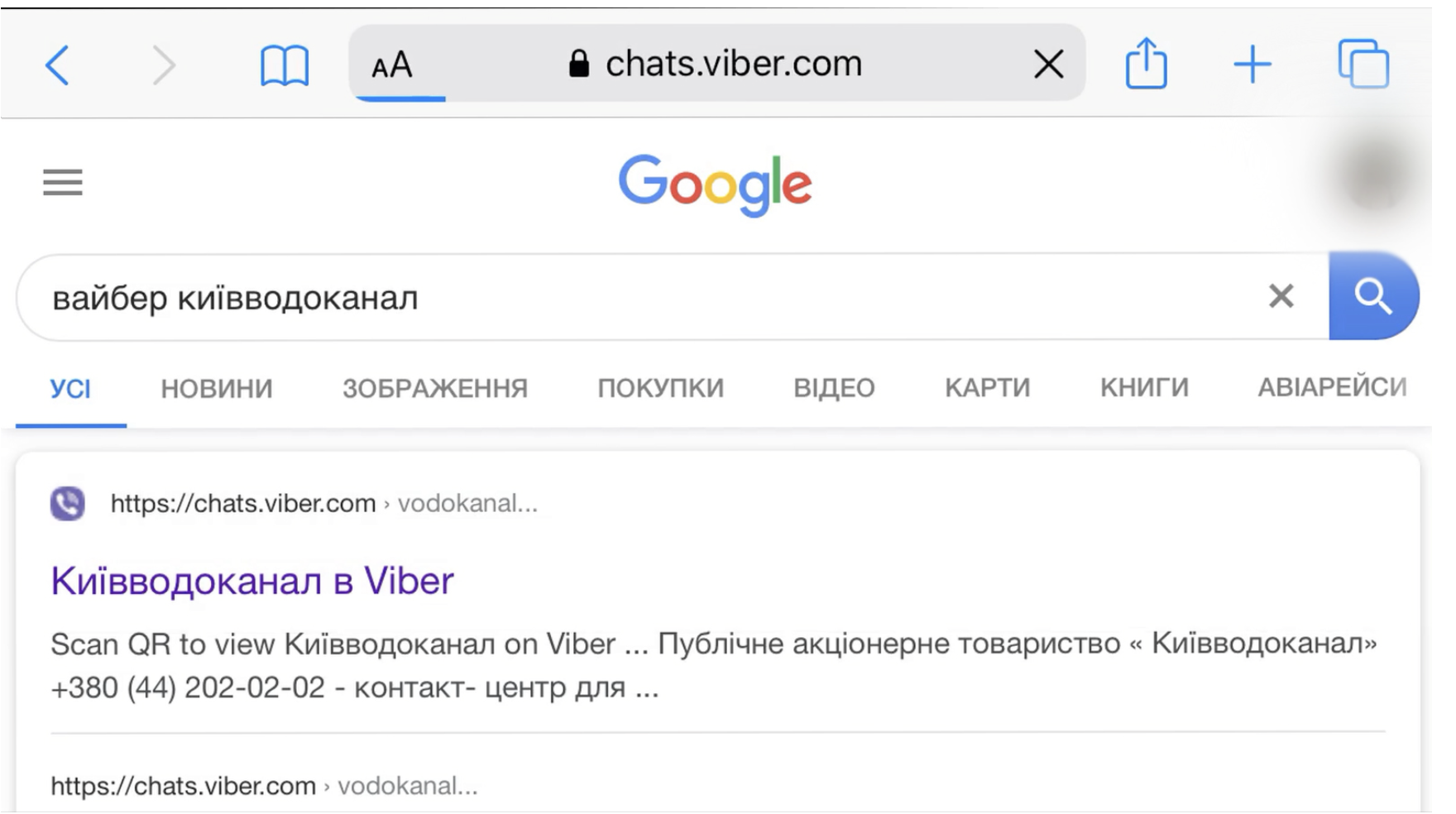
You can also write a similar query in the address bar of your browser and simply click on the search result "Kyivvodokanal in WhatsApp".
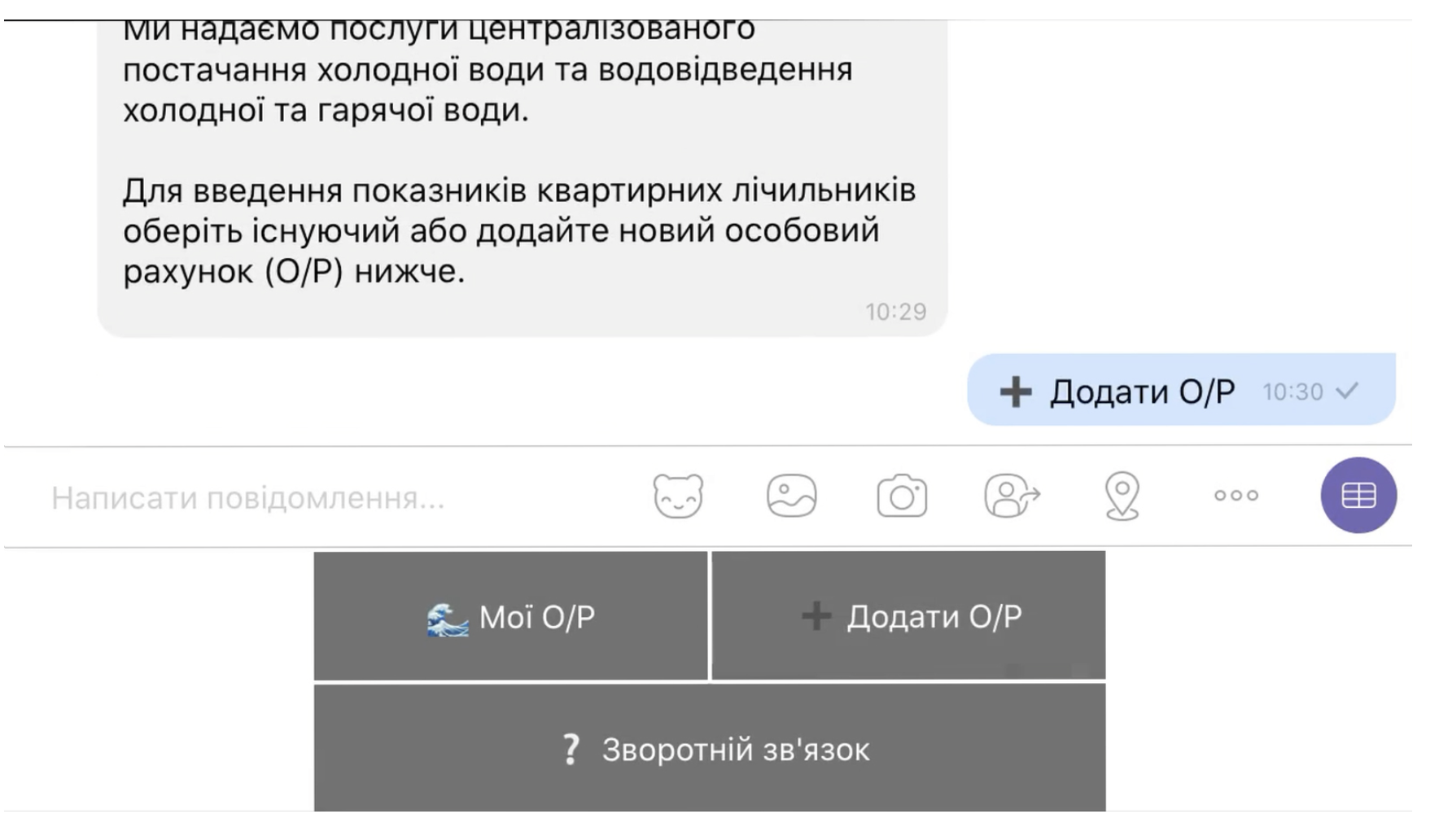
Opening the chat, select "add personal account", if you are submitting your readings through WhatsApp for the first time.
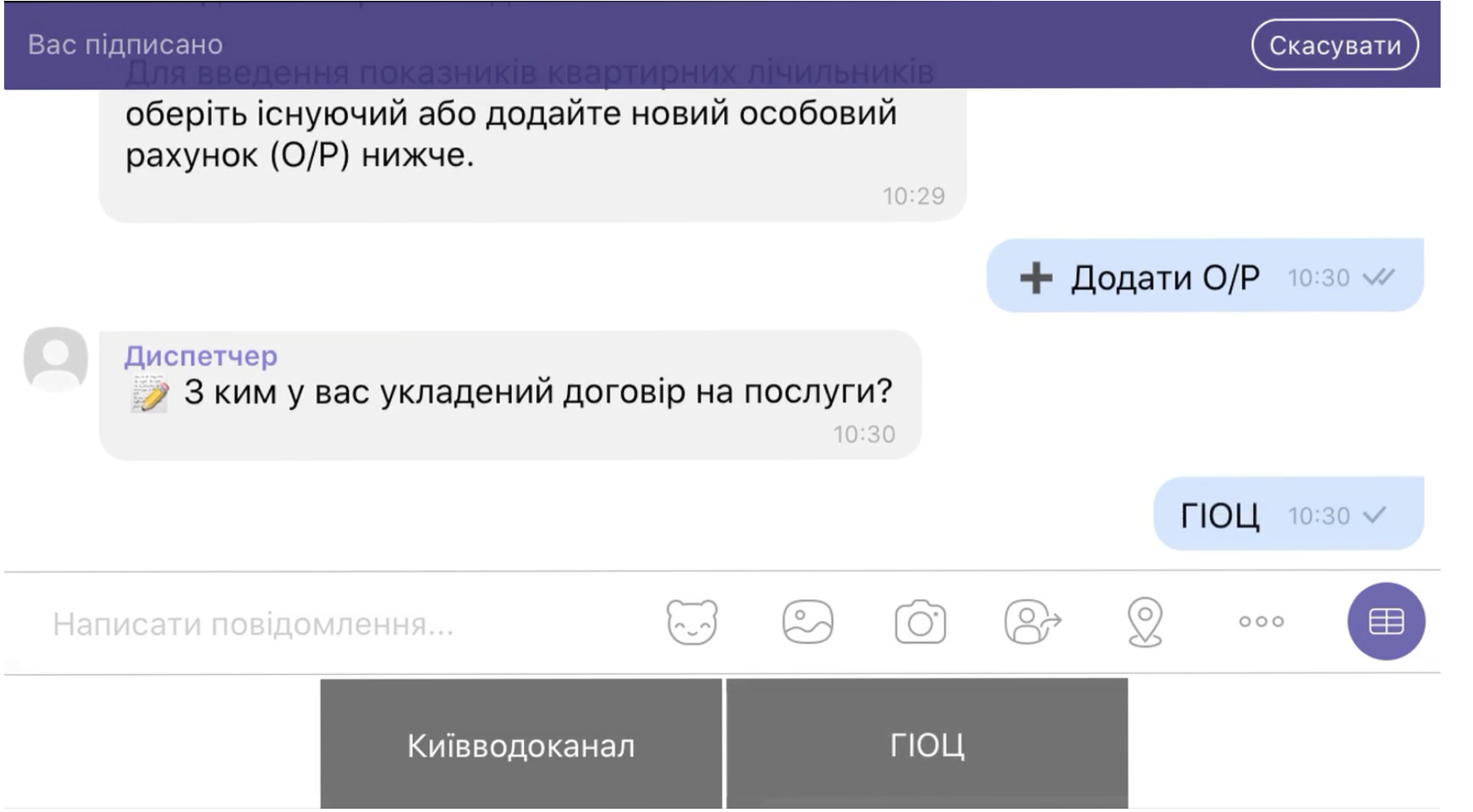
After this, choose who you have a service contract with. It could be directly with Kyivvodokanal or GIOC.
Enter your personal account number.
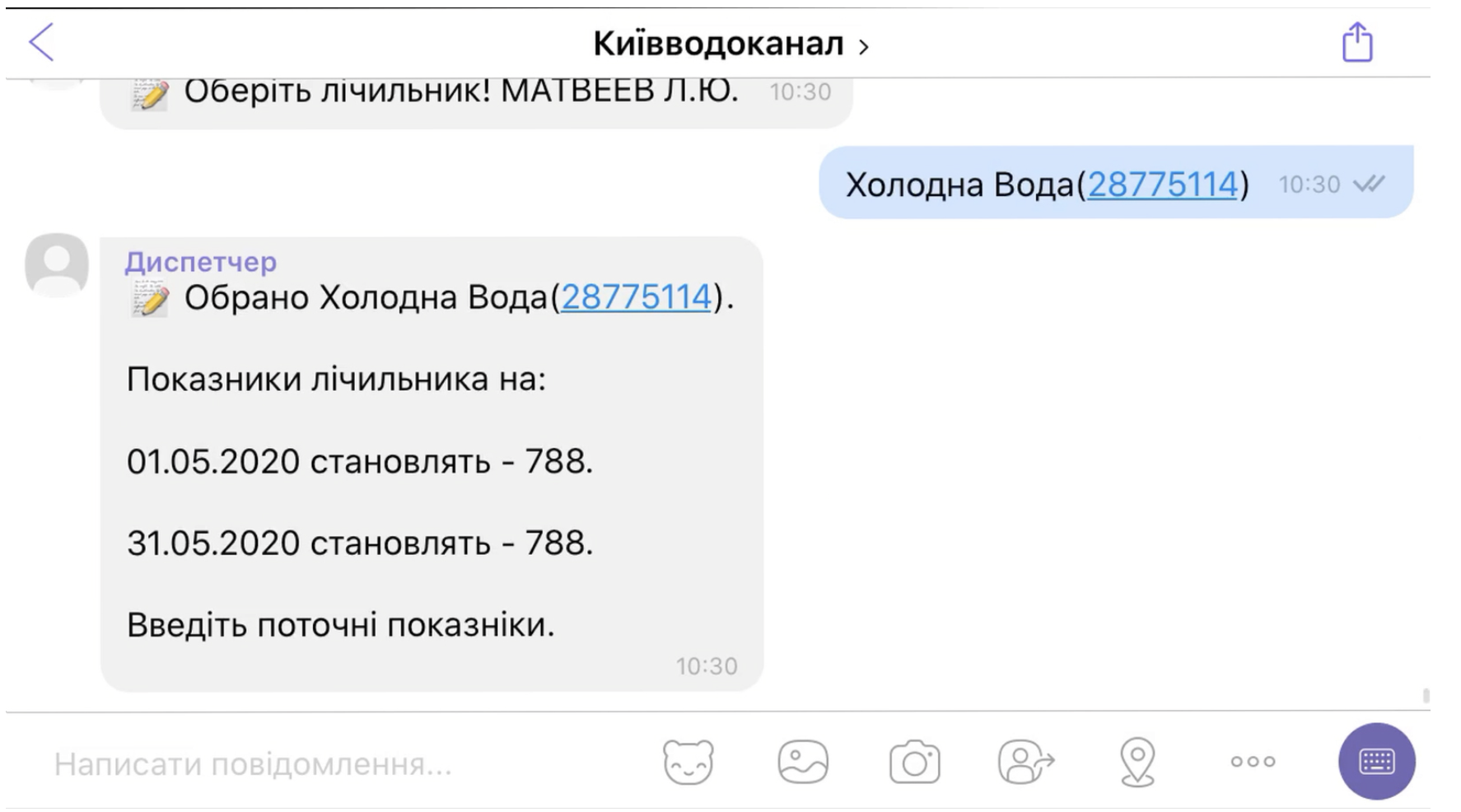
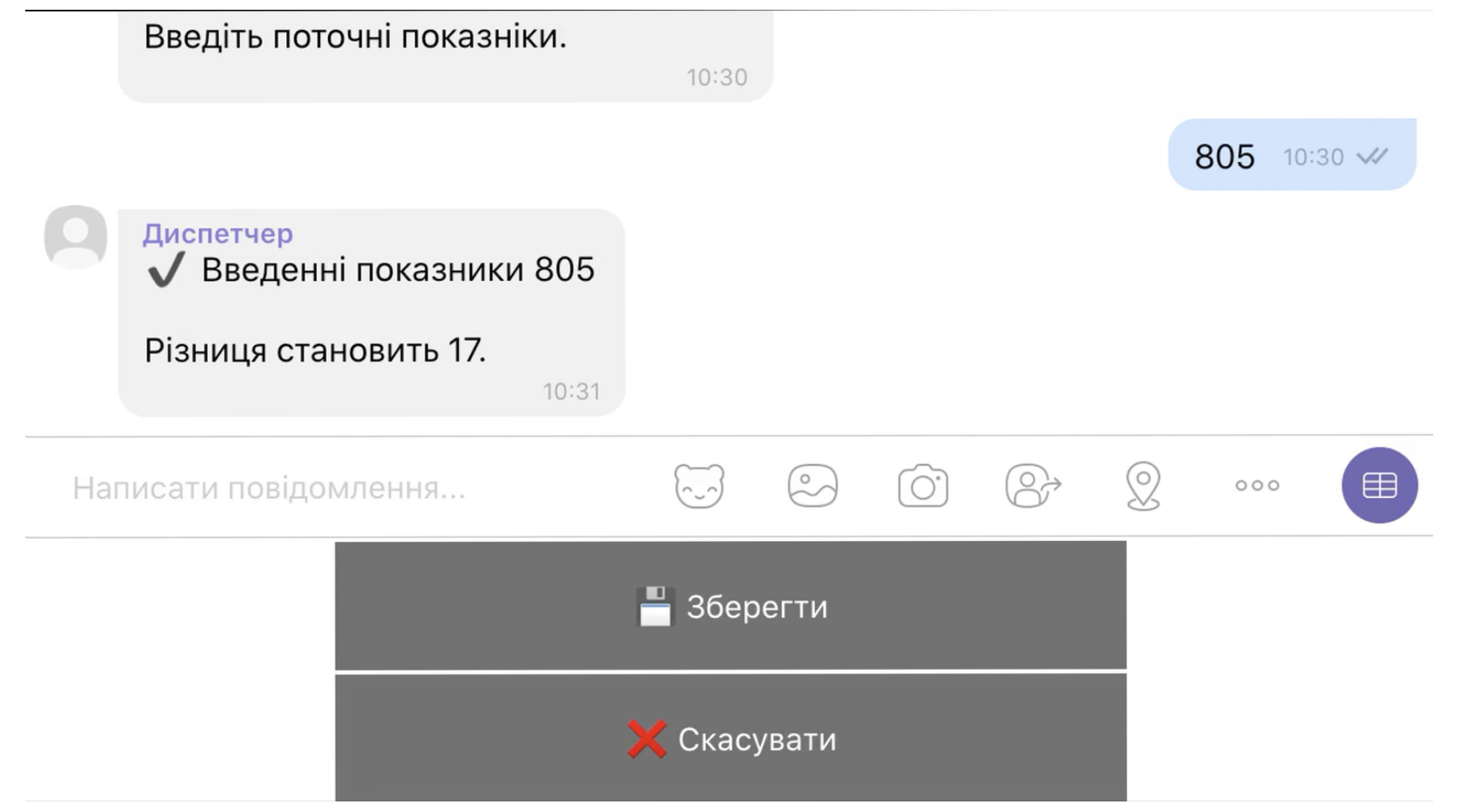
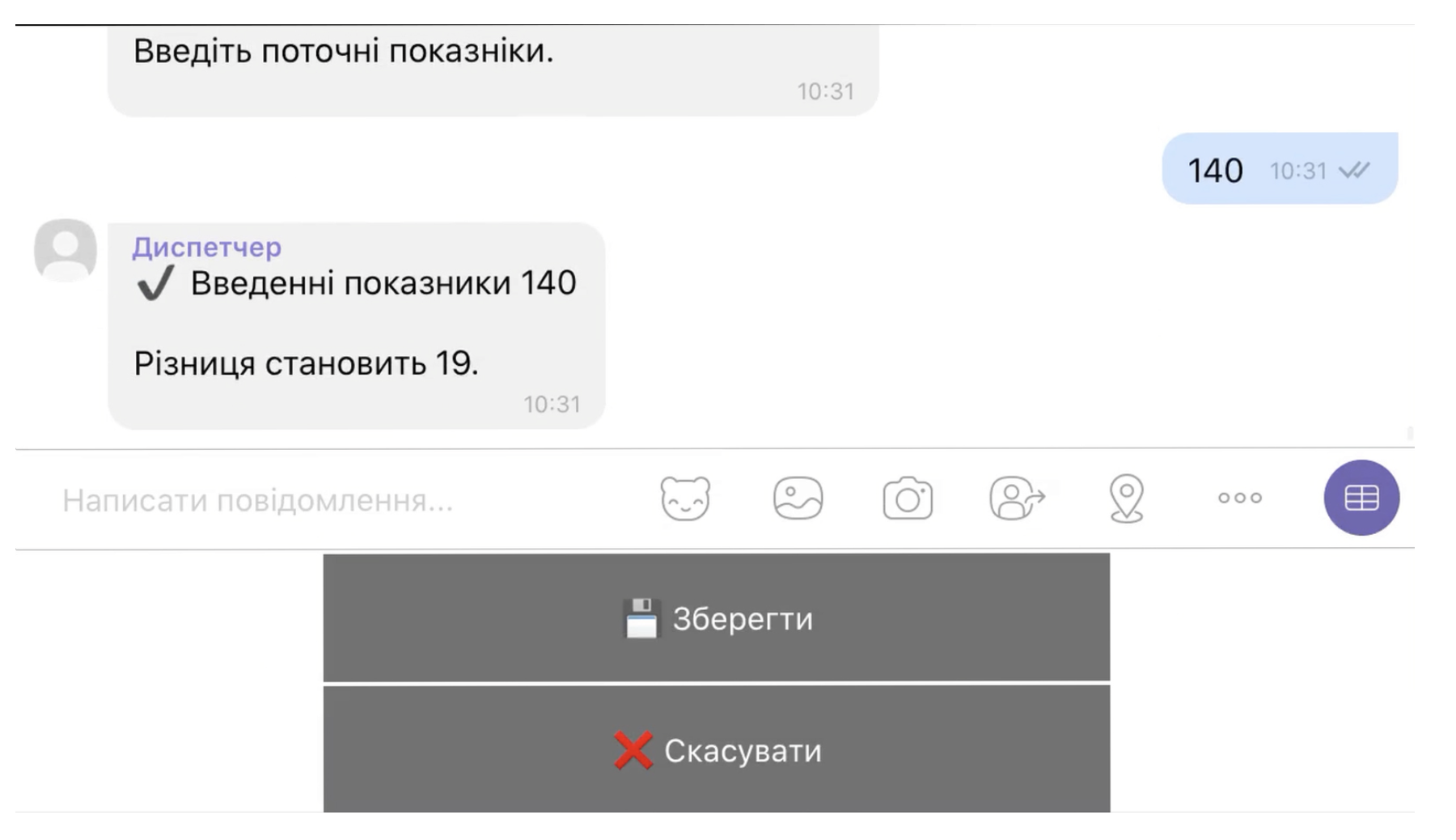
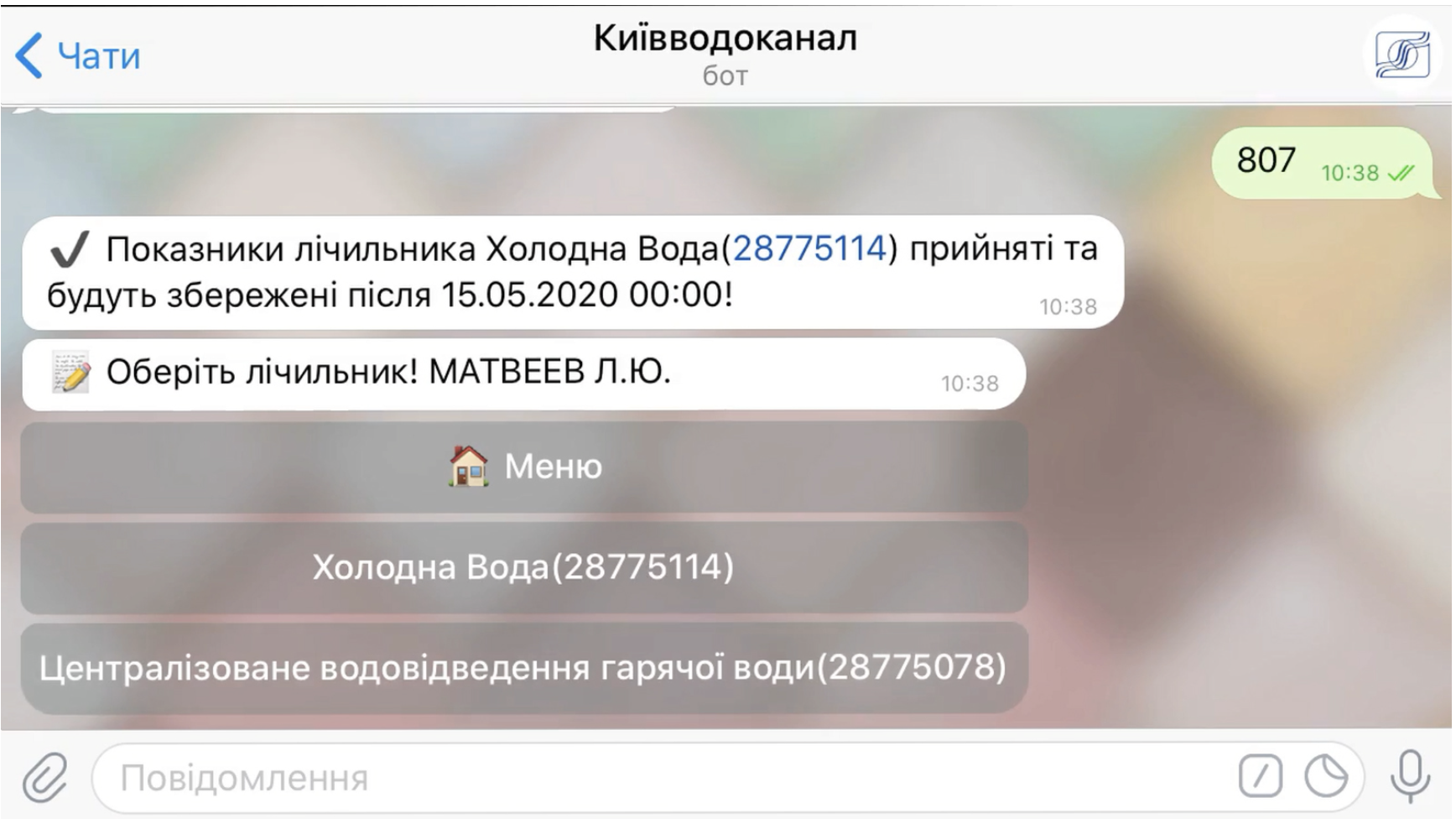
Choose the meter you want to submit. For example, the cold water meter. The bot will send you the last readings recorded in the system and prompt you to enter the current ones.
After entering the data, click "Save".
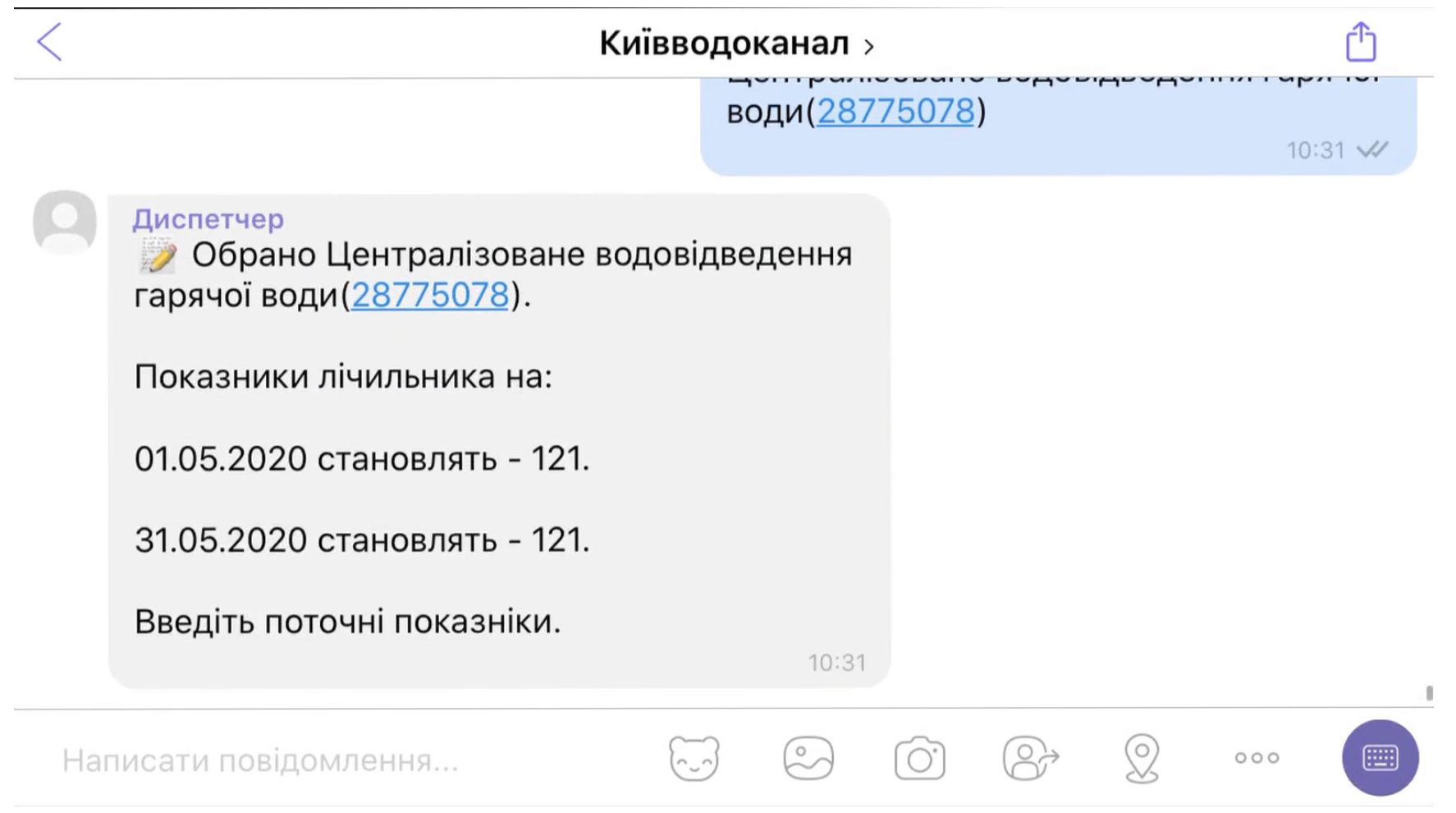
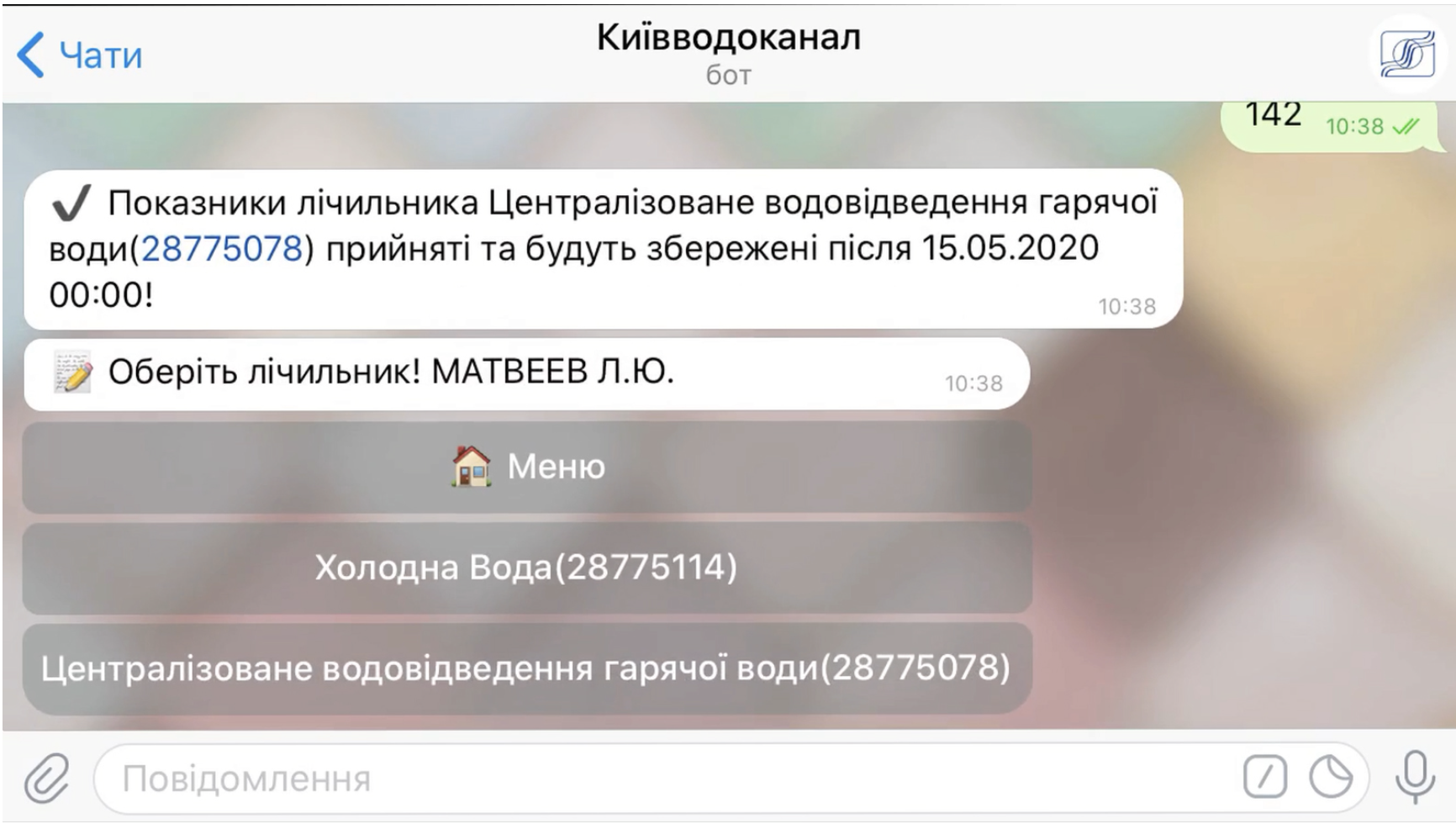
Repeat the actions to transmit the readings of the hot water meter. These data are needed to form the billing for water discharge.
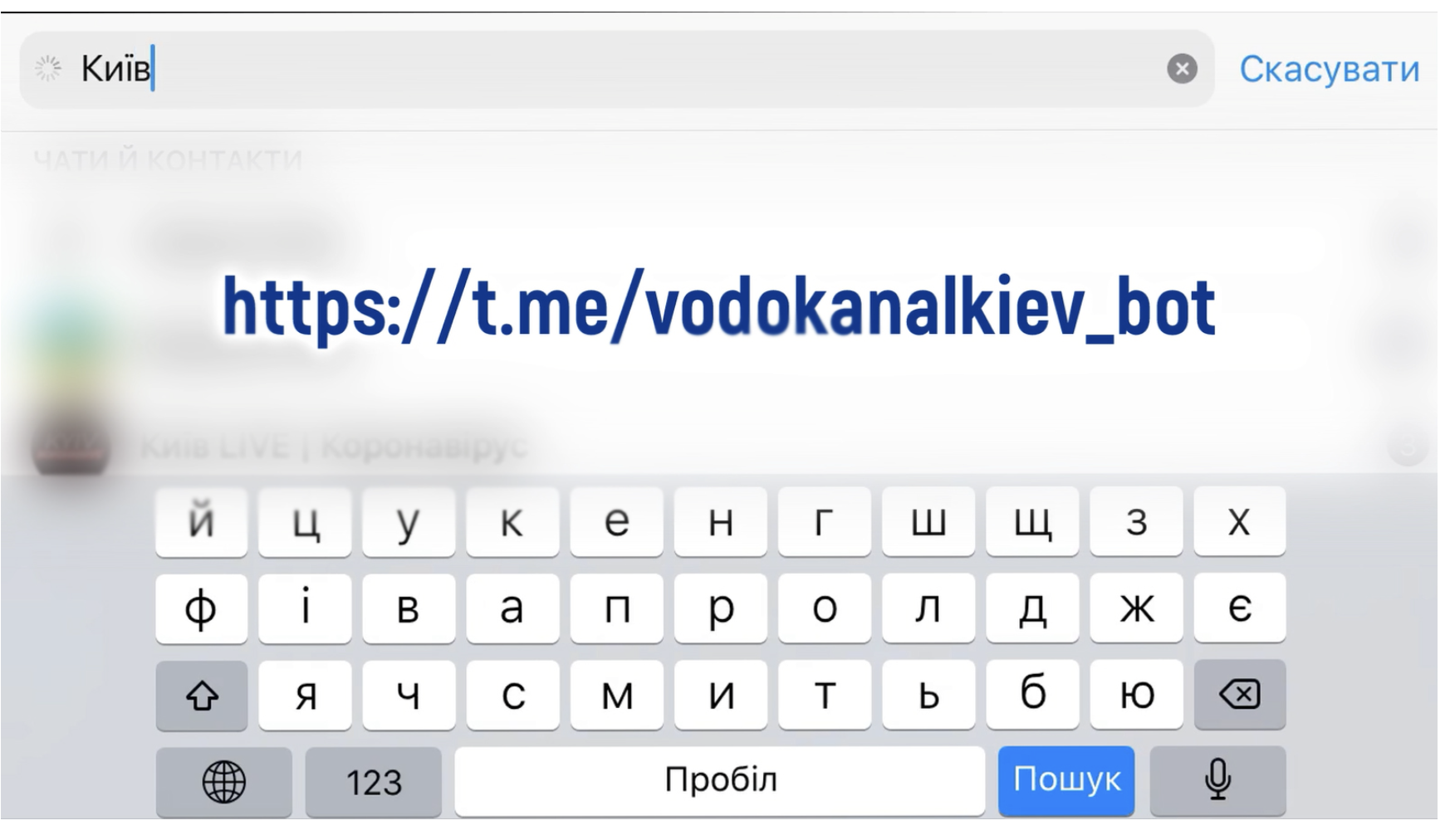
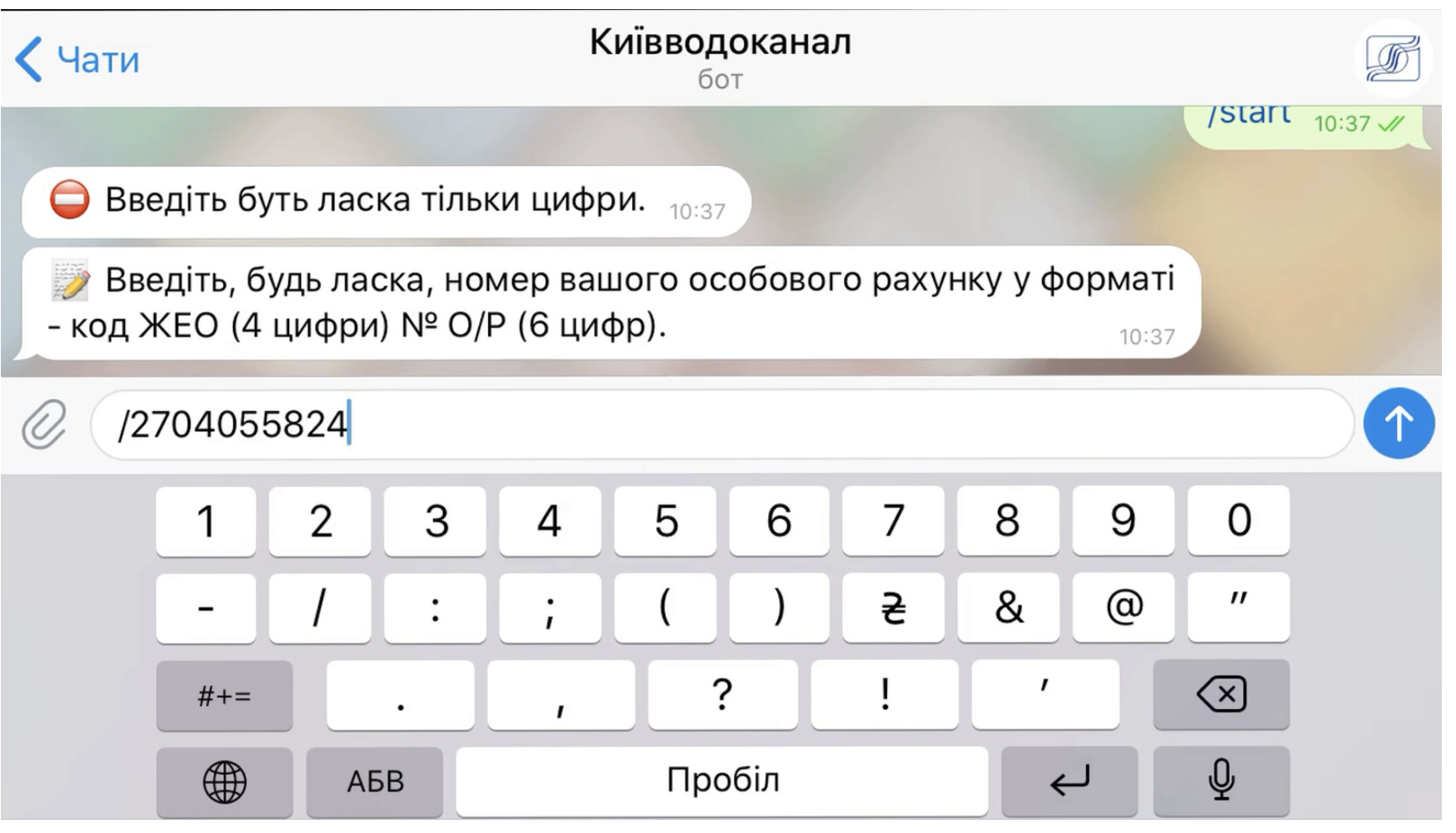
To find our account on Telegram, click on the link you see on the screen or use the search bar in your messenger and enter the query "Kyivvodokanal".
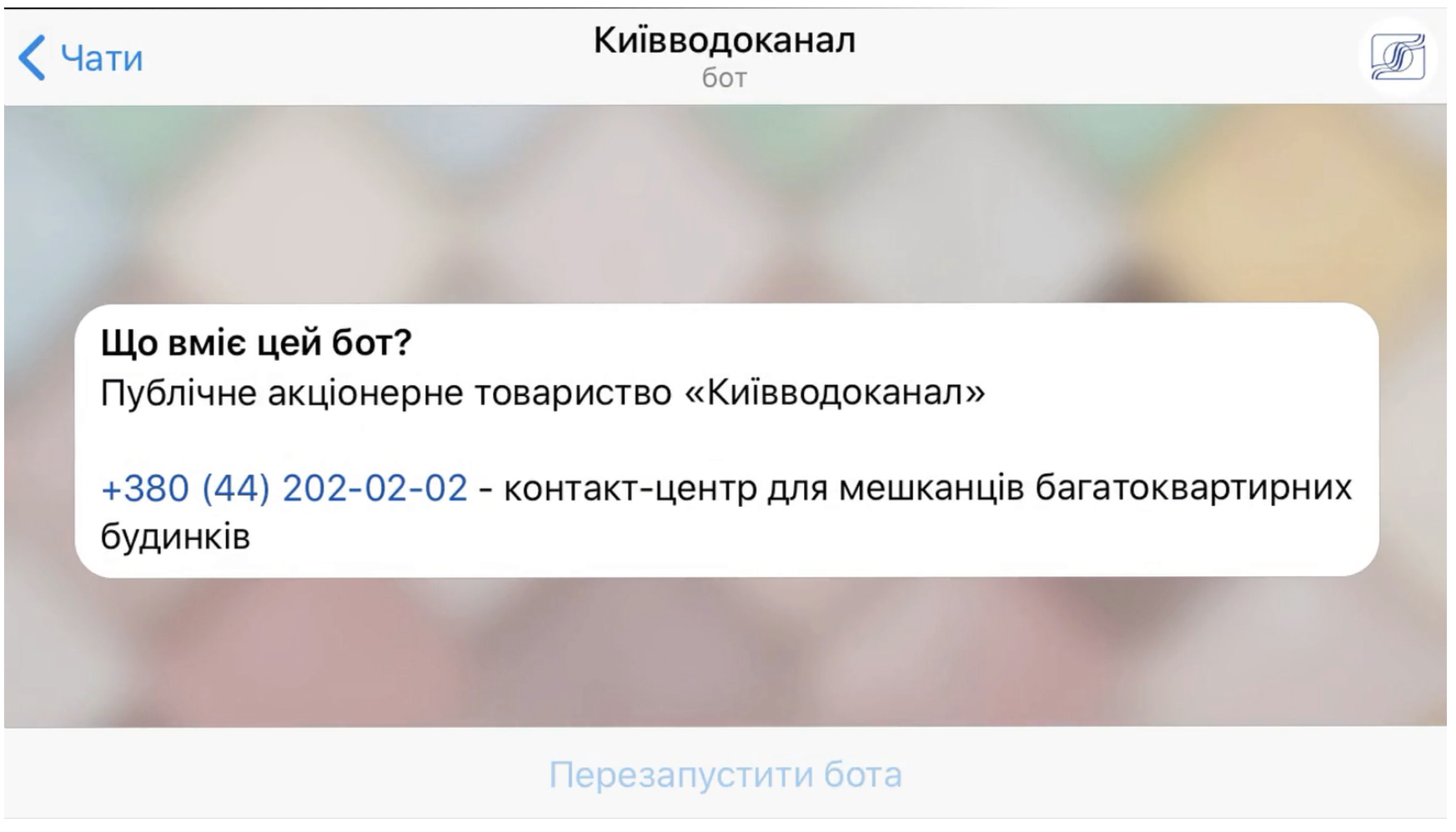
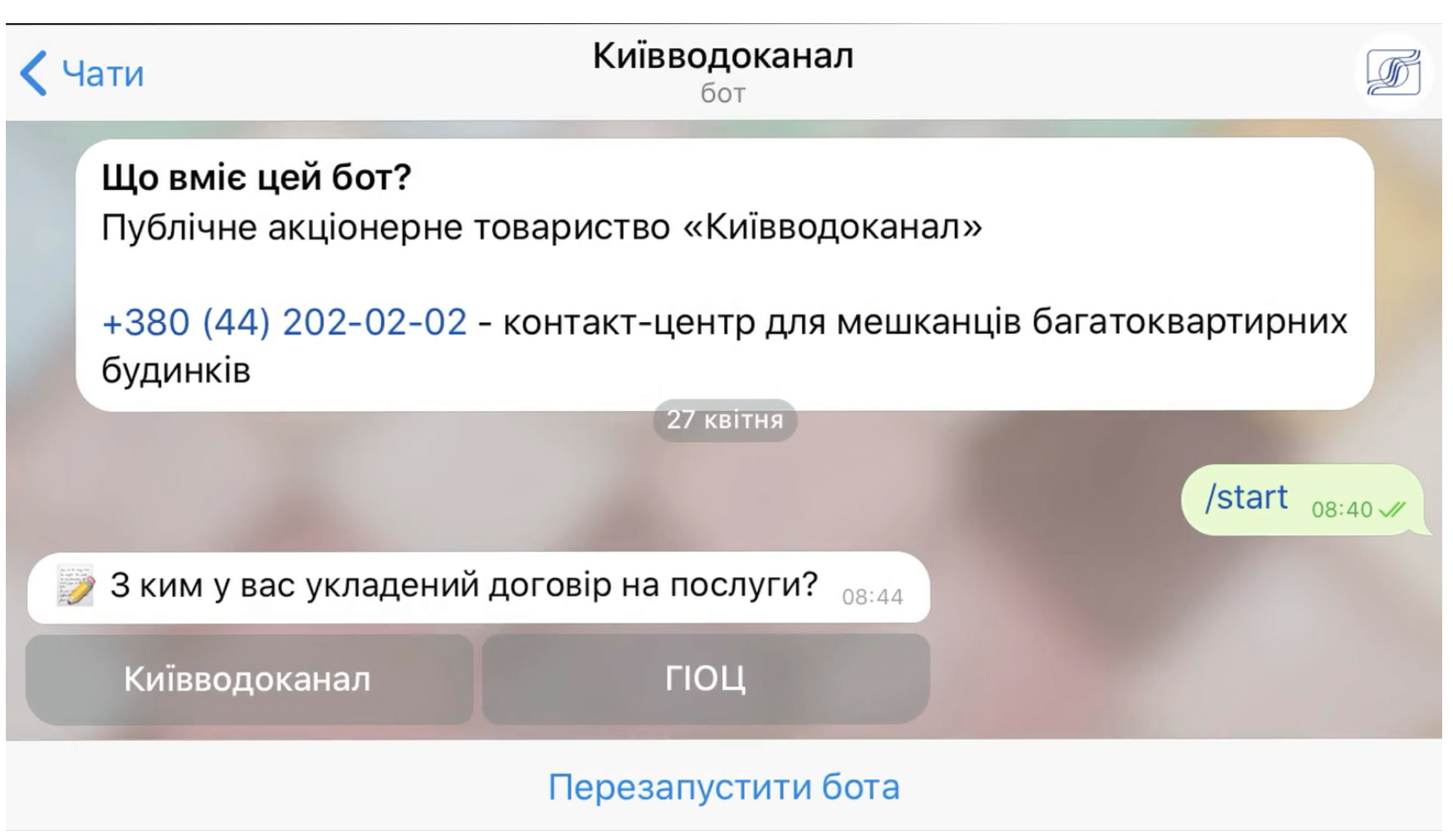
Start a chat with the bot, then choose who you have a contract with: Kyivvodokanal or GIOC.
Enter the personal account number and select the meter.
Enter the current readings and click "save".
Repeat the actions for the hot water meter if necessary.
Thank you for submitting your readings online!
Video Tutorial No. 4: How to correct your meter readings through your personal cabinet on the Kyivvodokanal website?
In the "Personal Cabinet" on the Kyivvodokanal website for consumers, the ability to independently correct the readings of apartment water meters has been created in case of discrepancy with the actually consumed volumes.
See how to do this in our educational video:
**How to correct meter readings through your personal cabinet on the Kyivvodokanal website?**
Here's the translated content while preserving the formatting:
> **How to correct meter readings through your personal cabinet on the Kyivvodokanal website?**
>
> To correct your water meter readings, follow these steps:
>
> 1. Log in to your personal cabinet on the [Kyivvodokanal website](https://kyivvodokanal.gov.ua/).
> 2. Navigate to the "Meter readings" section.
> 3. Click on the "Correct readings" button.
> 4. Enter the correct meter readings in the designated field.
> 5. Click on the "Save" button to submit the corrected readings.
>
> If you encounter any issues or have questions, please contact our customer support at {phone_number} or via email at [support@kyivvodokanal.gov.ua](mailto:support@kyivvodokanal.gov.ua).
To correct the indicators, the following steps need to be performed:
1. Log in to the "Personal Cabinet";
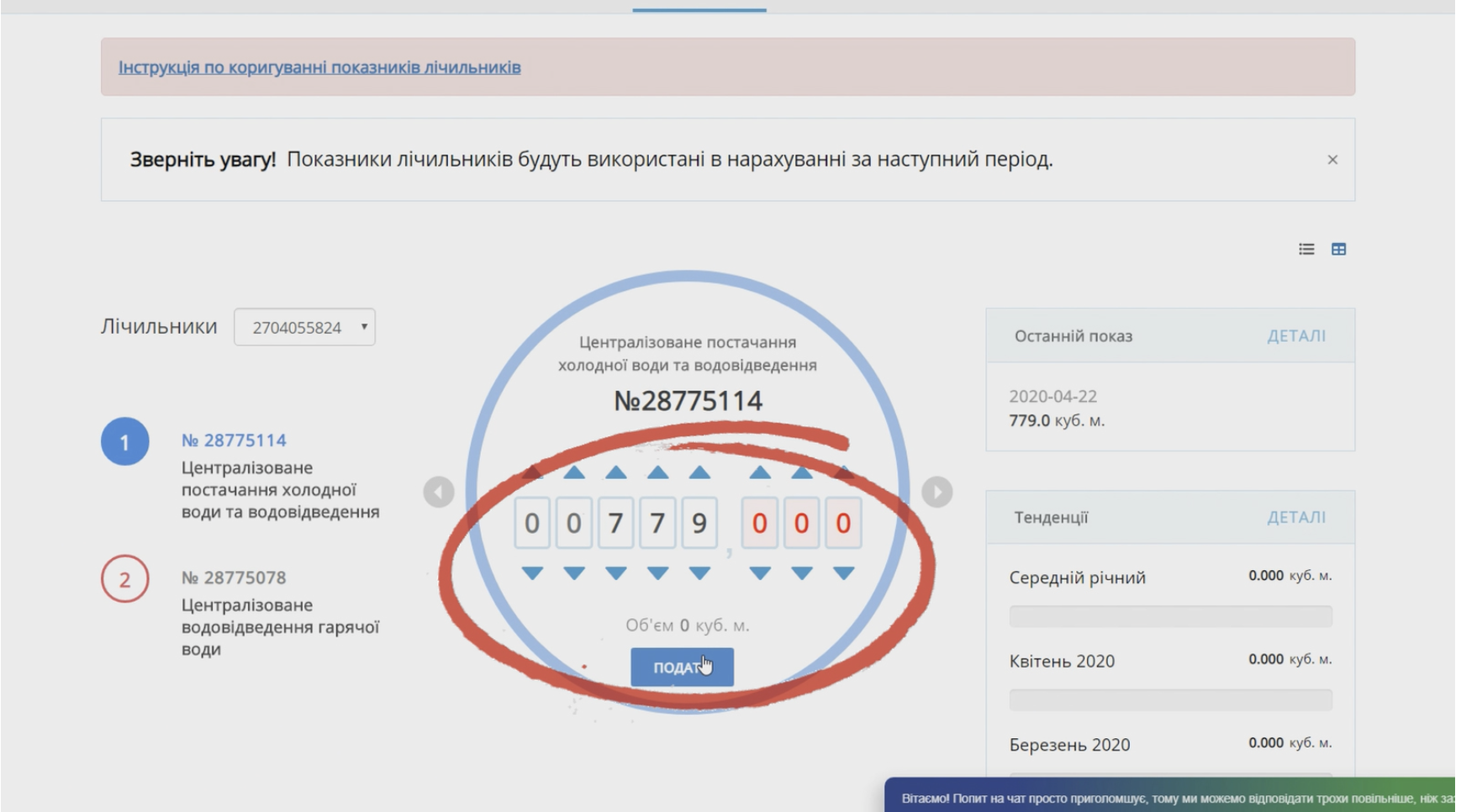
2. Enter readings - on the scale of indicators, you need to enter the actual readings of the meter - click "submit";
3. A window will appear with the question: "Are you sure you want to send the indicator?" Click OK;
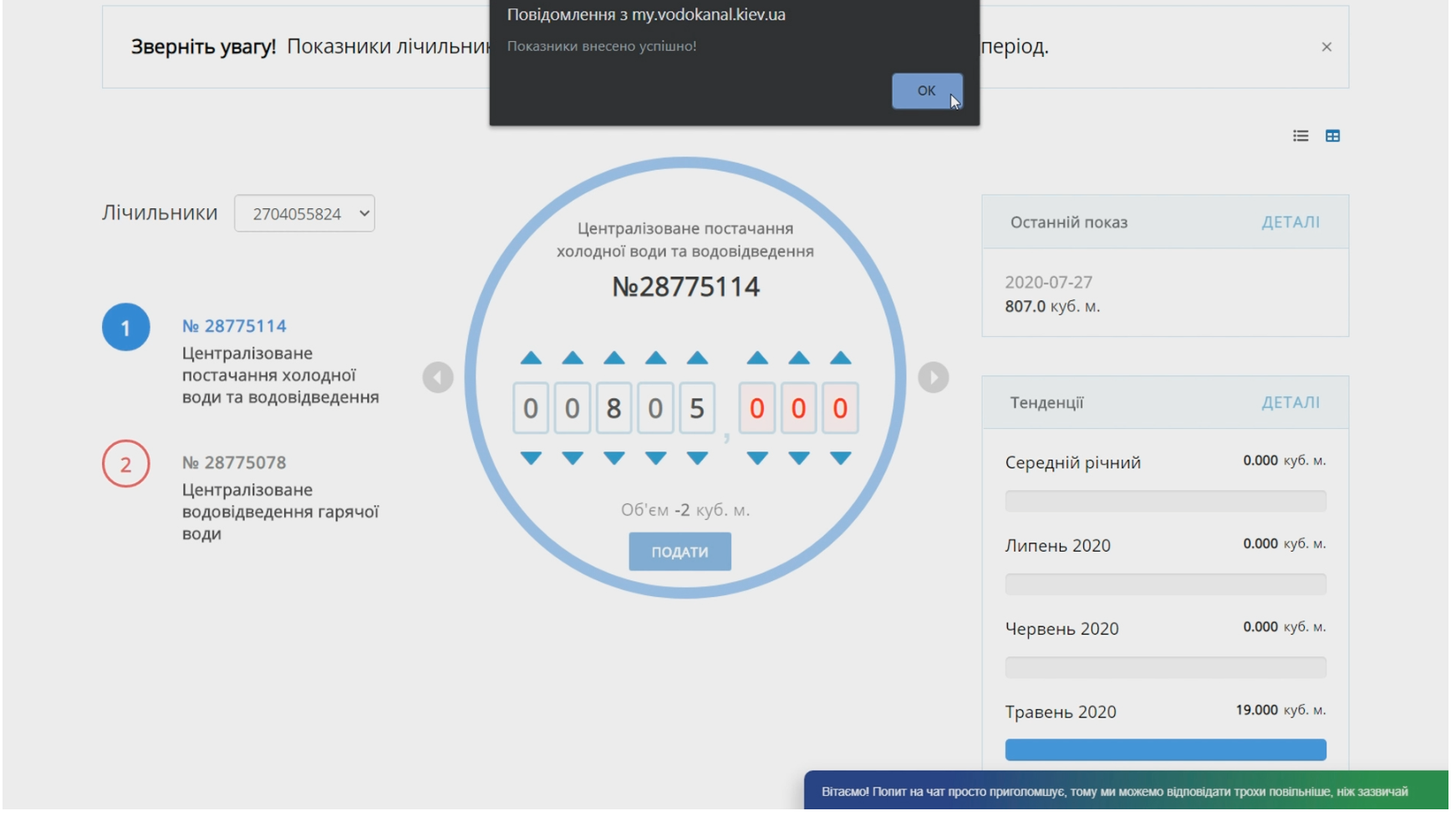
4. A window will appear with the message "Metrics entered successfully". Click OK. Repeat the actions for other meters if necessary;
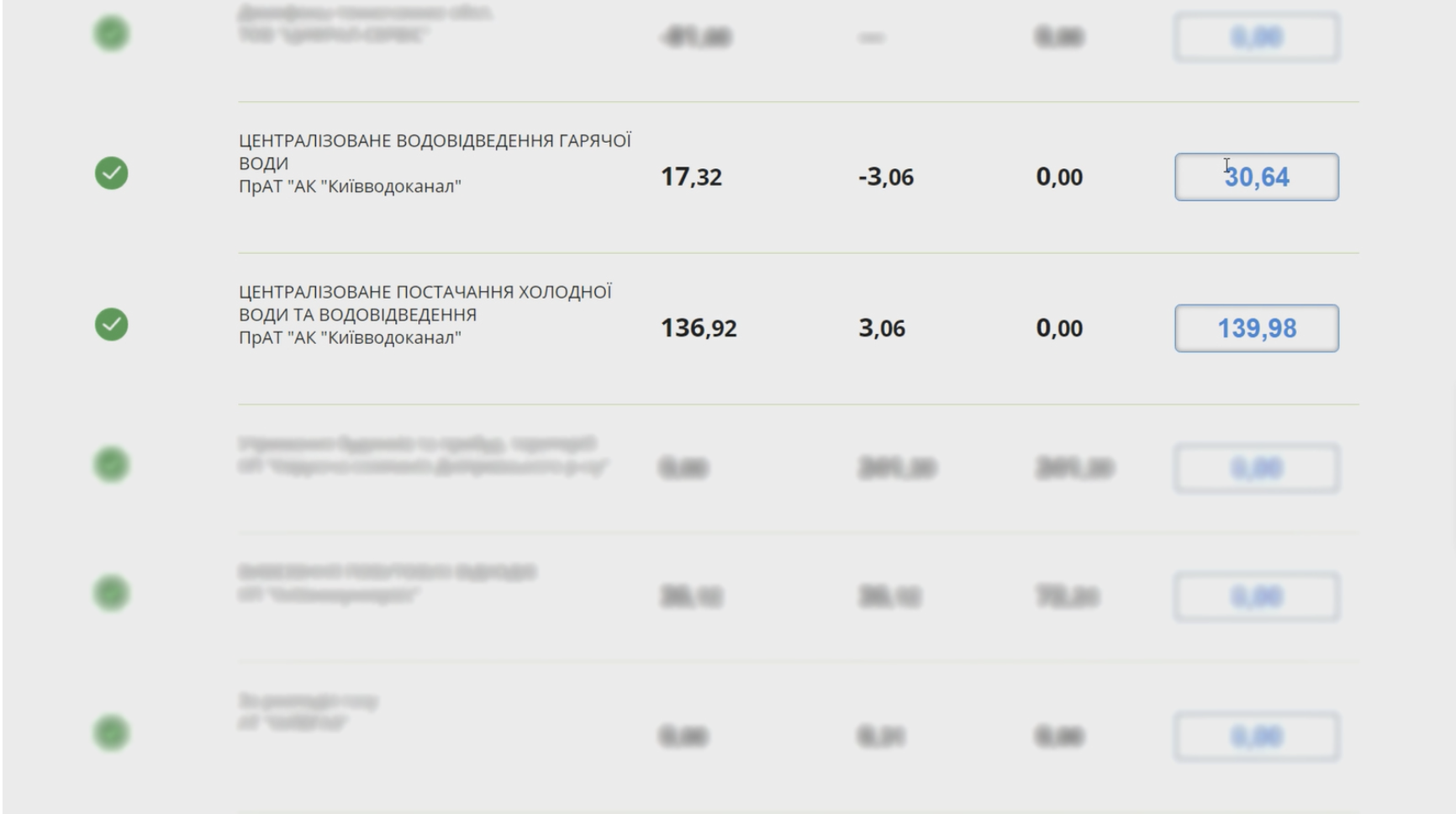
5. Return to the indicators page where the scale shows the actual meter readings and the indicators table shows the last reading, with the corrected volume for the current month shown below with a negative value. Upon returning to the main page, the actual readings will also be displayed.
After entering the actual meter readings in the "Personal Cabinet", the corrected volume of service consumption is displayed in the Kyivvodokanals accounting database.
Adjustments to the charges for the services provided and the display of the correction amount in the "Personal Cabinet" will only occur after the settlement period is closed.
If you're having trouble submitting your readings or have additional questions, we recommend using the "Electronic Appeal" option.
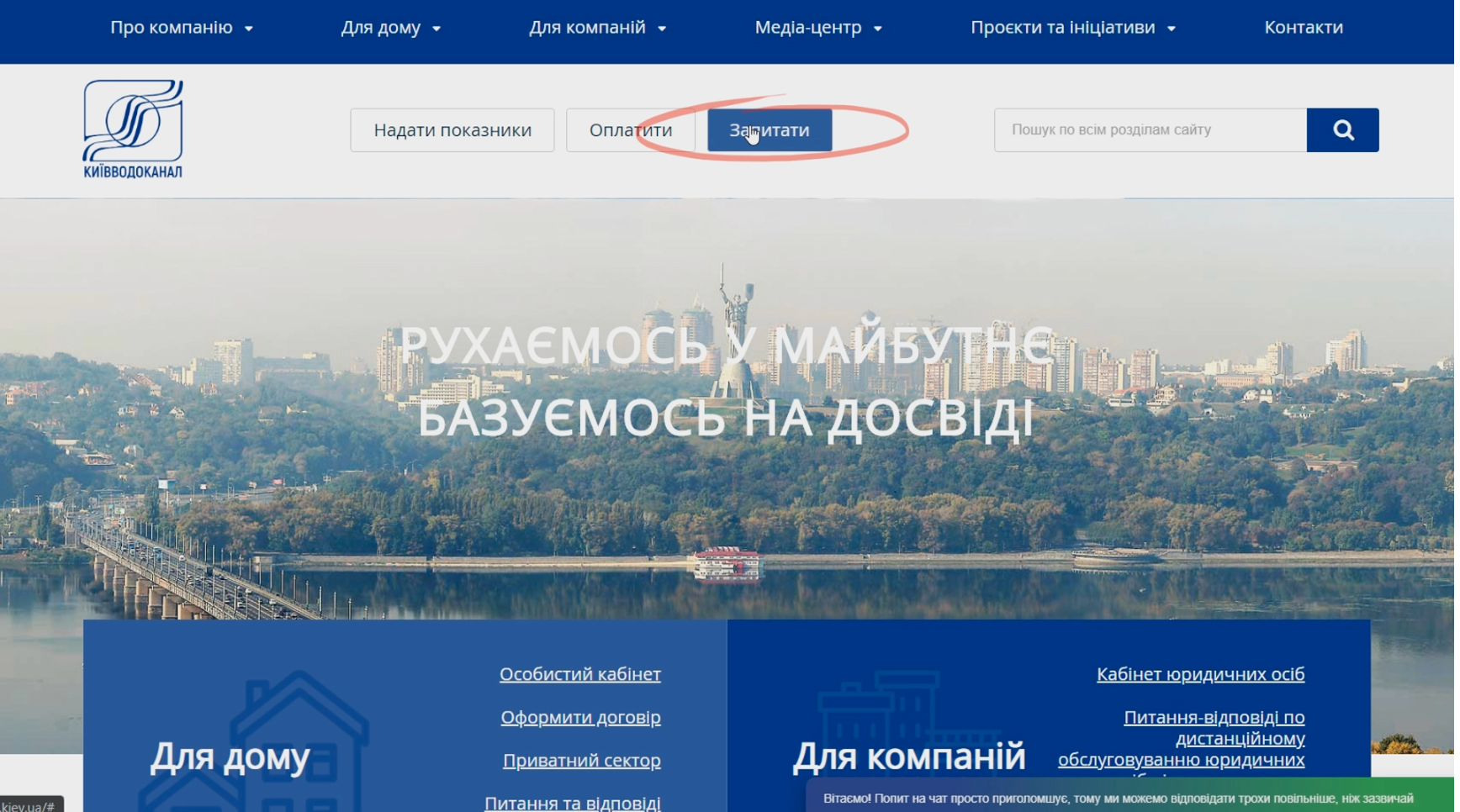
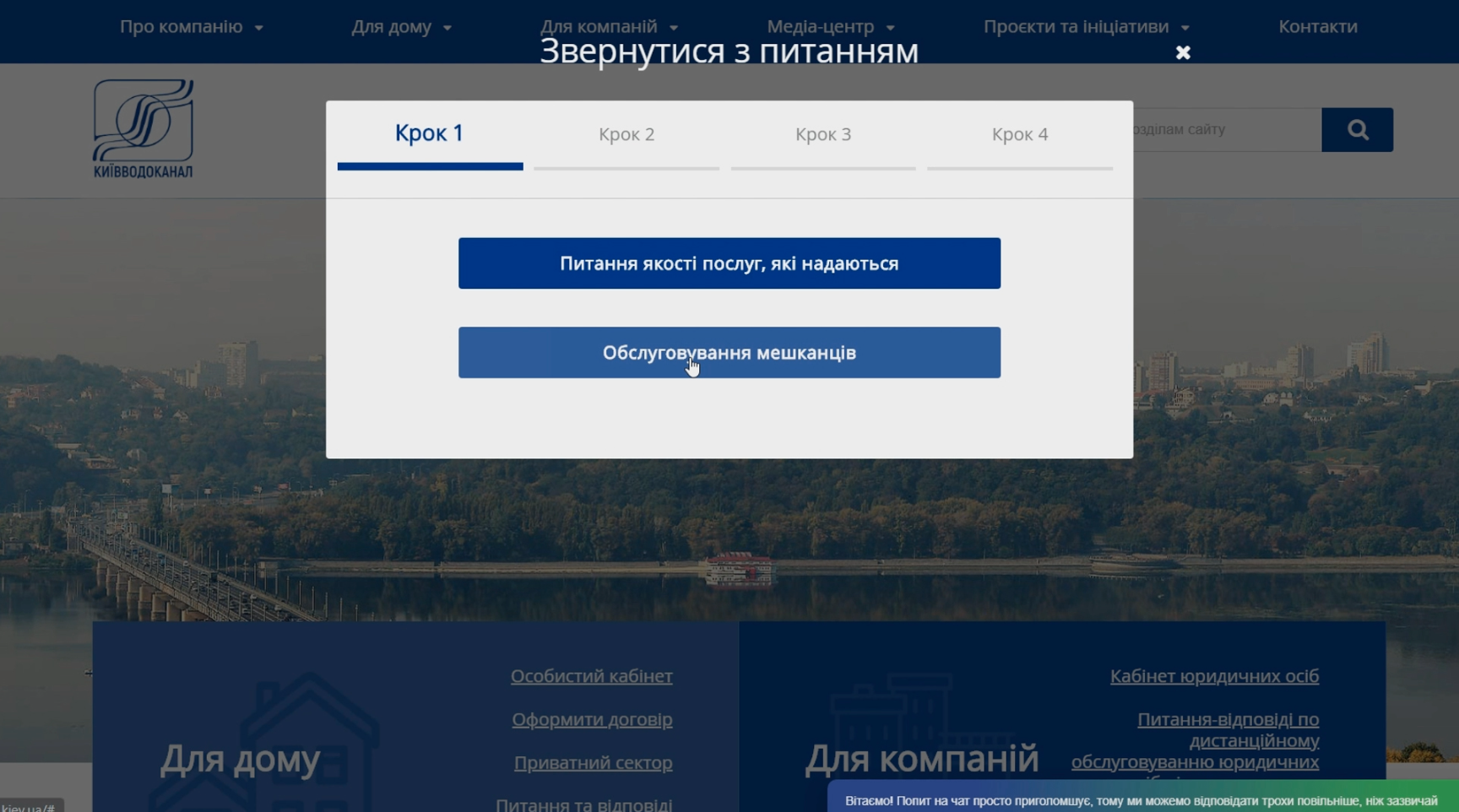
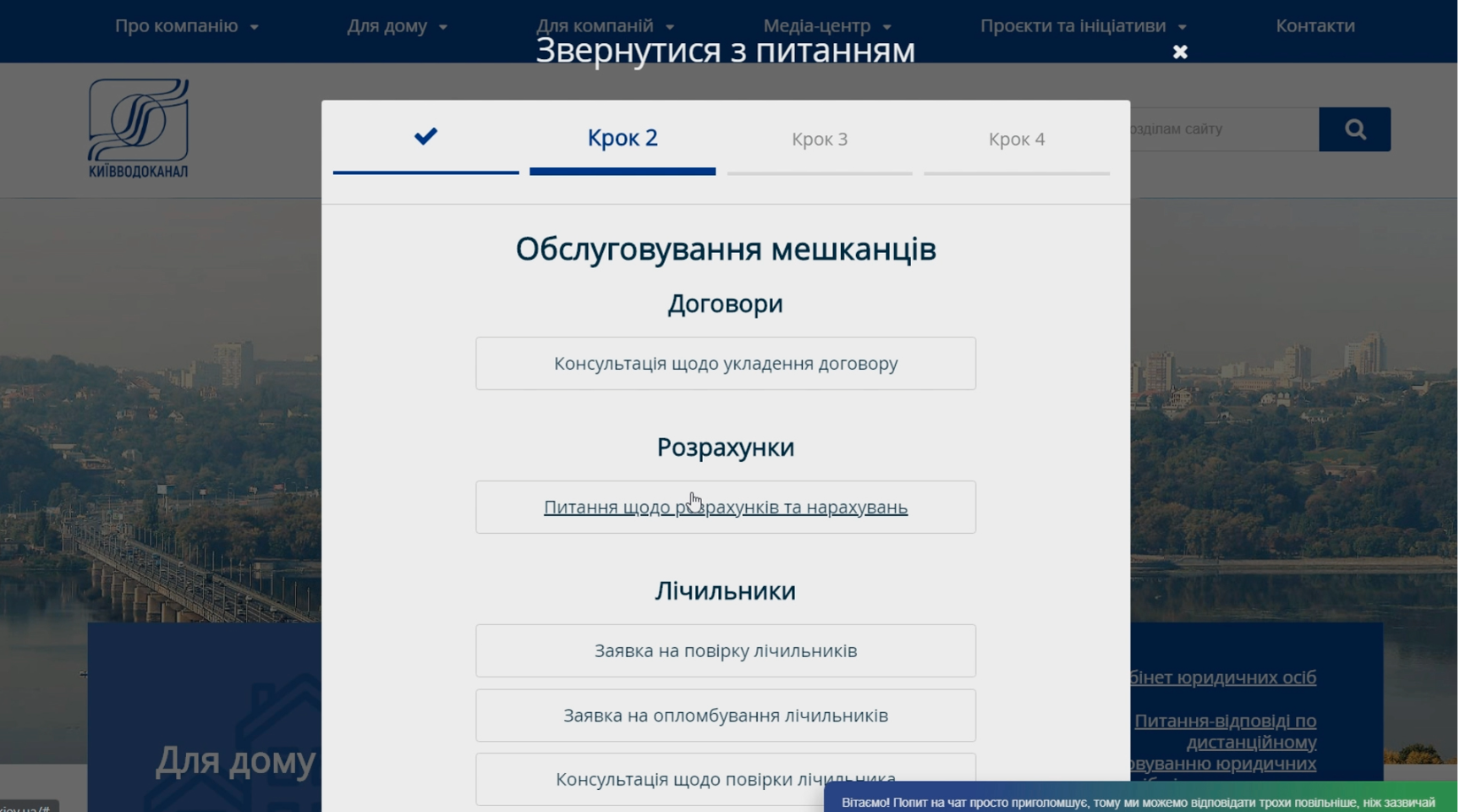
To do this, on the main page of the Kyivvodokanal website, you need to click "Ask" and then follow four steps:
1. Choose the "Residents' Service" option;
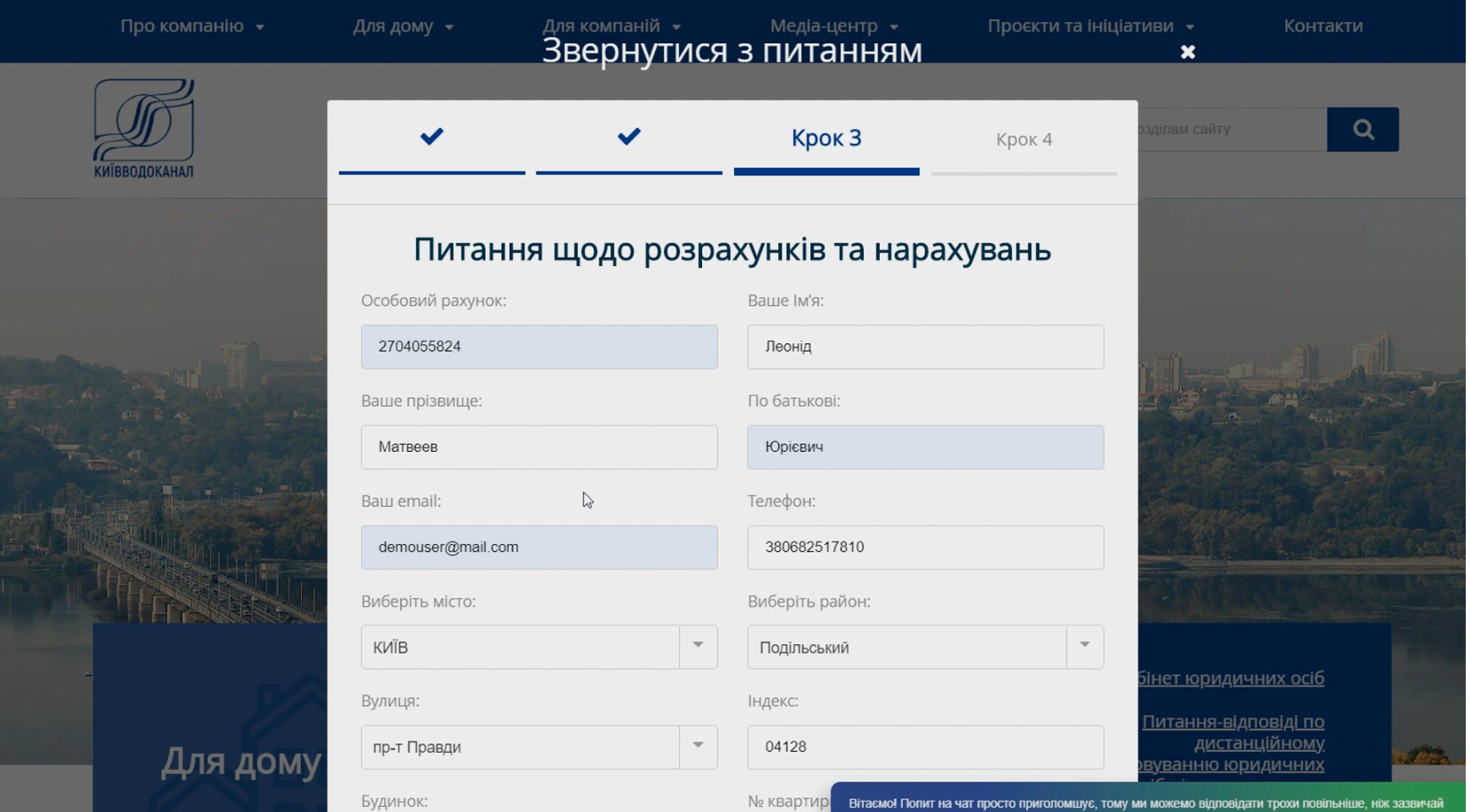
2. Go to the "Calculations" section;
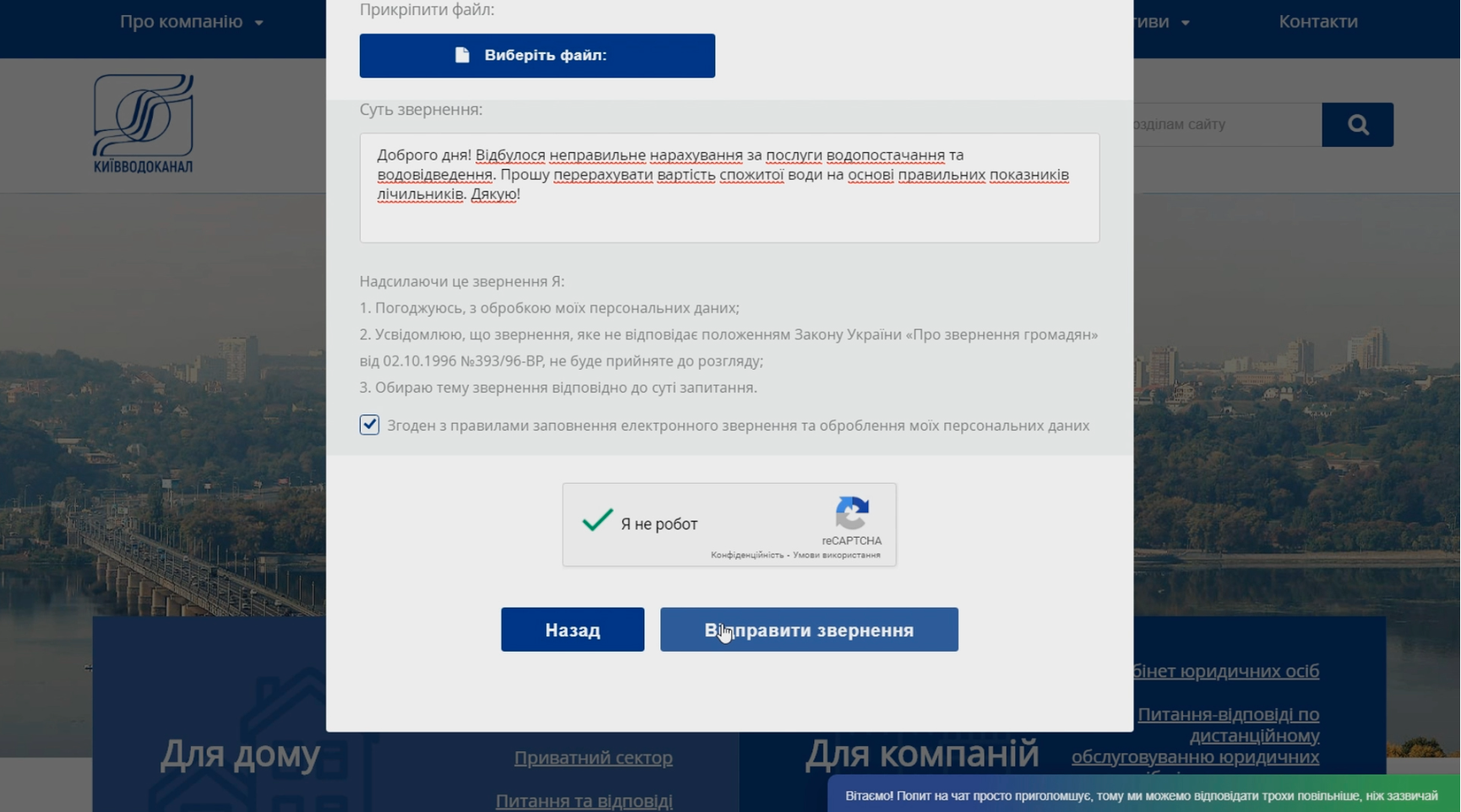
3. Fill in all required fields, describe your question, and attach documents for making changes and updating information in the Society's accounting database.
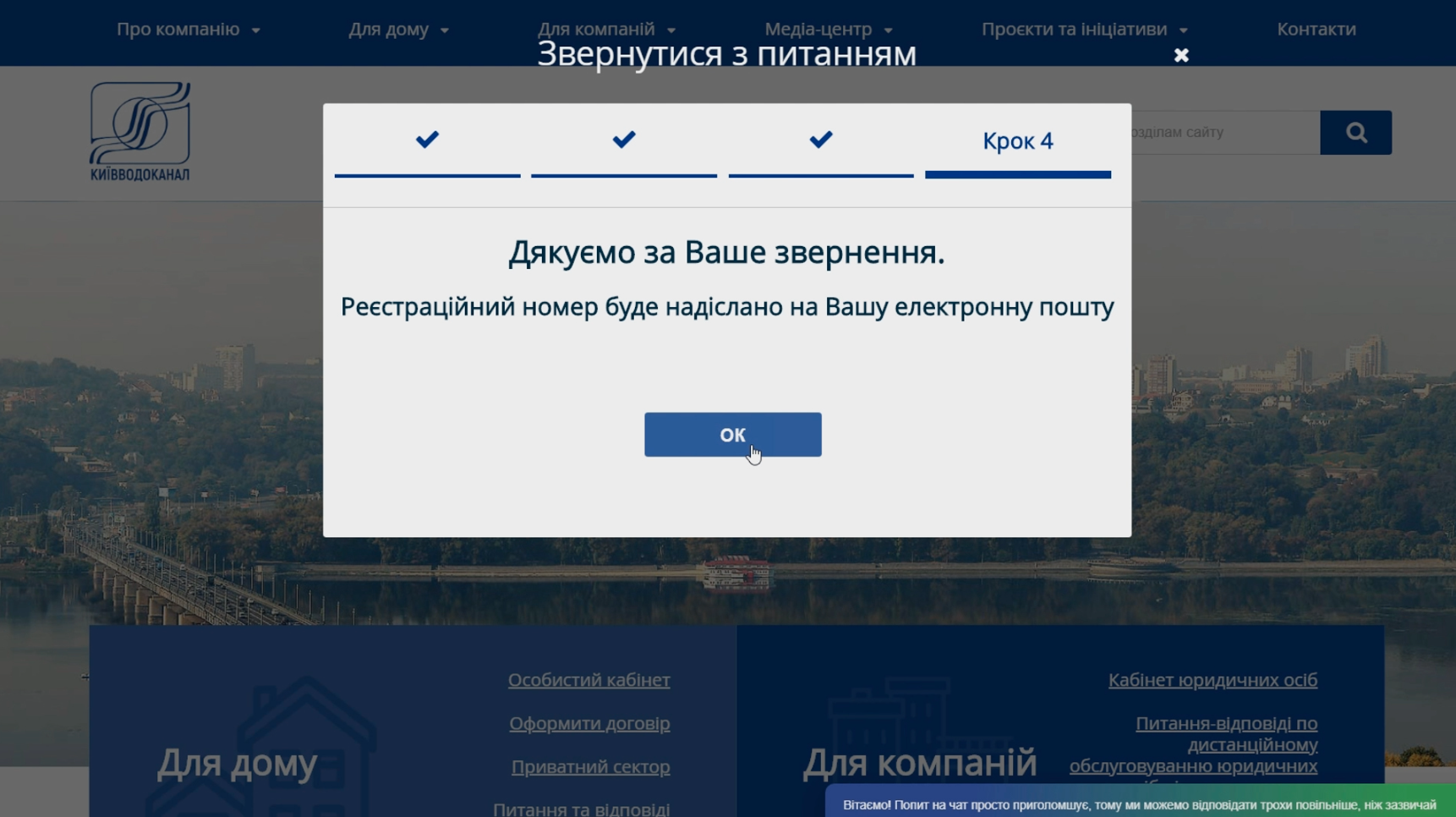
4. Click "Submit the appeal".
You can also contact one of the service centers of the communal concern "Center for Communal Services" or the Consumer Service Centers of the Society for corrections of calculations.
Video Instruction №5: Online Payment Methods
To pay for water supply and sewerage services without leaving home, you can do so remotely using any of the following methods:
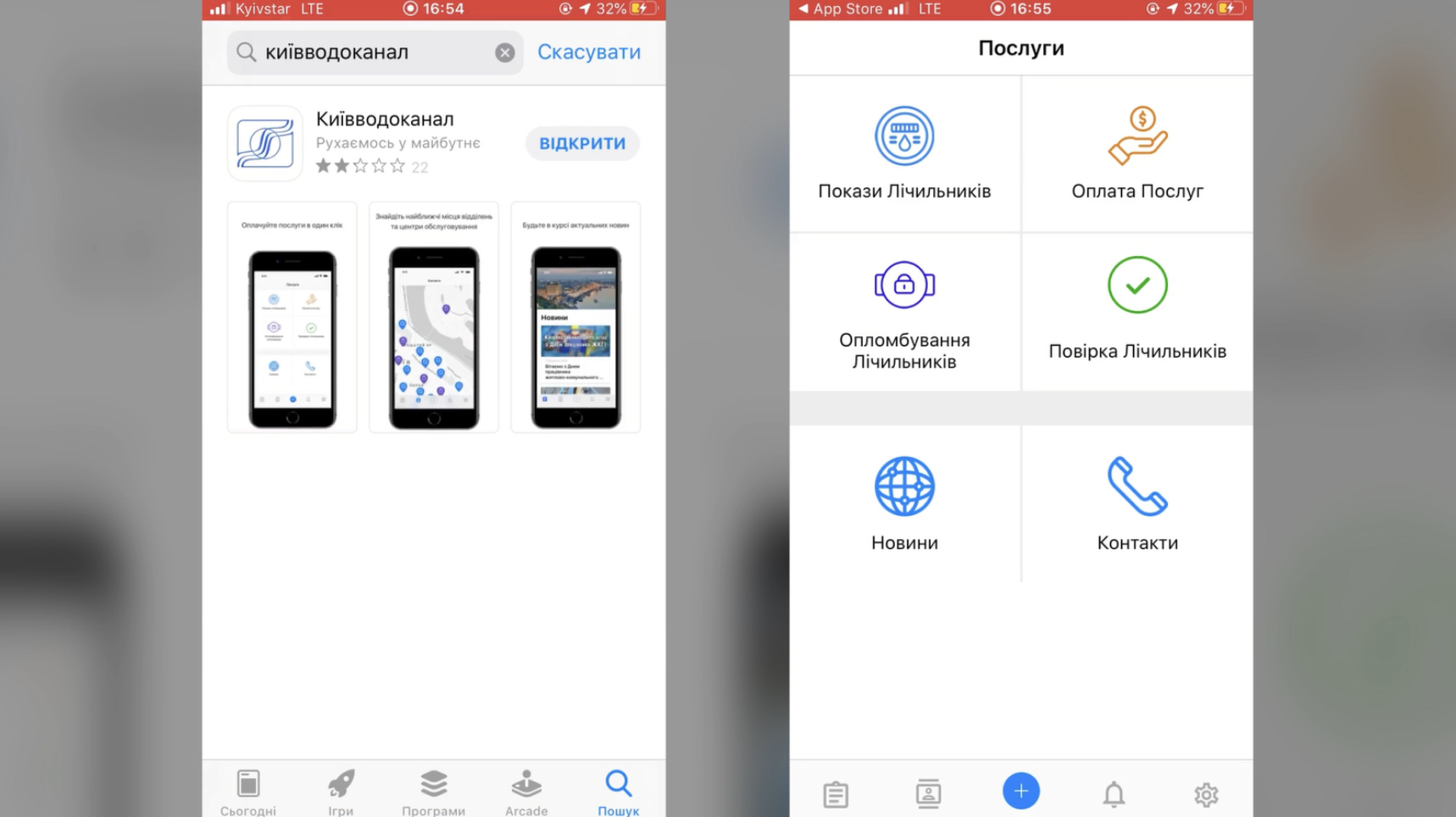
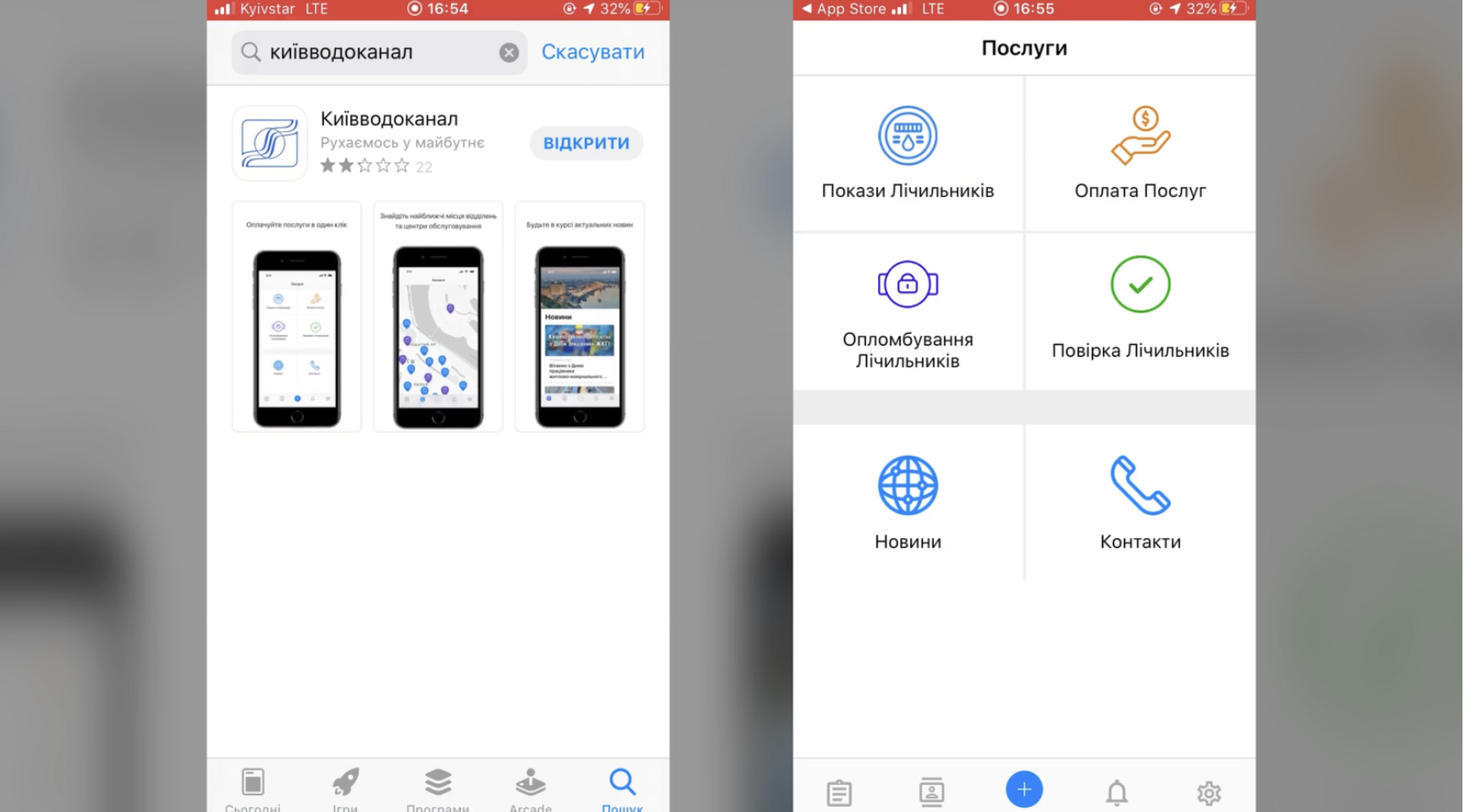
- through the mobile app "Kyivvodokanal", downloaded via Google Play or App Store;
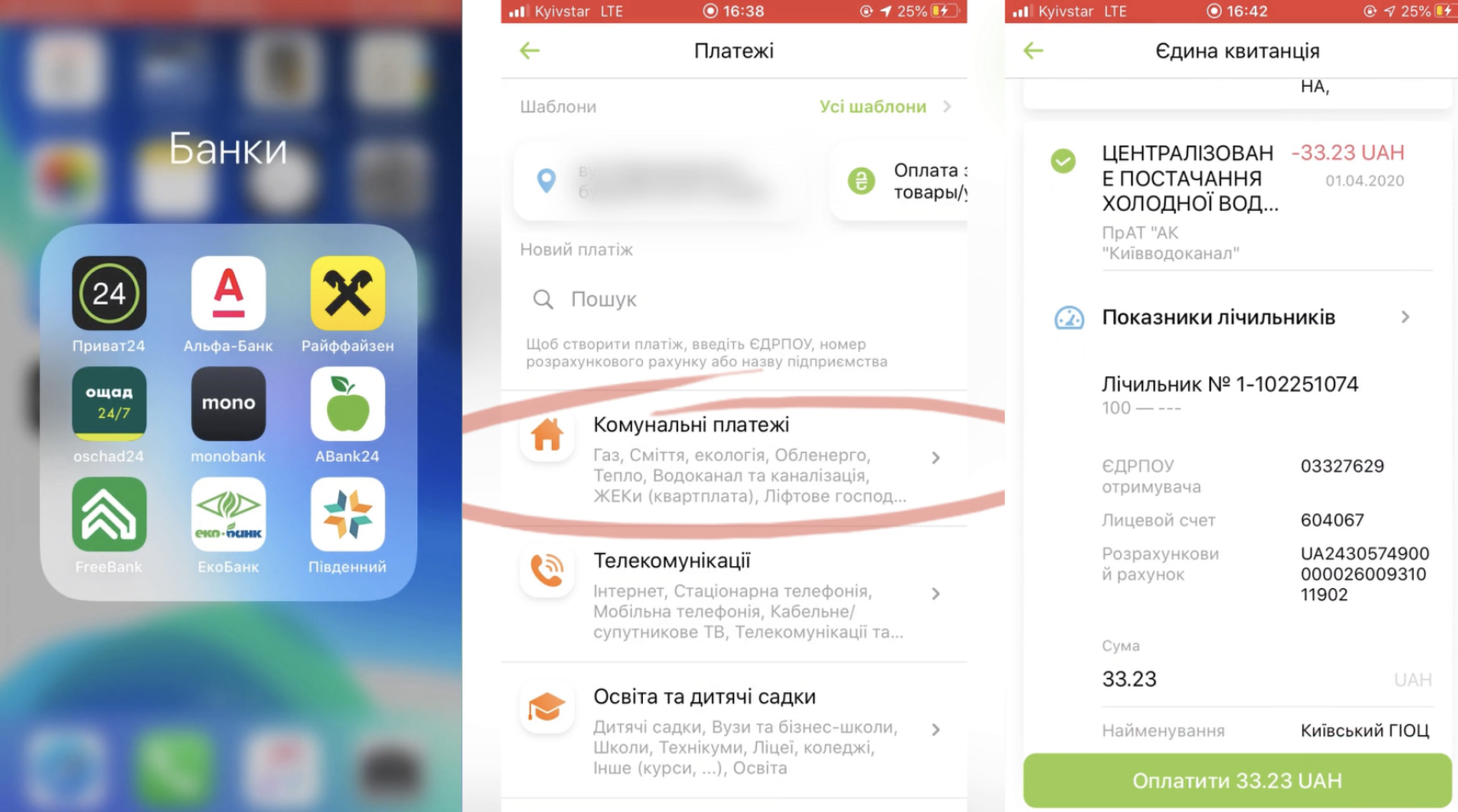
- by using a bank card through the website or mobile app of the respective bank;
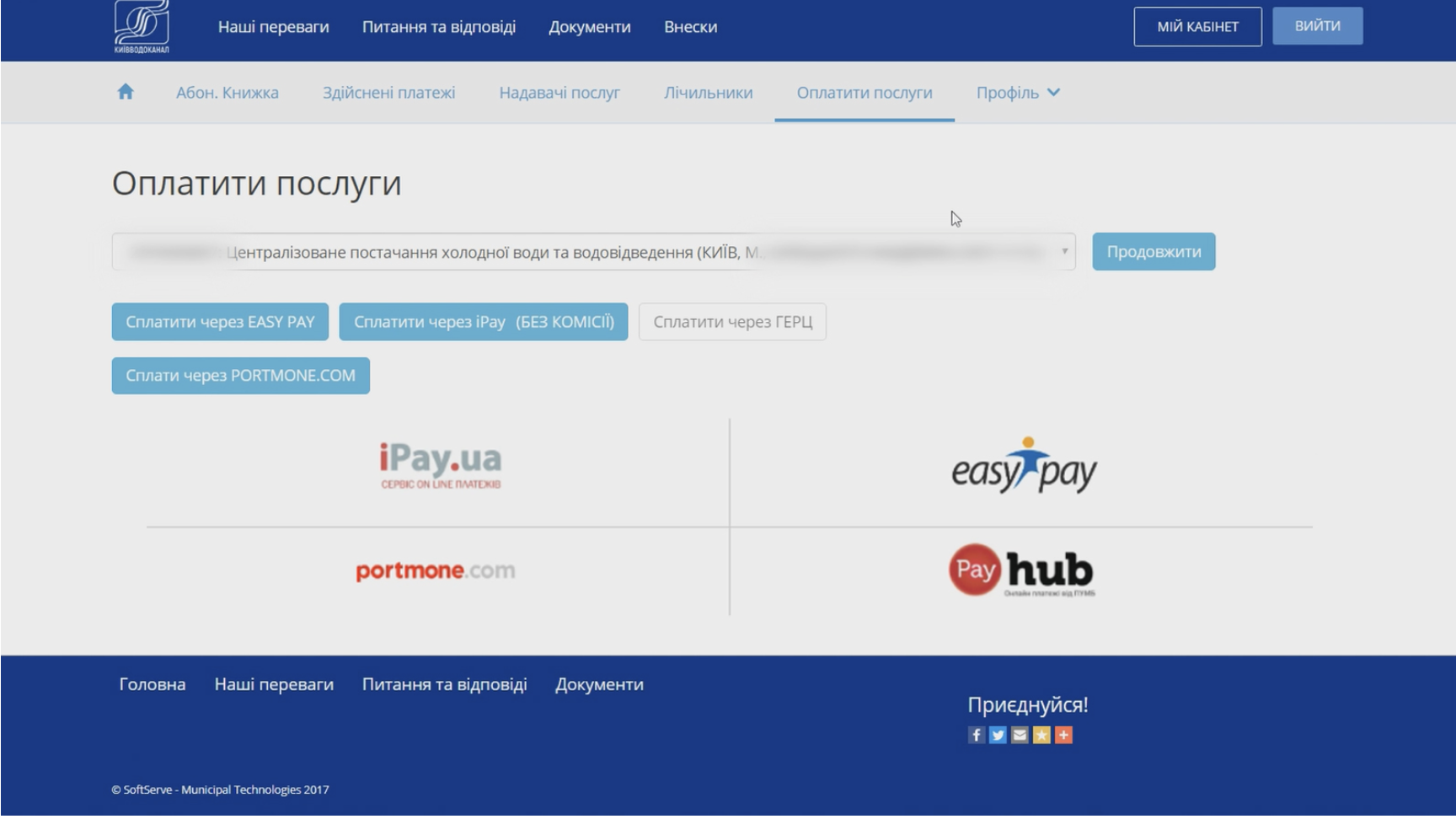
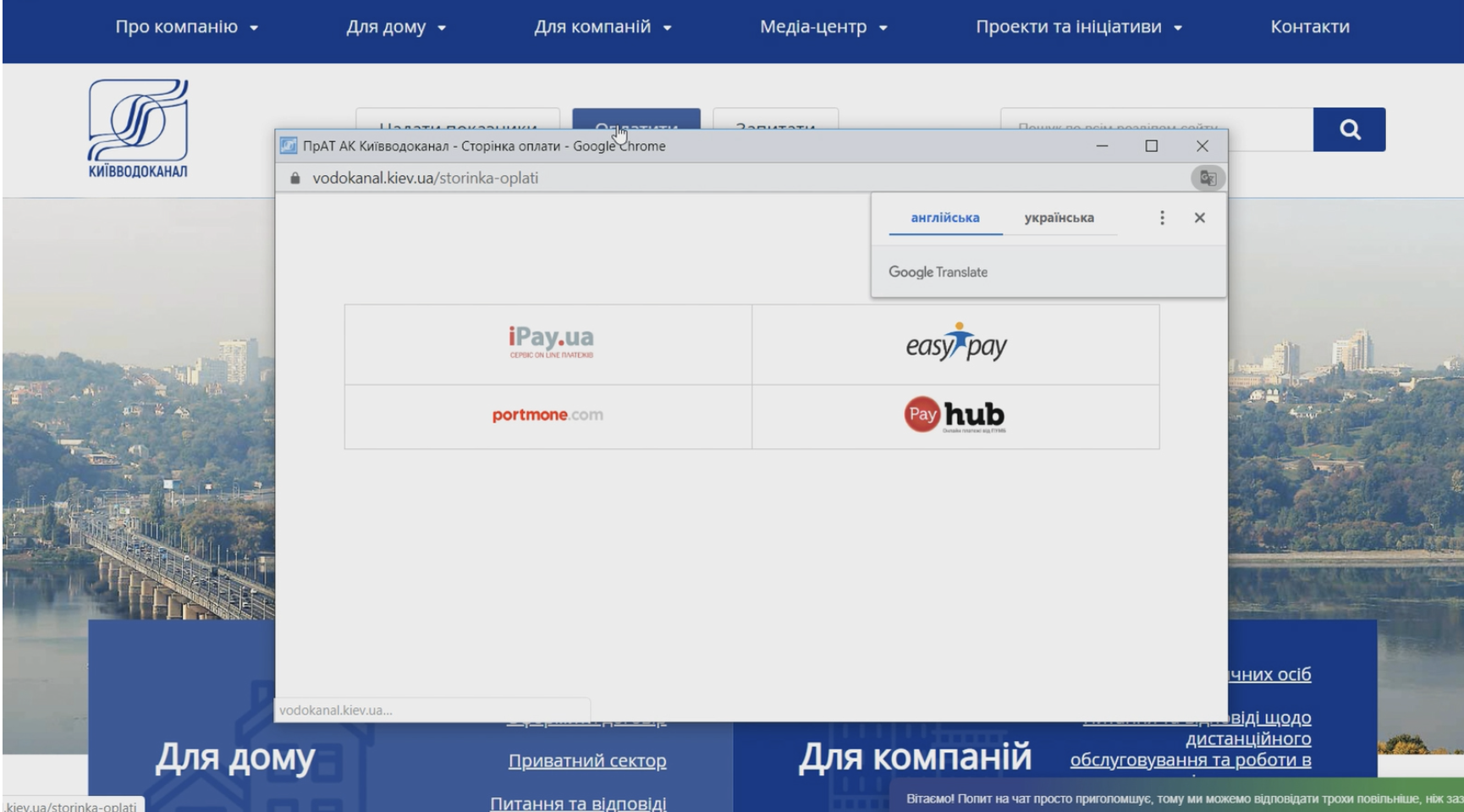
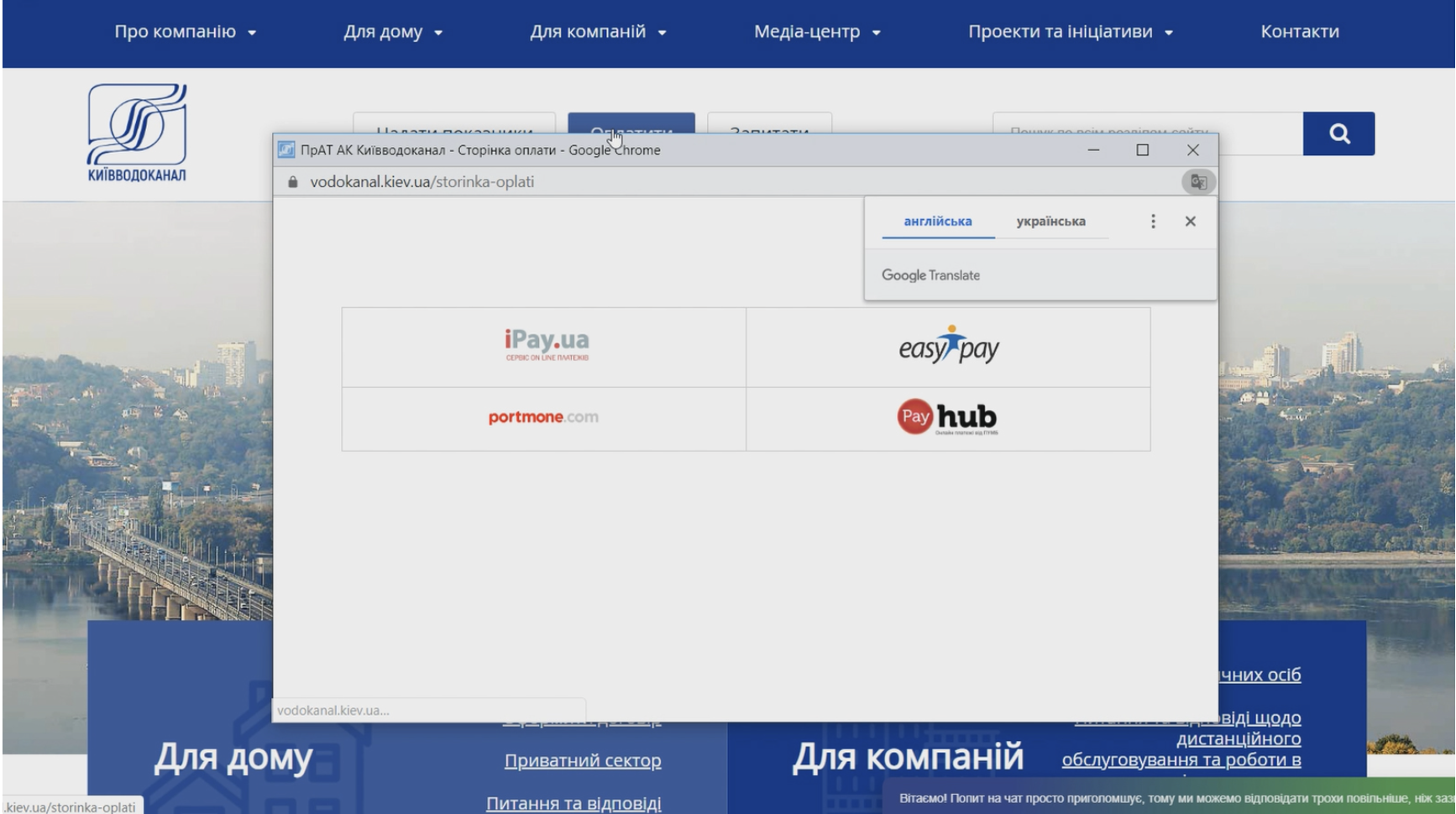
- On the "Personal Cabinet" page and the main page of the website of PJSC "AK "Kyivvodokanal", you can pay for services through online systems: iPay, Portmone, Easypay, PayHub using a bank card.
- in the "Personal Cabinet" through the site of the KCC "Center of Communal Services".
How to use these services, see our video instructions:
**Online Payment Methods**
*Please note that the following content is a placeholder and will be replaced with actual content.*
{title}
{shortcode}
[button url="https://example.com" label="Learn More"]
**List of Payment Methods:**
- **Credit/Debit Card:** {card_icon} Visa, Mastercard, American Express, etc.
- **E-wallets:** {ewallet_icon} PayPal, Apple Pay, Google Pay, etc.
- **Bank Transfer:** {bank_icon} Direct bank transfer, wire transfer, etc.
- **Mobile Payment:** {mobile_icon} Alipay, WeChat Pay, etc.
- **Cryptocurrency:** {crypto_icon} Bitcoin, Ethereum, etc.
**Additional Information:**
{additional_info}
[button url="https://example.com/contact" label="Contact Us"]
{footer}
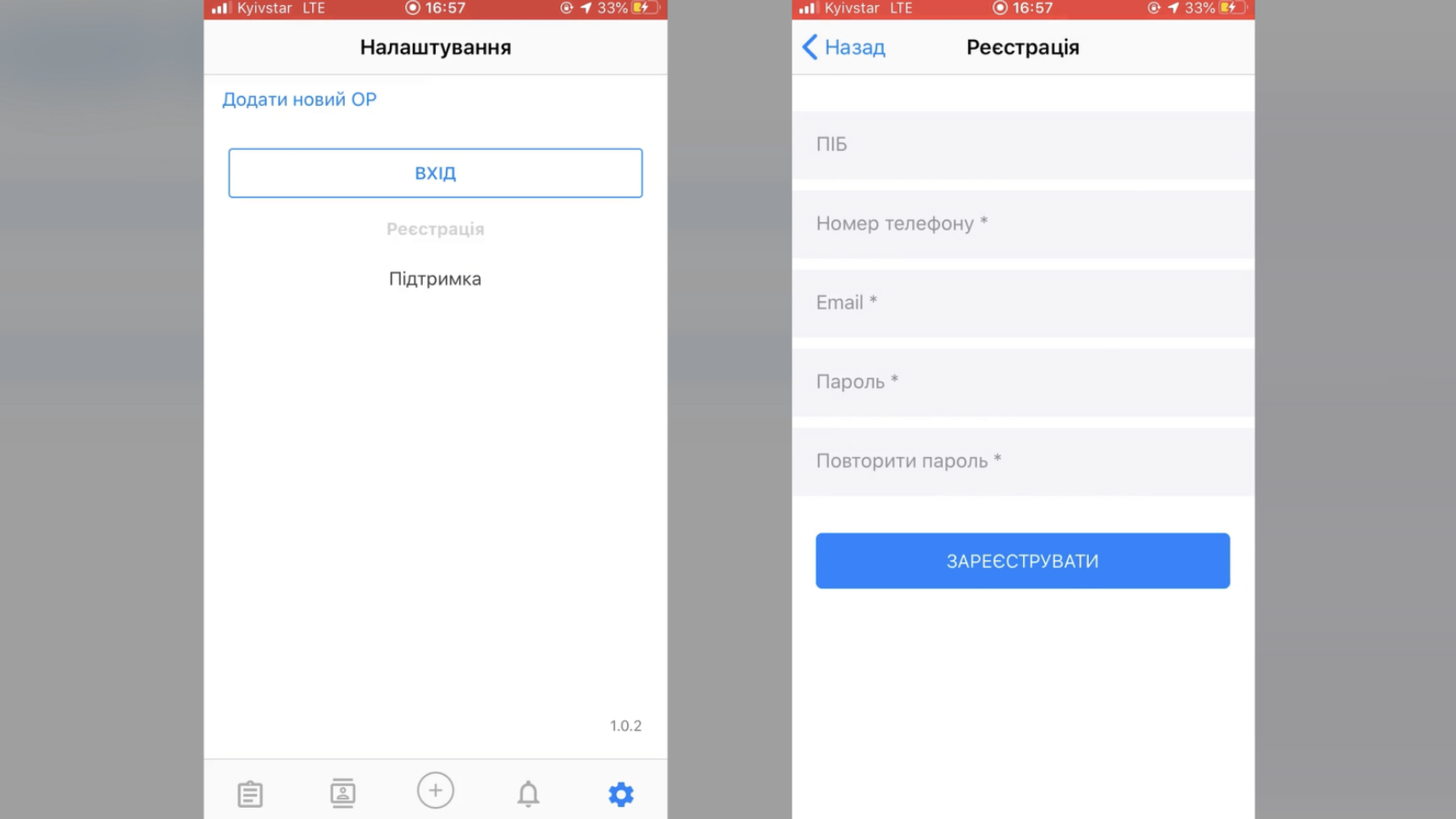
For payment through the "Kyivvodokanal" app:
1. Download the app from the App Store or Google Play:
2. Register. To do this, enter your full name, email address, mobile phone number and password.
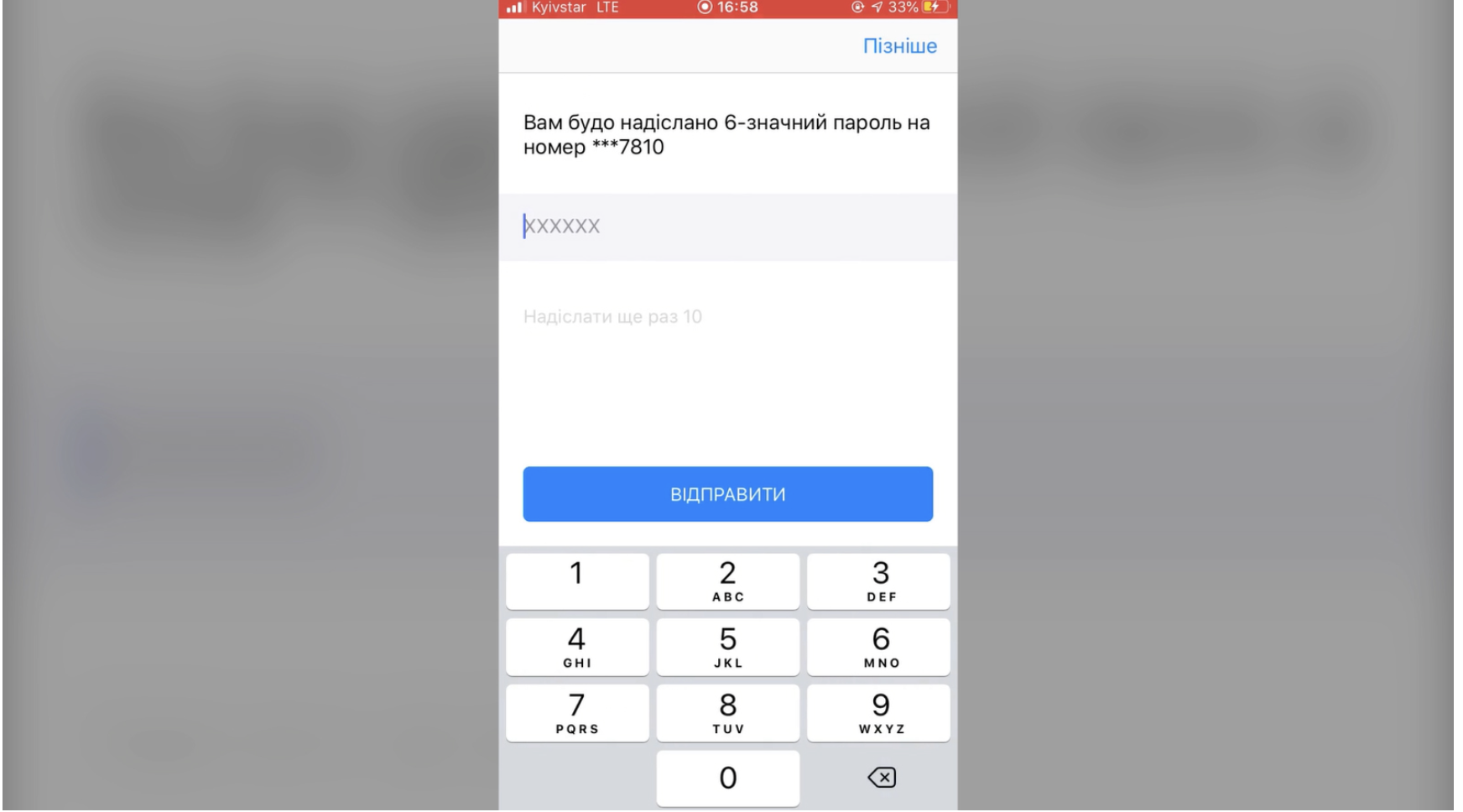
3. Confirm your phone number. After registration, you will receive an SMS with a code that needs to be entered in the app.
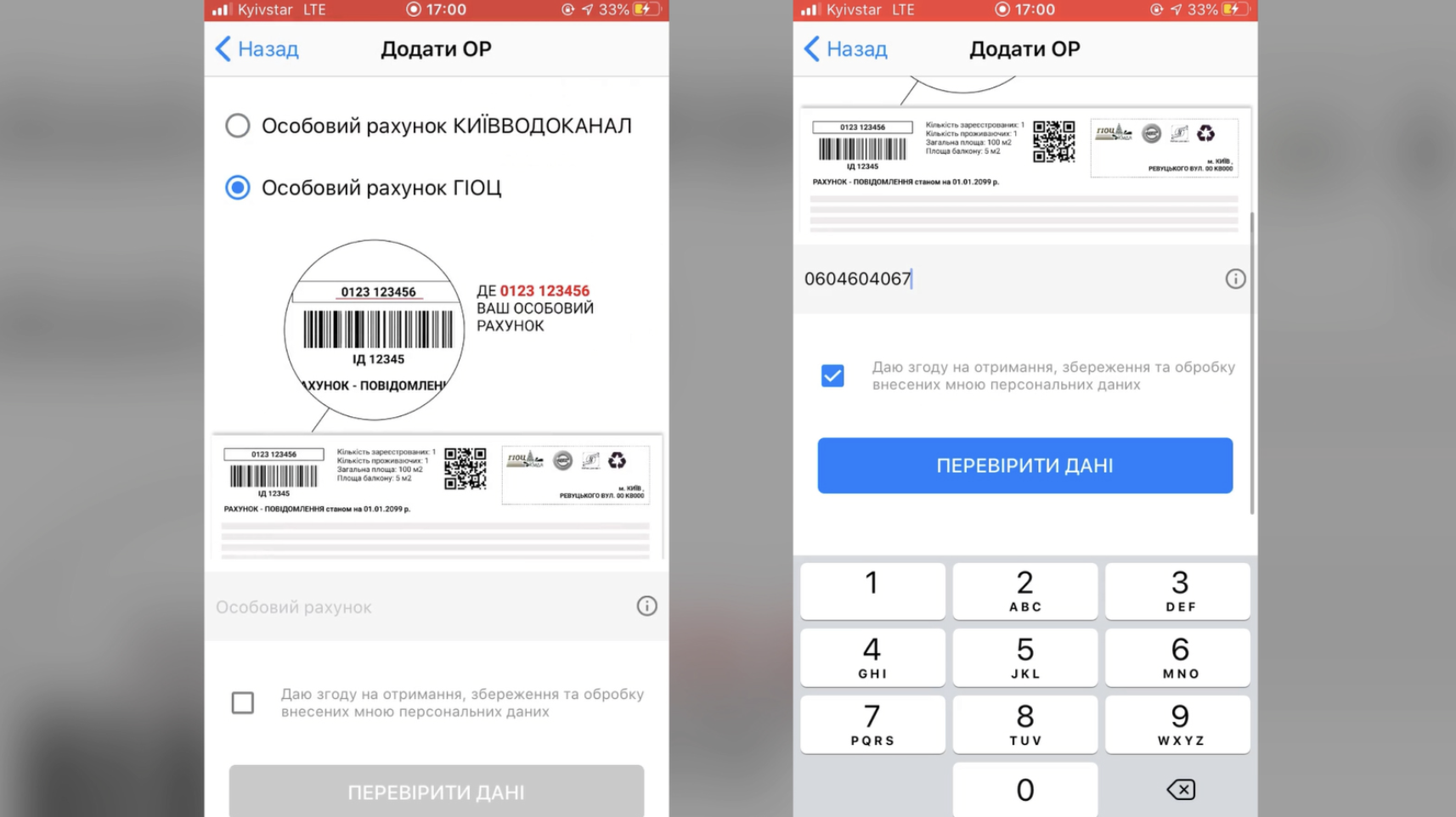
4. Add a personal account. Enter the personal account number that is on the Kyivvodokanal or GIOC invoice.
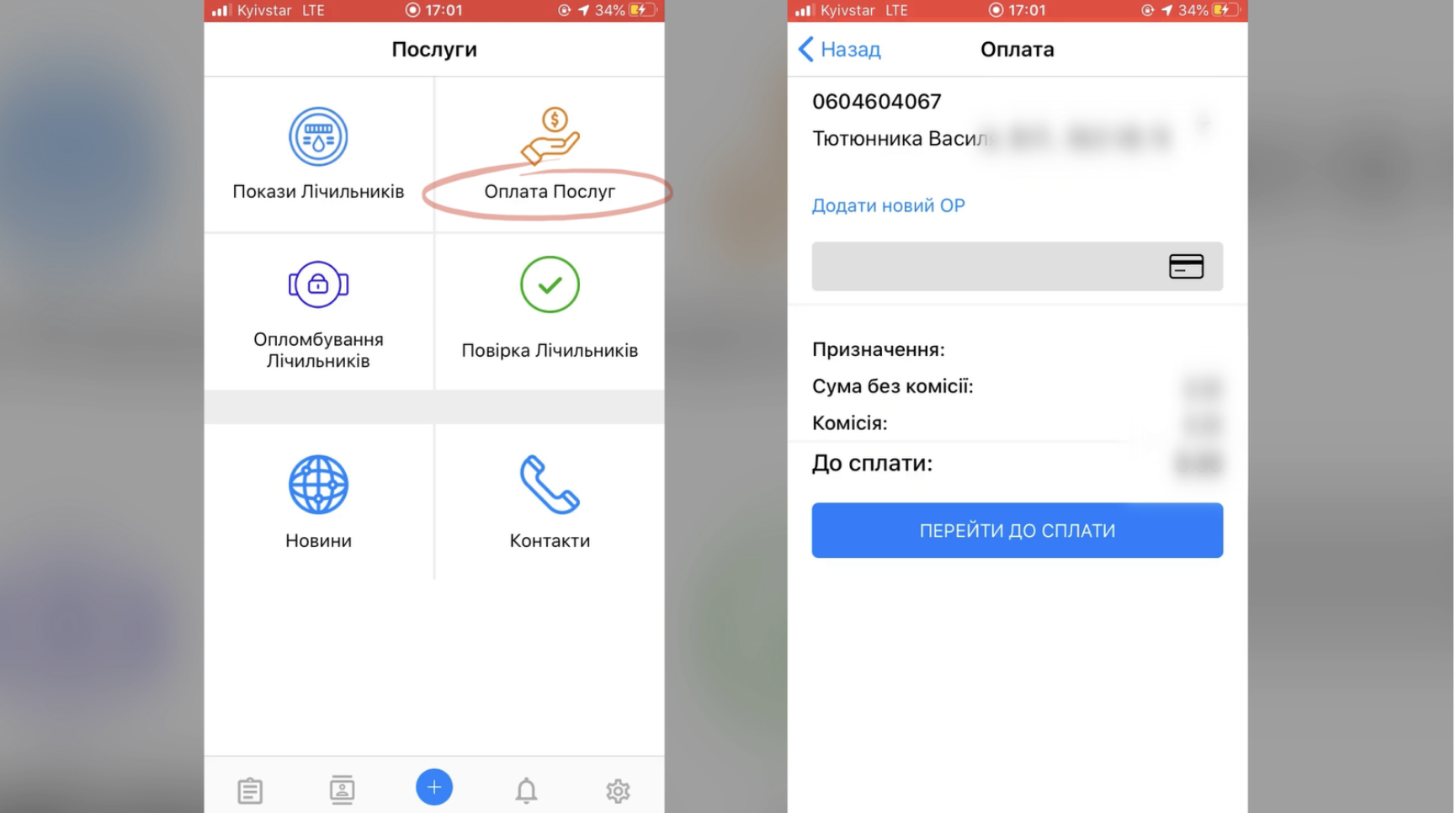
5. Make the payment.
Thank you for paying online!
Video Tutorial #6: How to Pay for Services on the Kyivvodokanal Website? How to Get a Receipt?
You can pay for water supply and water disposal services remotely on our website. Using this service is very easy, but if you have any questions, we recommend watching our video tutorial:
How to pay for services on the Kyivvodokanal website? How to get a receipt?
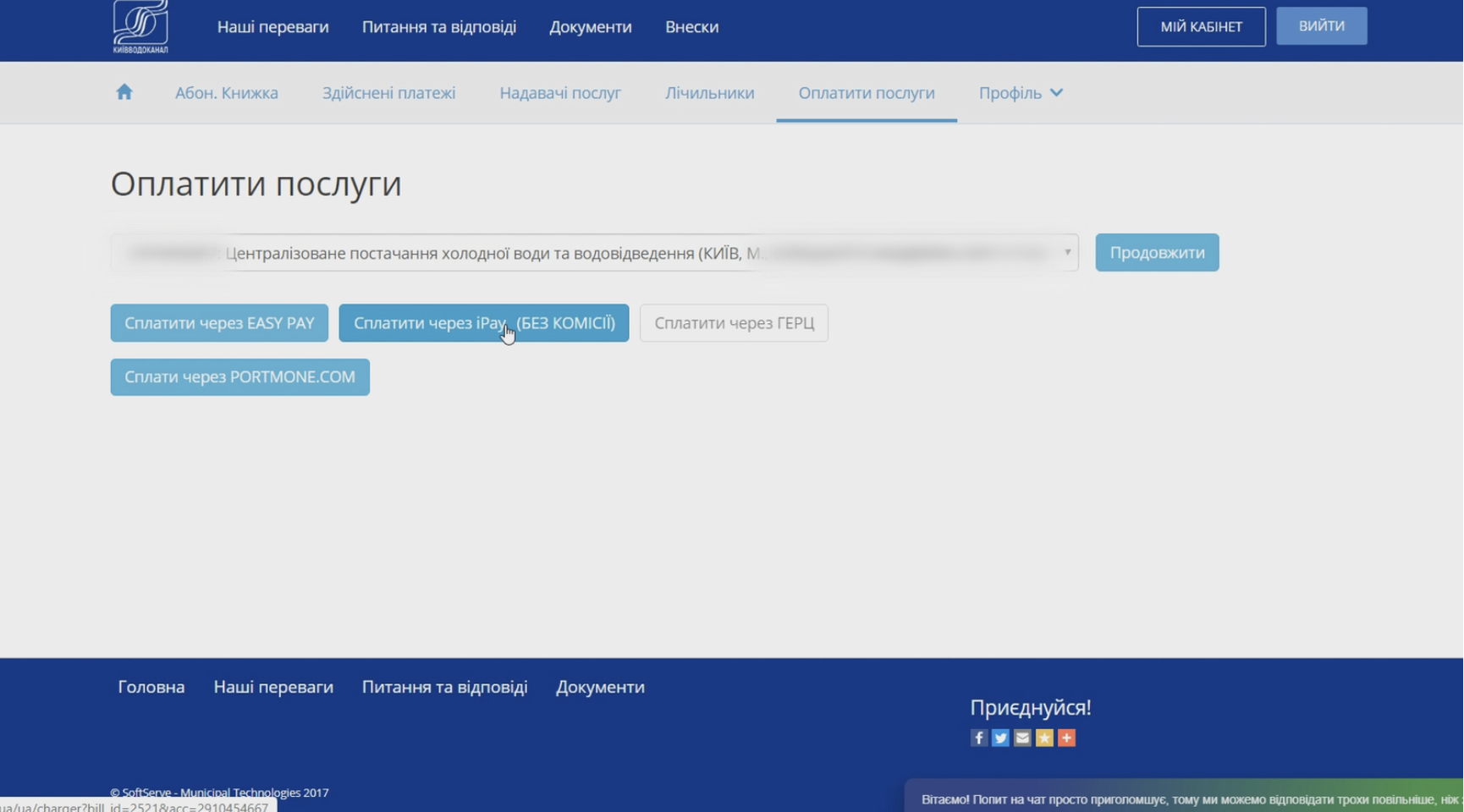
1. To pay for water supply and sewerage services through the Kyivvodokanal website, you need to select the "PAY" service on the main page. Then, proceed to the website of any of the specified online payment systems, choosing the most convenient one for you: iPay, Portmone, Easypay or PayHub.
You can also go to the payment page in "My Cabinet" of Kyivvodokanal. Select the appropriate item in the "For Home" section, then click on the "MY CABINET" button or "REGISTER" if you haven't registered before. After authorization, select "Pay for Services", and find the personal account you want to pay for utilities in the list.
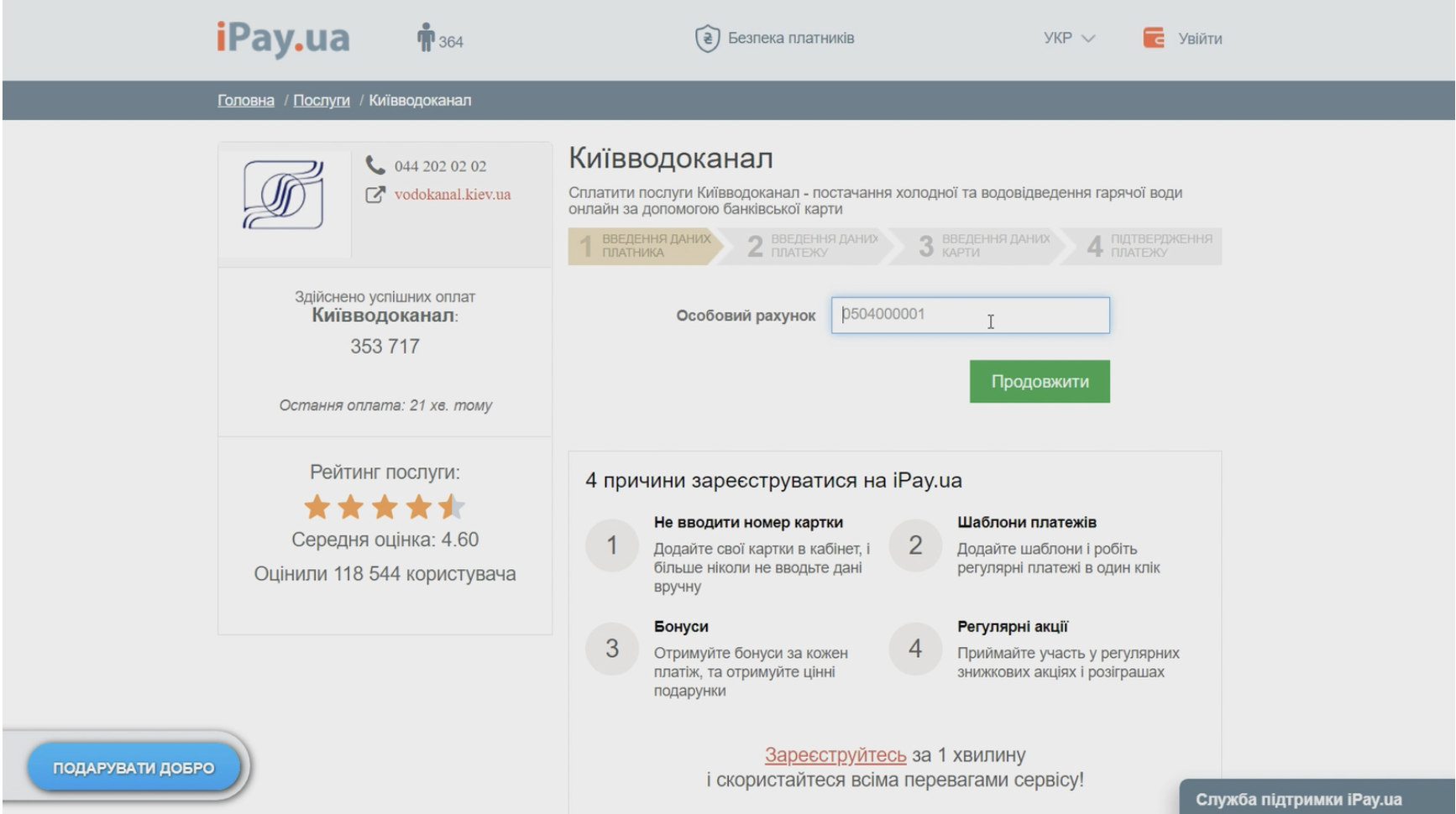
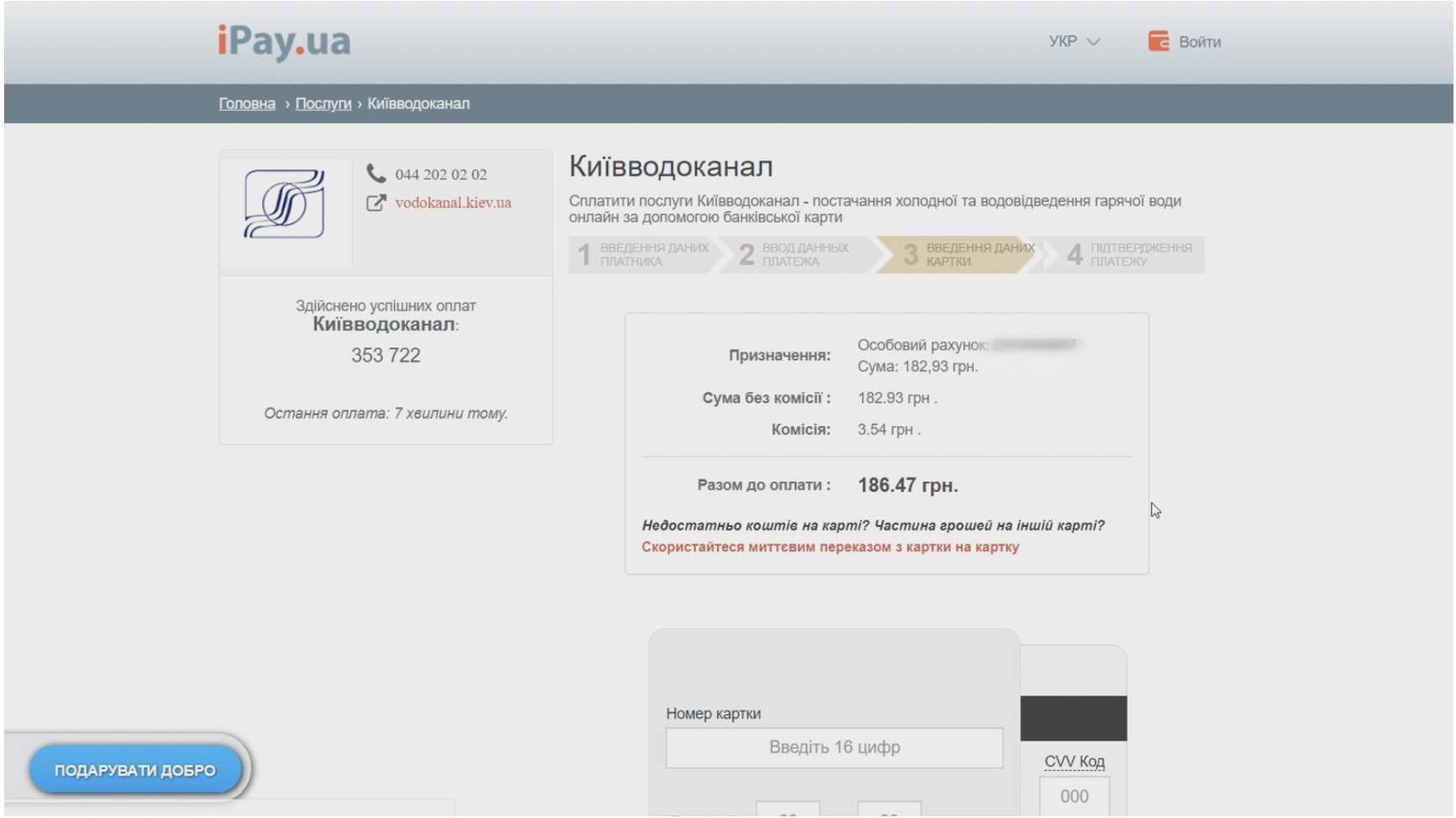
2. For immediate payment, go to the website of one of the payment systems, for example, we will show how to pay through iPay.
To do this, select "Communal Services", and then depending on the type of personal account, click on "Kyivvodokanal" or "GIOC KMDA". We remind you that on the invoice from KP GIOC, in the top left corner, the four-digit JEO code is indicated first, followed by the six-digit personal account of GIOC, and on the invoice from Kyivvodokanal it consists of 7 digits and is indicated in the "Personal Account" column in the top right corner.
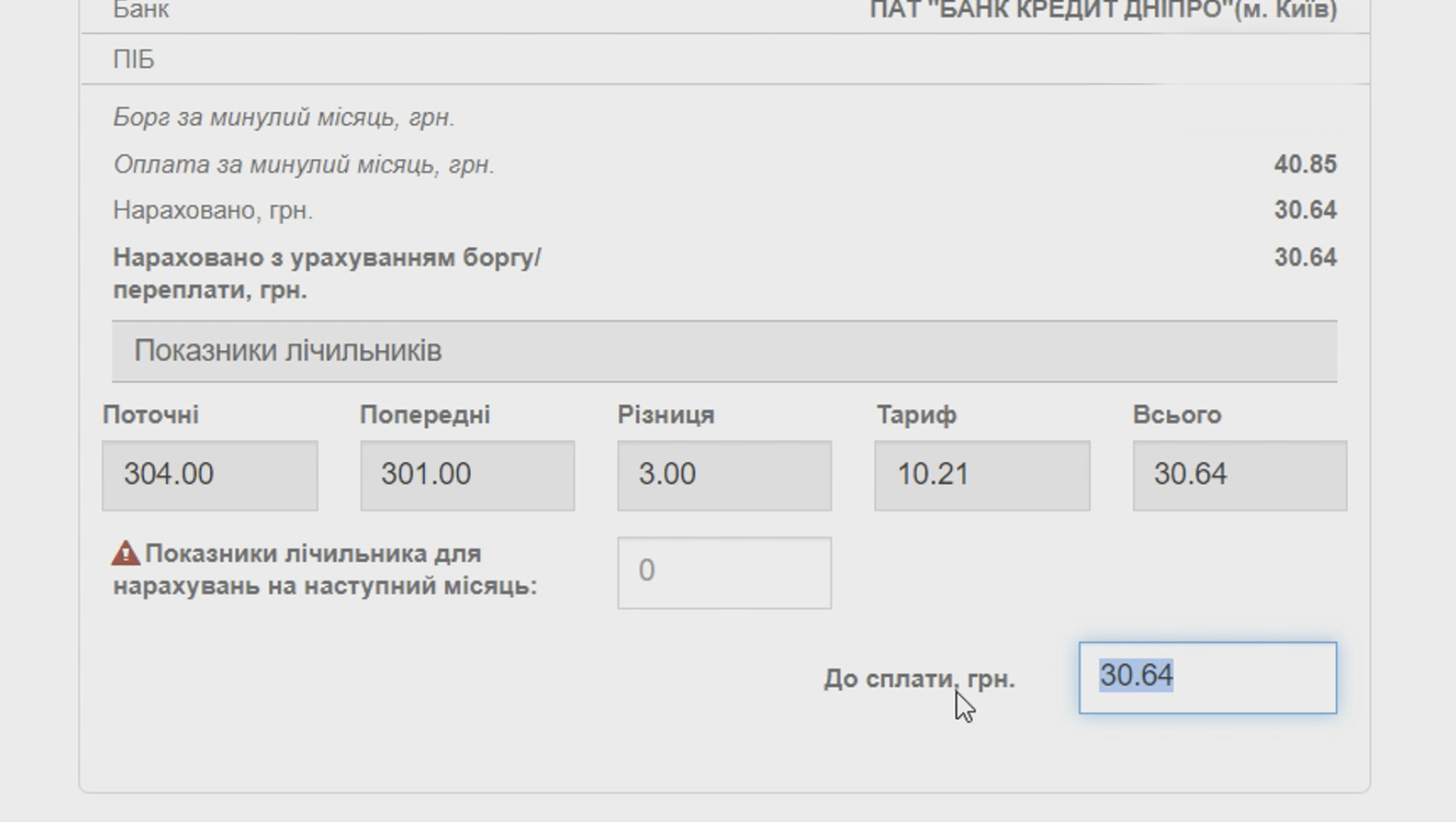
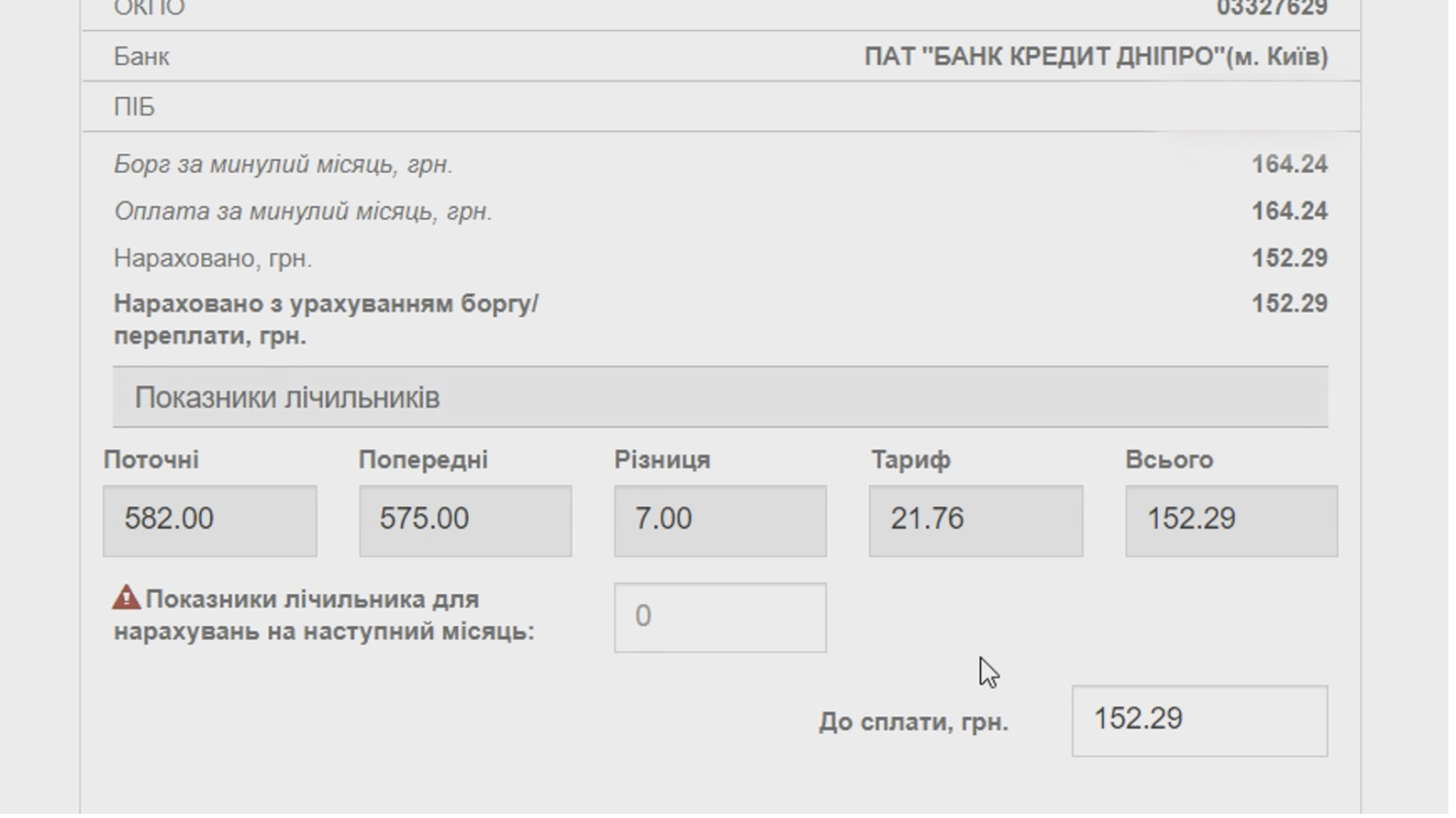
3. Enter your personal account number. Make sure to check the payment details and correct them if necessary.
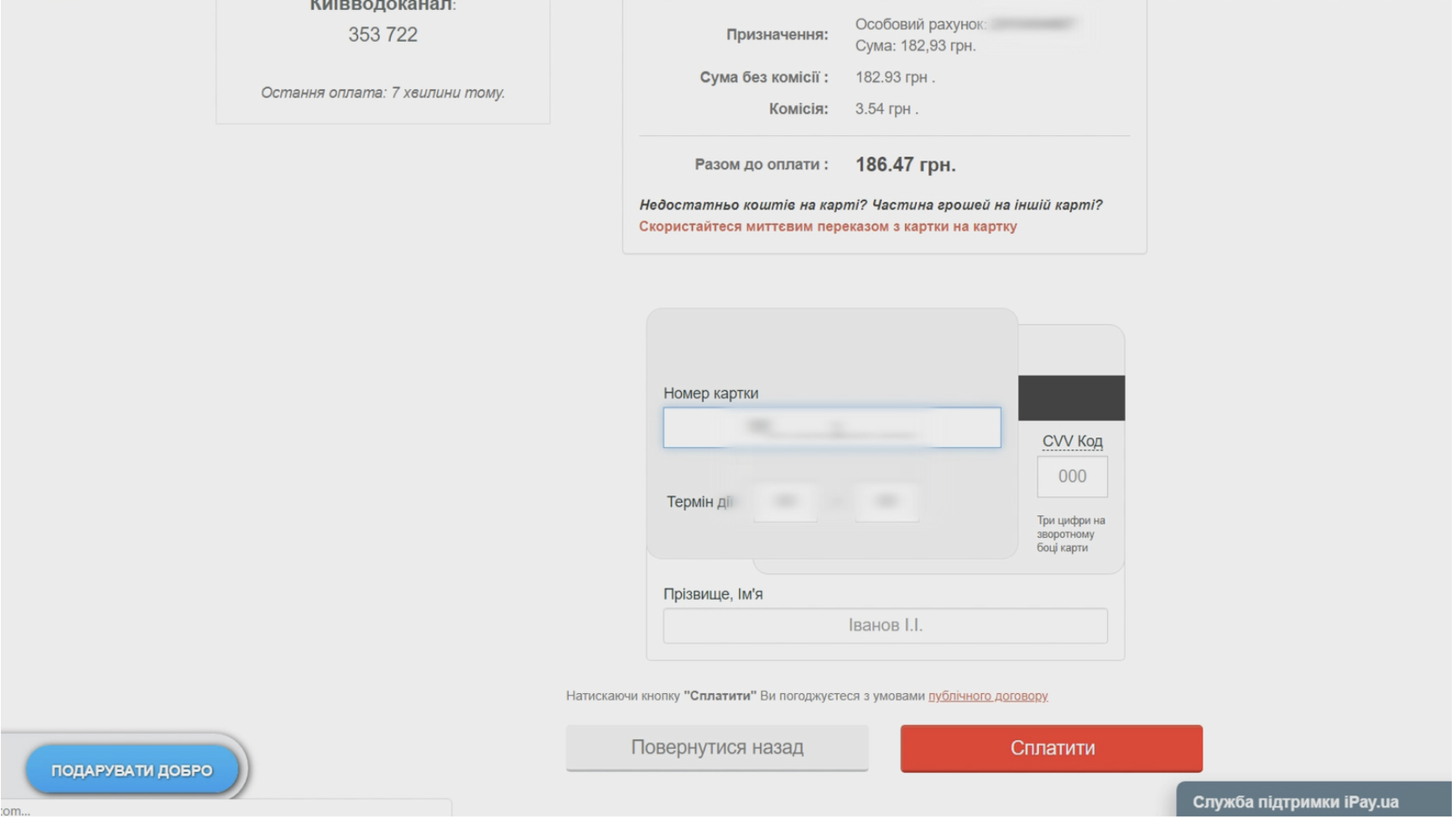
4. Make a payment using your bank card. To do this, enter the card number, expiration date, CVV code, cardholder's first and last name, and click the "Pay" button.
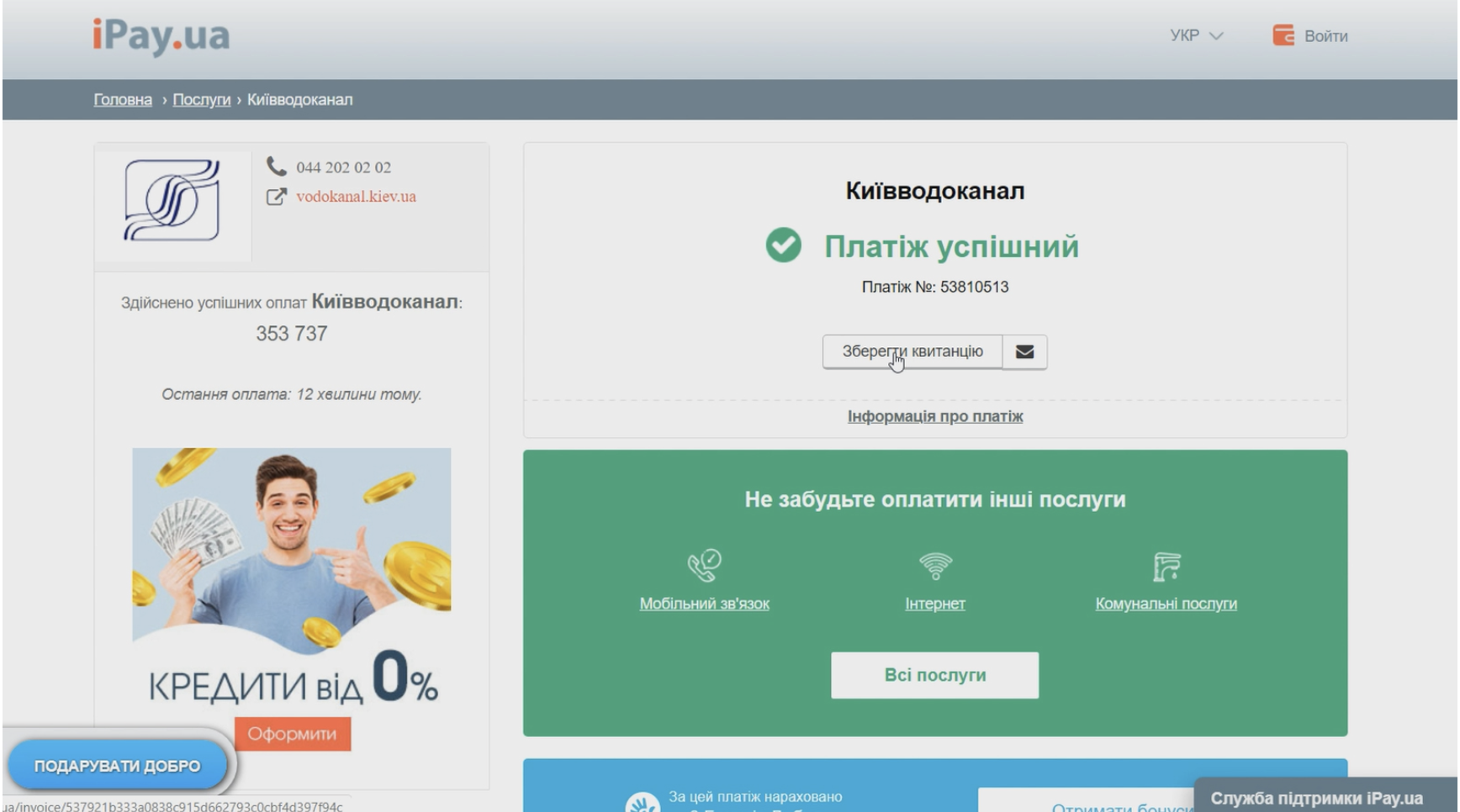
5. After making the payment, save the payment receipt and print it if necessary.
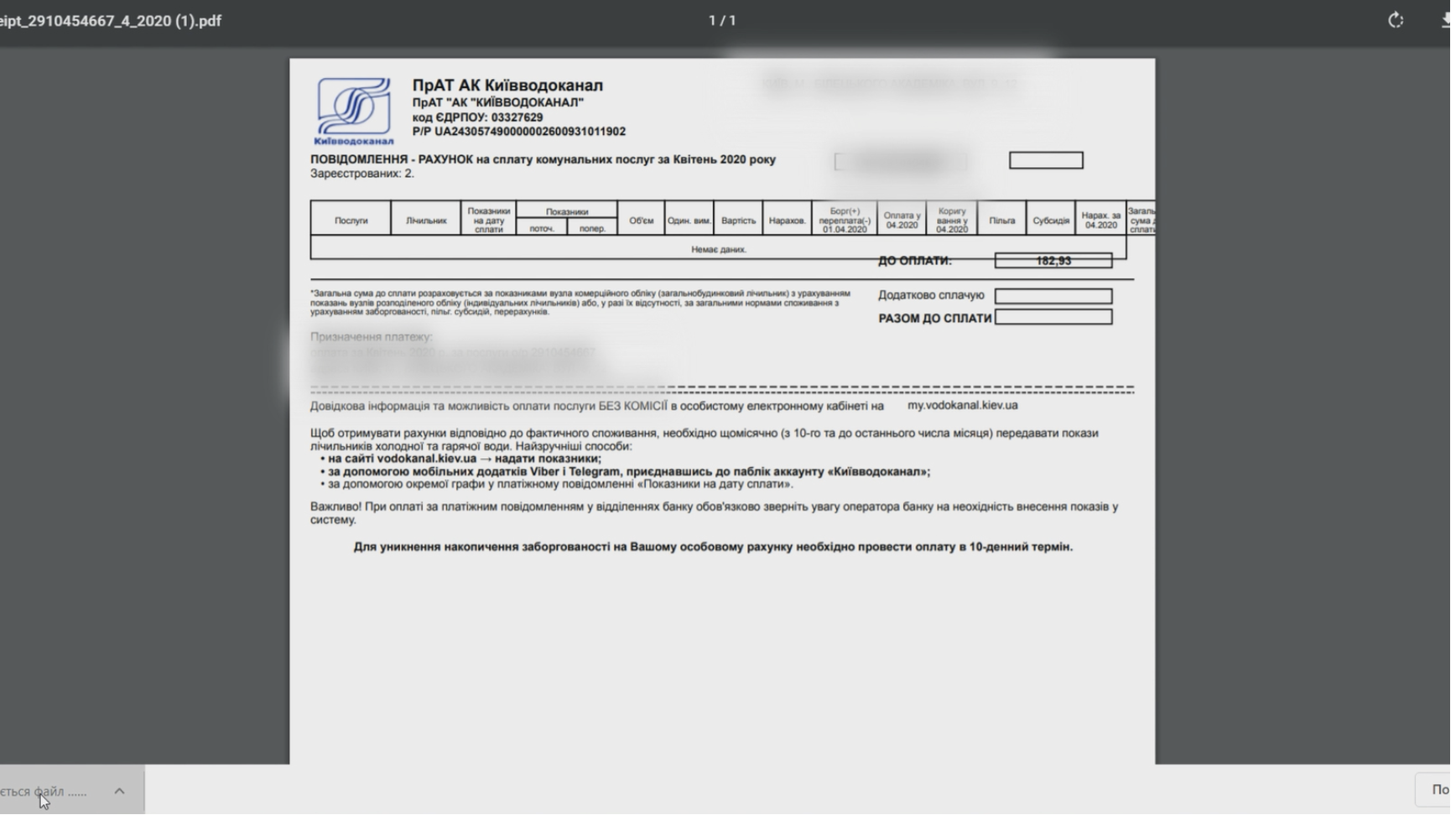
Currently, it is also possible to generate receipts from your personal cabinet on the website:
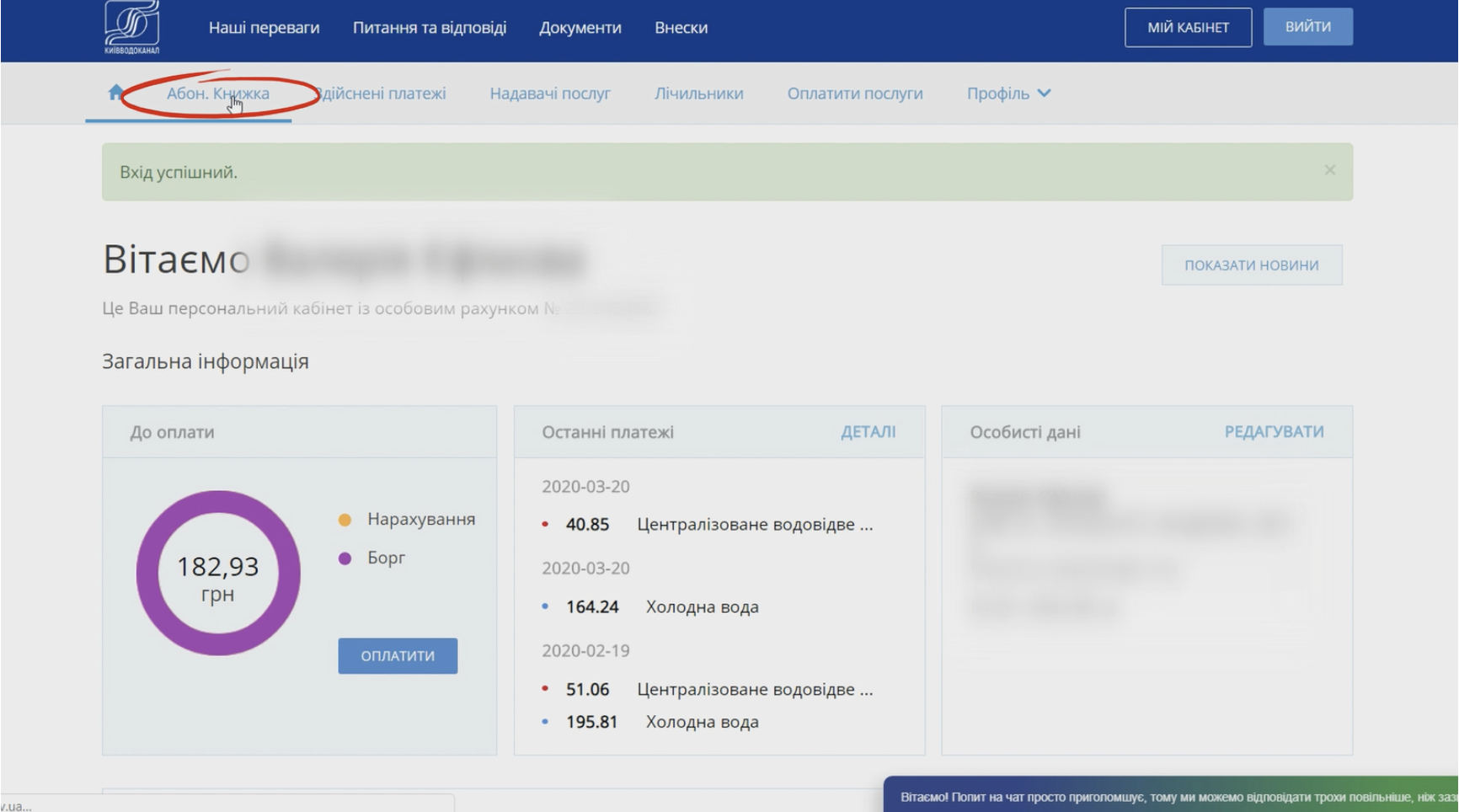
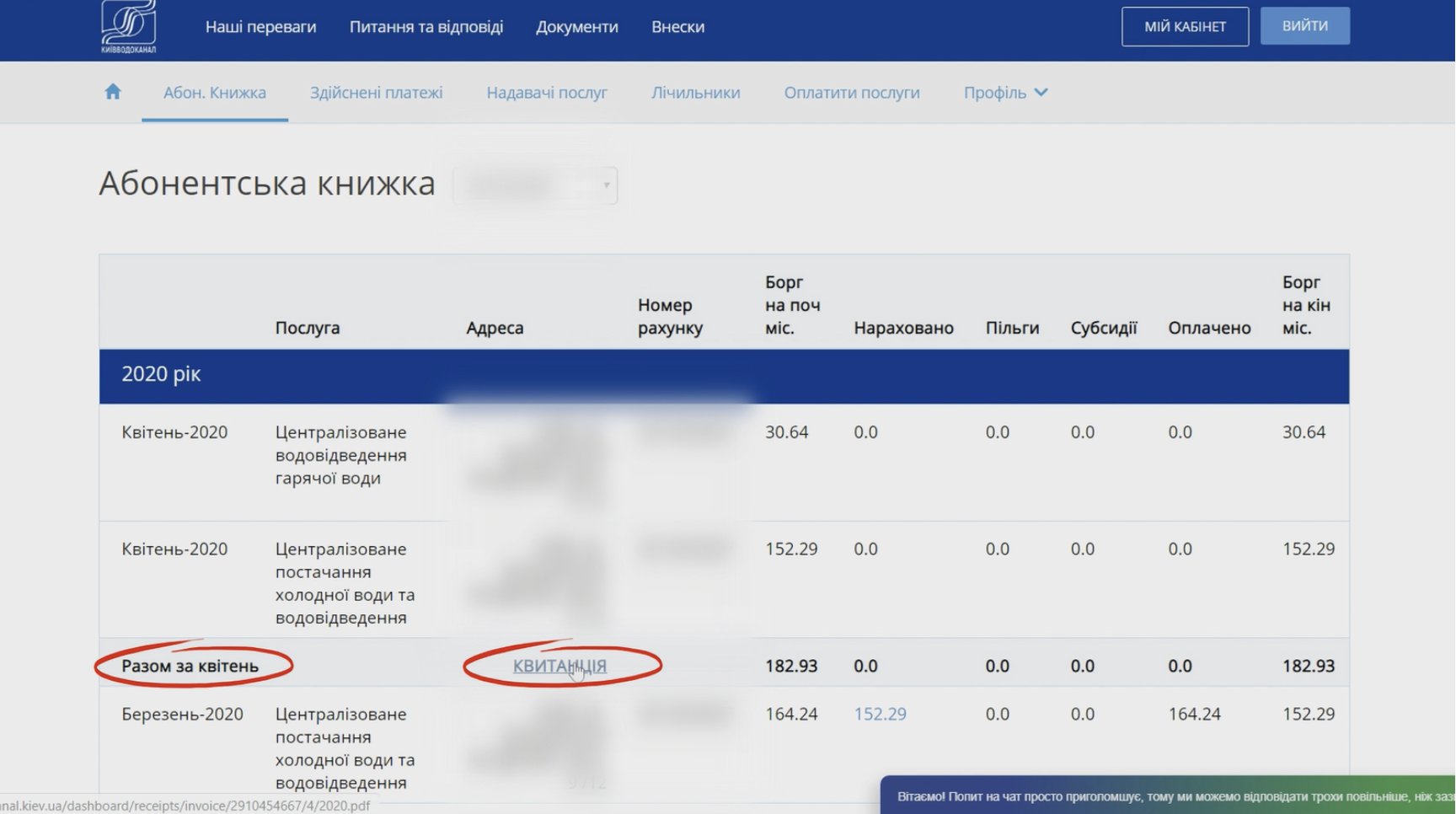
- to do this, log in and select the "Subscriber's notebook" option.
- click on the "Receipt" button opposite the name of the required accounting period.
- click the "Receipt" button next to the name of the desired billing period.
Thank you for paying online!
Leave your message in the Inquiries section of the Viber or Telegram chat-bot. Online chat is available during working hours: Mon-Thu 8:00-17:00, Fri 8:00-16:00.